Client Portal Builder for monday.com let your clients securily access services and information tailored to their specific needs managed on monday.com



How to set up board sections
in the Client Portal Builder
Show each client their subitems from the Clients Board
Use this when each client item on the Clients Board contains subitems. Clients see only their own subitems in the client portal. Each client will see the subitems under their own client item on the Clients Board.
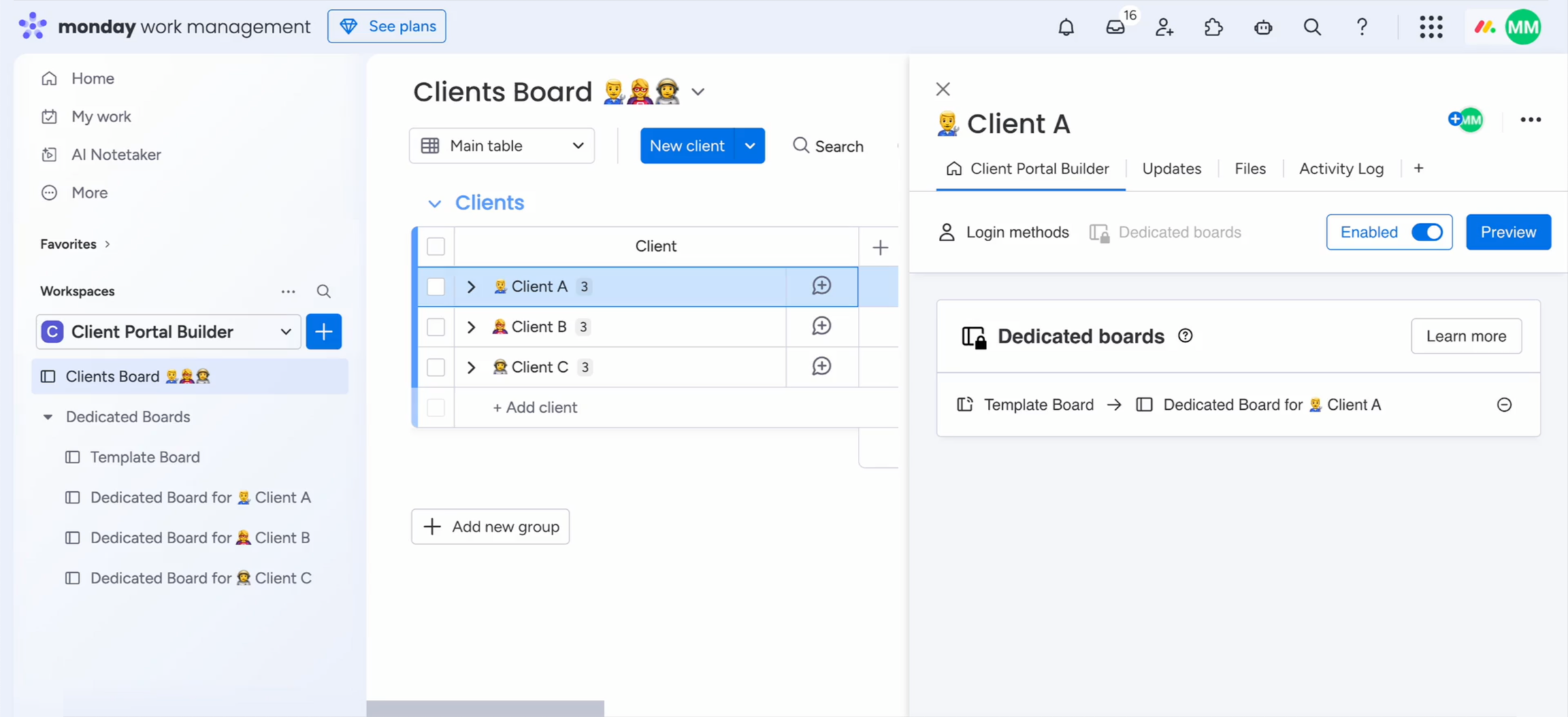
Show each client their own dedicated and assigned board
Use this when each client has their own board created from a single template board. Clients see their own board in the client portal. Each client will see their own dedicated board, created from a single template.
Identifier
This ID is relevant when referencing the setup in specific automations within the monday.com workflow builder. Learn more here.
Template board
The template board is the origin for all current and future dedicated client boards. It defines the column structure used by every dedicated client board. When you want to create a new dedicated board for a client, you duplicate this template board. Important: After this setup is completed, new columns can’t be added to the template board or to any associated dedicated client boards.
Name
The unique board setup name will help you identify it when assigning each dedicated client board. Choose a custom name that best describes your intended purpose, so you easily recognize it across the app at any given time you manage your content.
Assigning dedicated boards
After completing the board setup and defining which columns to show to clients, you need to open each client item page on your Clients Board to map each dedicated board to each client in their related item view. This step connects the board section to each client and ensures to show their own board in the client portal.
Show selected items to specific clients from one board
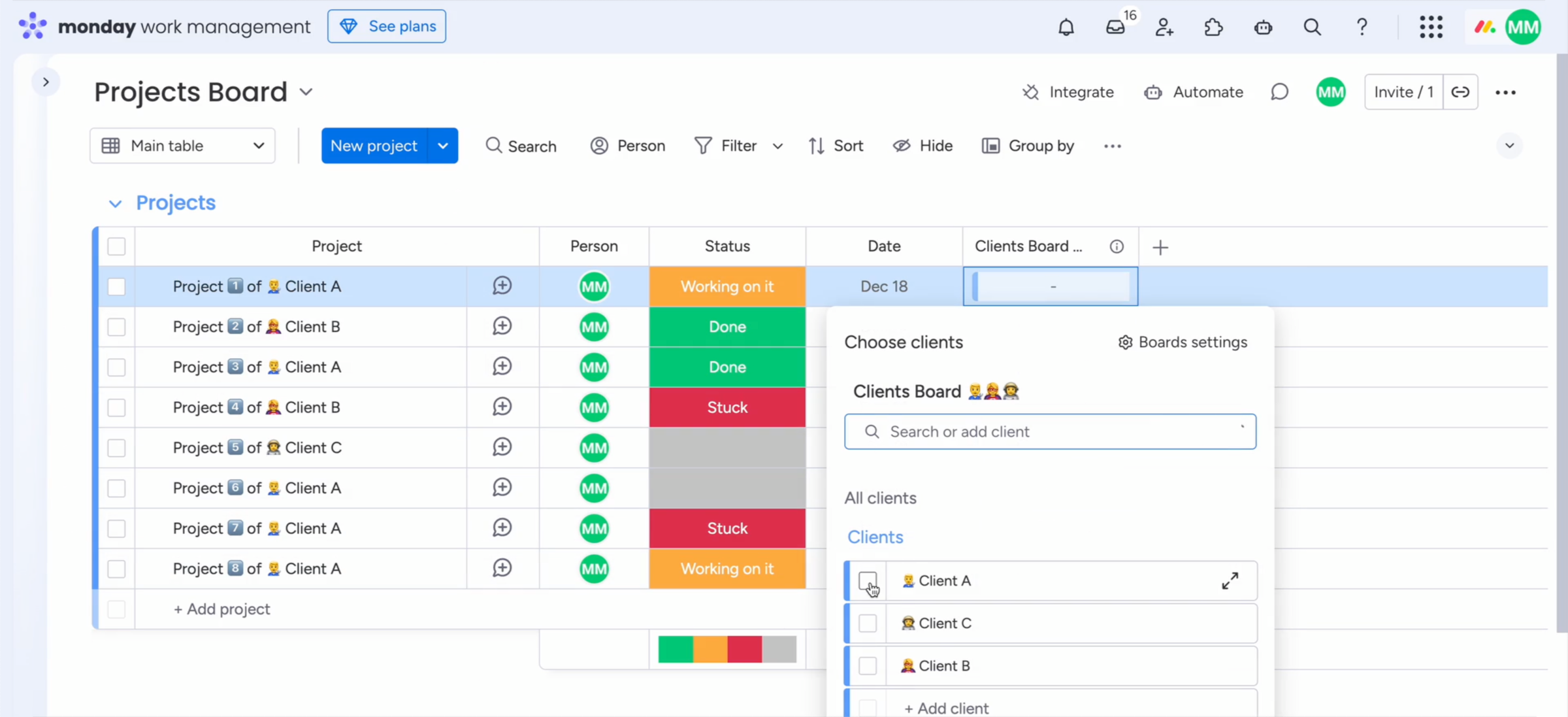
Use this when one board contains items for multiple different clients. Clients see only their own items in the client portal. Each client will see only the items from this board that belong to them.
Board
This is the board where each item belongs to a specific client. Selected board items can also be connected to multiple clients.
Connect boards column
This column is a connect boards column linked to your Clients Board. Choose an existing one or automatically create and select a new column by clicking the related button.
Name
Choose a unique name that best describes your intended purpose, so you easily recognize it at any given time you manage your content.
Linking clients to items
After completing the board setup and defining which columns to show to clients, you need to open the chosen board and link each item to a specific client.
Show all items from one board to all clients
Use this when the board contains items meant for every client. Clients see the same items in the client portal. Each client will see all items from this board.
Board
This is the board where all clients will see the same items and content. Choose a board to share general information with your clients.
Name
Choose a unique name that best describes your intended purpose, so you easily recognize it at any given time you manage your content.
Interested in a product demo?
Let's learn about your requirements, answer questions, and
review ways how we can help you and your organization with
our monday.com apps and solutions.