
Build custom, structured Excel reports from monday.com board data and send them automatically to the right people on schedule.


How to automate client portal workflows in monday.com
Connect client portal access to your monday.com workflow so client accounts, invitations and next steps can happen automatically as clients move through your process.

Table of contents
Use the navigation below to quickly jump to your desired section and learn more about each topic.
A client portal often follows the same lifecycle your team already manages in monday.com. A prospect becomes a client, the client needs portal access and then an onboarding process starts. Projects, documents or other information become available, the client signs in and begins interacting with your team. Eventually, the relationship may end and access needs to be removed.
Without automation, every one of these stages can create another manual task. Someone needs to create the portal login, enable access, send the invitation, assign the right board or remember to disable the client later. With Client Portal Builder for monday.com, many of these portal actions can become part of the monday.com workflow itself.
Client Portal Builder provides dedicated triggers and actions for monday.com's Workflow Builder automations and board automations. You can combine them with native monday.com triggers and actions, conditions and status changes to automate what happens in the portal as a client moves through your process. Instead of managing the client lifecycle once in monday.com and then repeating it manually in the portal, both can become part of the same workflow
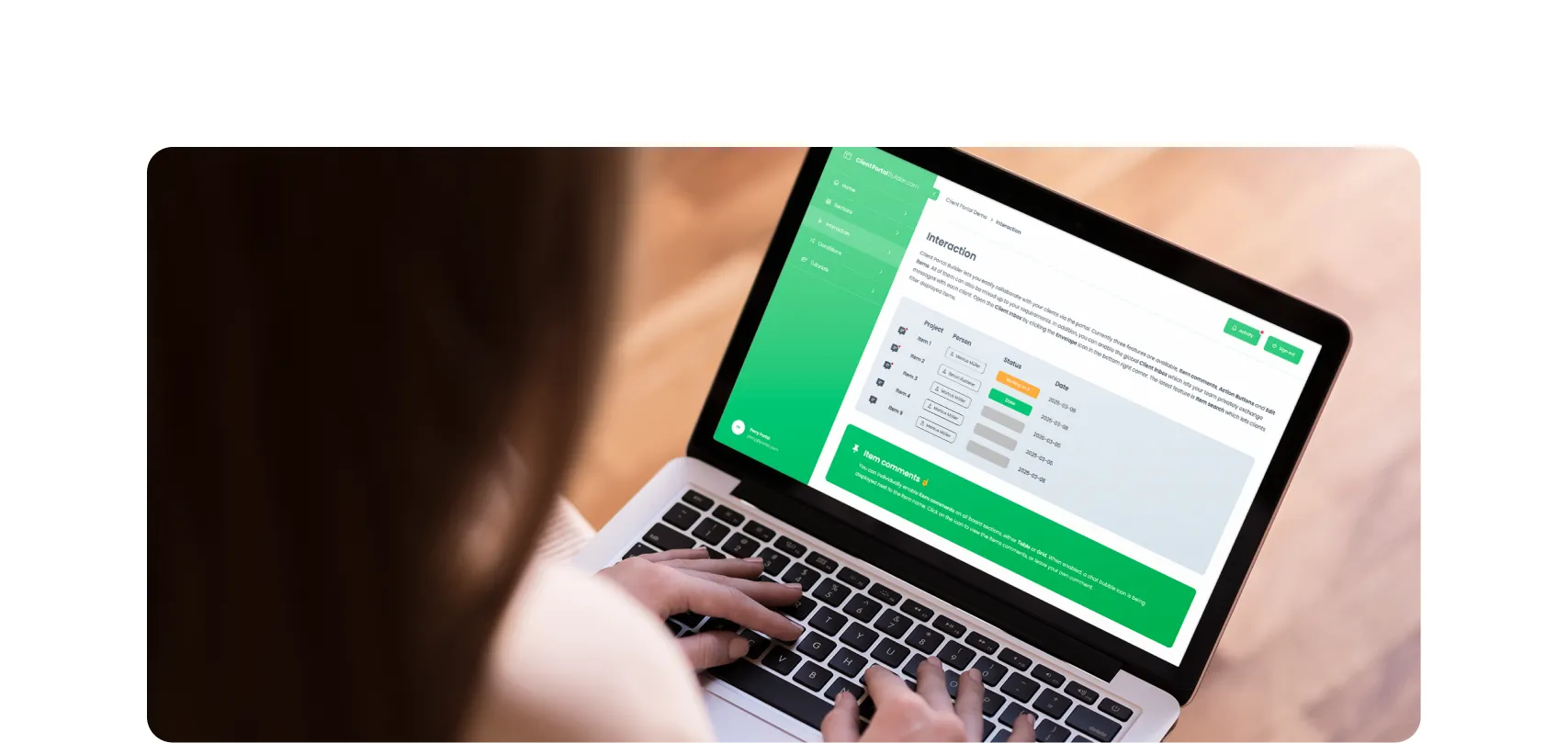
Client Portal Builder adds a dedicated client facing layer to the boards and workflows you already manage in monday.com. Use monday.com automations and workflows to connect client access, communication and portal activity with your internal processes.
Client lifecycle
Start with the client lifecycle in monday.com
Before automating the portal, it helps to think about the stages a client already moves through internally. For example, your Clients Board might include a Status column such as: New client → Preparing access → Onboarding → Active → Inactive
These stages already describe what your team needs to do. They can also determine what should happen in the client portal, for example:
New client→ No portal access yet.Preparing access→ Create the login method and prepare the client's portal environment.Onboarding→ Enable access and send the client their invitation.Active→ Show the normal projects, resources and communication.Inactive→ Disable access.
The exact stages will differ between companies. The important idea is that the portal does not need a completely separate lifecycle. The same client item your team manages in monday.com can become the starting point for the portal workflow.
Access
Create portal access when a client is ready
Creating access manually can work when you only onboard a client occasionally. As the number of clients grows, it becomes another repetitive step that can be forgotten or performed inconsistently. Client Portal Builder provides workflow builder and automation actions for creating both credentials based and Google login methods. That means a monday.com event can determine when portal access should be prepared, for example:
Client Status changes to Preparing access → Create credentials login method → Enable client → Update the client Status
The exact trigger does not have to come from Client Portal Builder. It can originate from the monday.com workflow you already use. A sales or onboarding process might therefore move naturally from an internal milestone into portal access, for example:
Contract signed → Client becomes Onboarding → Portal access is created → Client receives the next onboarding step
The client record in monday.com remains the source for both your internal process and the external portal relationship.
Client Portal Builder also supports Google login methods when your portal uses Google authentication. For the available access options and technical setup, see our documentation on client login methods.
Invitations
Send onboarding messages as part of the same workflow
Creating portal access is only useful if the client knows that it is available. Because Client Portal Builder workflow and automation actions can be combined with native monday.com workflow blocks and automations, account creation can sit inside a larger process that also sends emails or updates board values. Conceptually this can look like:
Client becomes ready for onboarding → Create portal login → Enable portal access → Send onboarding email → Set Status to Invitation sent
This removes the need for someone to create the account first and then remember to send a separate message afterward. The email itself can point the client to the portal and explain what they should do next. The client facing communication becomes another step in the monday.com process rather than a task managed separately from it. This can be useful for more than initial onboarding. The same approach can notify clients when:
- portal access becomes available
- new work has been assigned to them
- a message or comment requires attention
- a new stage of the client relationship begins
For communication that happens after onboarding, see our guide to managing client communication in a monday.com client portal.
Portal activity
React when a client signs in
Automation does not have to stop once access has been created. Client Portal Builder can also trigger a monday.com workflow when a client logs into the monday.com client portal. That creates opportunities to connect actual portal activity back to the internal client process, for example:
Portal access created → client receives invitation → client signs in for the first time → monday.com automation runs → client Status changes from Invitation sent to Portal active
Your team can now see from the Clients Board that the client has actually reached the portal rather than simply receiving an invitation. The login event could also become part of a larger onboarding sequence, for example:
Client logs in → check current client Status → if Status is Onboarding → send the next onboarding message → update the client Status
Client Portal Builder's Workflow Builder blocks can be combined with IF and ELSE logic, so the same portal event can lead to different outcomes depending on the client's current monday.com data.
This is a useful pattern because the automation can react to what the client actually does rather than only to what your team expects them to do.
Personalized experience
Change the portal as the client lifecycle changes
Automations can also affect what clients see. Client Portal Builder can show or hide portal pages and sections based on Status values from the client's item on the Clients Board. That means a monday.com workflow or automation can change a Status, and the portal experience can change as a result. Imagine the Clients Board contains a column called Portal stage.
During Onboarding the client sees:
- Getting Started
- Required Documents
- Onboarding Tasks
Once onboarding is complete, monday.com changes the value to Active and the portal can then show:
- Dashboard
- Projects
- Resources
- Account
The portal structure does not need to be rebuilt at this point. The monday.com value changed, and the relevant portal content changes with it. Combined with automations, this creates a useful relationship:
monday.com automation changes client stage → client data is updated → portal automatically presents the appropriate experience
We cover this architecture in more detail in our guide to creating personalized views in a monday.com client portal.
Dedicated boards
Assign client specific boards automatically
Some monday.com setups use a dedicated board for every client. Client Portal Builder supports this through a template board model. One template defines the structure used by the dedicated client boards, and each client can then be assigned their own board. This process can also become part of an automated client setup, for example:
New client reaches onboarding → create their dedicated board from the template → assign that board to the client → continue the onboarding workflow
Client Portal Builder provides an action for assigning the relevant dedicated board to the client. This can be combined with the surrounding monday.com workflow used to create or prepare that board. The client can then open the same portal page as every other customer, while the board shown on that page resolves to the one assigned to them. This is particularly useful for companies that intentionally maintain one standardized monday.com board per client.
It avoids a setup where the board exists in monday.com but someone still needs to manually connect it to the client's portal afterward. For the underlying template and board source model, see our board setup documentation.
Client interaction
Let client actions continue internal workflows
Portal automation is not limited to account management. Actions clients take inside the portal can also become part of monday.com workflows. For example, a client might:
- comment on an item
- approve a deliverable
- request changes
- update an existing item
- submit a new request
Each of these interactions can affect what your team needs to do next, consider a client approval:
Deliverable becomes ready for client review → client sees it in the portal → client selects Approve → monday.com automation runs → Status changes to Approved → internal workflow continues
Or client communication:
Client comments on an item → Client Portal Builder trigger runs → team member receives a notification → project workflow continues in monday.com
This is where portal automation becomes broader than onboarding.
The portal is not simply publishing information from monday.com. Client interactions can also feed back into the workflow and trigger the next internal step. For a complete example, see how to manage client approvals in a monday.com client portal.
Access management
Disable portal access when the relationship ends
Client access also needs an end point. A client might finish a project, cancel a service or become inactive for another reason. If this stage is already represented in monday.com, removing portal access can become part of the same process, for example:
Client Status changes to Inactive → Disable client → update internal account state
This reduces the chance that old portal access remains active simply because someone forgot a separate administrative task. The client item can stay in monday.com for your internal records while access to the published portal is disabled. If the relationship restarts later, access can be managed again from the same client record. The result is a clearer lifecycle:
Create access when needed → manage active client relationship → disable access when it ends rather than maintaining portal access separately from the customer state your team already tracks.
Example
Automate a new client from signed contract to active portal
Imagine a consulting company manages prospects and clients in monday.com. When a deal is completed, a new client item Client A exists on the Clients Board and the item contains columns such as:
- Client Status:
New client - Portal stage:
Not started - Client type:
Consulting - Account manager: Sarah
The company's onboarding workflow could then look like this.
Step 1: Start onboarding
The client Status changes to Preparing access and this starts the client portal workflow.
Step 2: Prepare portal access
Client Portal Builder creates the appropriate login method and enables the client. The portal already uses the Clients Board to identify Client A and personalize the experience.
Step 3: Send the invitation
The monday.com workflow sends Client A its onboarding email with the portal link and the Portal stage changes to: Invitation sent
Step 4: Client signs in
Client A opens the portal for the first time. Client Portal Builder triggers another workflow. The Portal stage changes to Onboarding and the team can now see that the client has successfully accessed the portal.
Step 5: Show onboarding content
Because Client A is currently in the Onboarding stage, the portal displays the relevant onboarding pages and sections. Client A can provide information, upload documents or complete other onboarding steps while the team tracks the underlying process in monday.com.
Step 6: Activate the client
Once onboarding is complete, the client Status changes to Active. The portal now shows Client A's normal project and account content instead of the onboarding experience. No one needs to redesign or manually switch the portal. The change follows the monday.com Status.
Step 7: End access when required
If the client relationship later ends, the Status changes to Inactive and the workflow disables portal access. The client record remains in monday.com, but the portal can no longer be accessed by that client.
Throughout the lifecycle, monday.com remains the place where the internal team manages the relationship. The portal follows that workflow rather than creating another lifecycle beside it.
Workflow Builder
Combine monday.com and Client Portal Builder actions
The most useful portal automations usually combine several kinds of building blocks. Client Portal Builder currently provides workflow triggers for events such as:
- creation of credentials or Google login methods
- client portal logins
- client comments
- portal owner comments
It also provides actions for tasks such as:
- creating credentials login methods
- creating Google login methods
- updating credentials passwords
- enabling clients
- disabling clients
- assigning dedicated boards
- retrieving client data
These blocks can be combined with monday.com's own Workflow Builder and automation capabilities, including board updates, emails, conditions and other native actions. That means you do not need to create a completely separate automation system for the portal.
You can add portal related actions to the workflows your monday.com process already depends on. For the current list of supported triggers and actions and the technical configuration, see our Client Portal Builder workflow automation documentation.
Summary
Keep the entire client lifecycle in monday.com
Client portal administration becomes repetitive when it is treated as a separate process.
- Your team updates the client in monday.com.
- Then someone creates the portal account.
- Someone sends an invitation.
- Someone changes the visible portal content.
- Someone assigns the board.
- Someone later remembers to remove access.
Automation connects those steps. The monday.com client lifecycle can become the foundation for the portal lifecycle: Client reaches the right stage → create and enable portal access → send the invitation → react when the client signs in → show the appropriate portal experience → continue the workflow as the client interacts → disable access when the relationship ends
Your team continues managing the client in monday.com while the portal responds to the same workflow.
Automate your client portal
For the technical setup and current Client Portal Builder triggers and actions, see our documentation on automating client portal workflows with monday.com.
Interested in a product demo?
Let's learn about your requirements, answer questions, and
review ways how we can help you and your organization with
our monday.com apps and solutions.
