



Build custom, structured Excel reports from monday.com board data and send them automatically to the right people on schedule.





Connecting boards
Connect monday.com boards to your client portal
Choose how Board Table and Board Grid sections connect board data to your monday.com client portal based on the way your workspace is structured. Not sure which board structure fits a personalized portal? See how different board sources can be combined to create personalized views for each client.
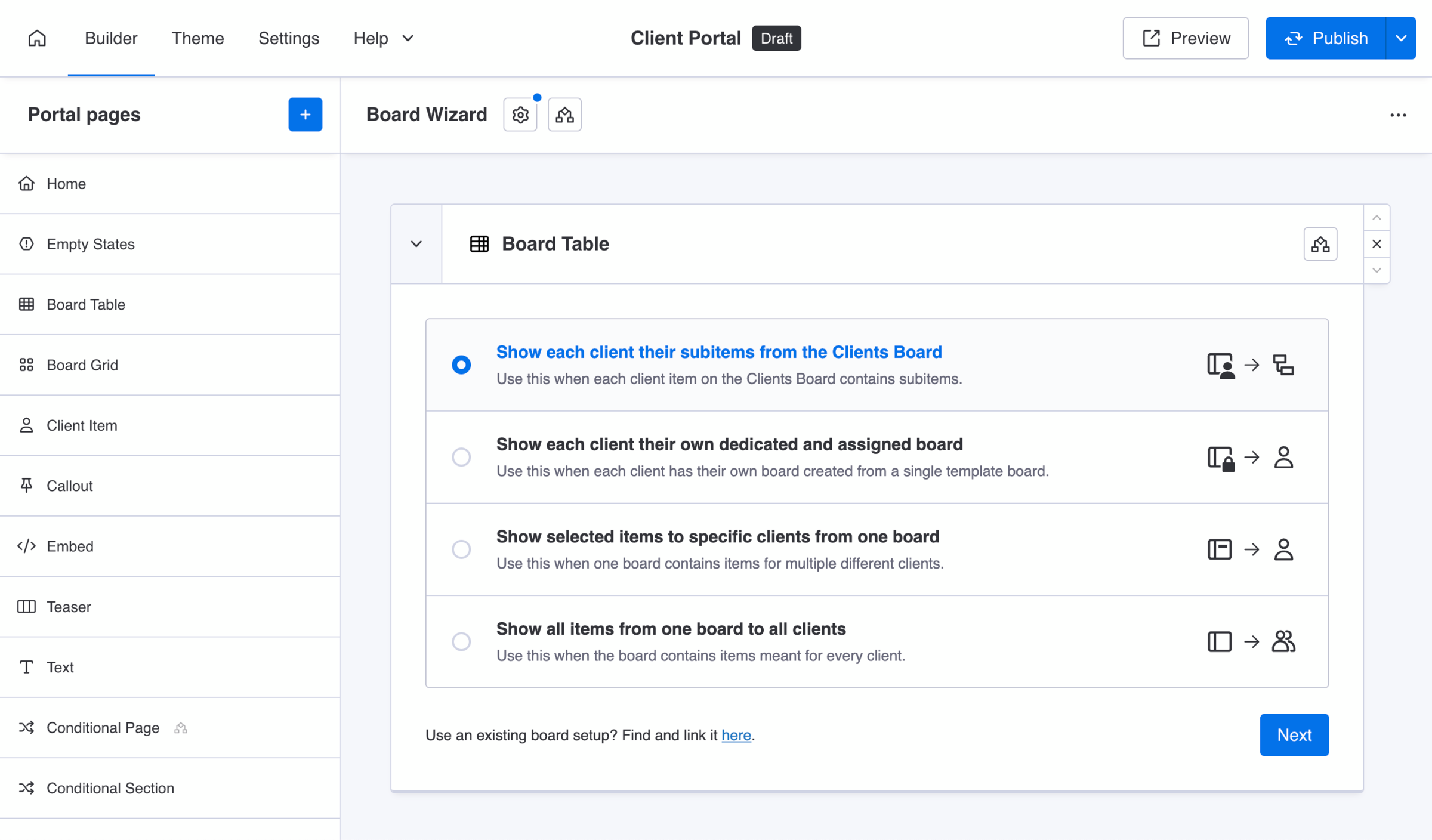
Client subitems
Show each client their subitems from the Clients Board
Use this when each client item on the Clients Board contains subitems. Clients see only their own subitems in the client portal. Each client will see the subitems under their own client item on the Clients Board.
Important
This board source type supports a maximum of 100 subitems that can be displayed in the portal.
Dedicated boards
Show each client their own dedicated and assigned board
Use this when each client has their own board created from a single template board. Clients see their own board in the client portal. Each client will see their own dedicated board, created from a single template. Dedicated board assignment can also become part of an automated onboarding workflow. See how to automate client portal workflows in monday.com.
Identifier
This ID is relevant when referencing the setup in specific automations within the monday.com workflow builder. Learn more here.
Template board
The template board is the origin for all current and future dedicated client boards. It defines the column structure used by every dedicated client board. When you want to create a new dedicated board for a client, you duplicate this template board.
Name
The unique board setup name will help you identify it when assigning each dedicated client board. Choose a custom name that best describes your intended purpose, so you easily recognize it across the app at any given time you manage your content.
Assigning dedicated boards
After completing the board setup and defining which columns to show to clients, you need to open each client item page on your Clients Board to assign each dedicated board to each client in their related Client Settings item view. This step connects the board section to each client and ensures to show their own board in the client portal.
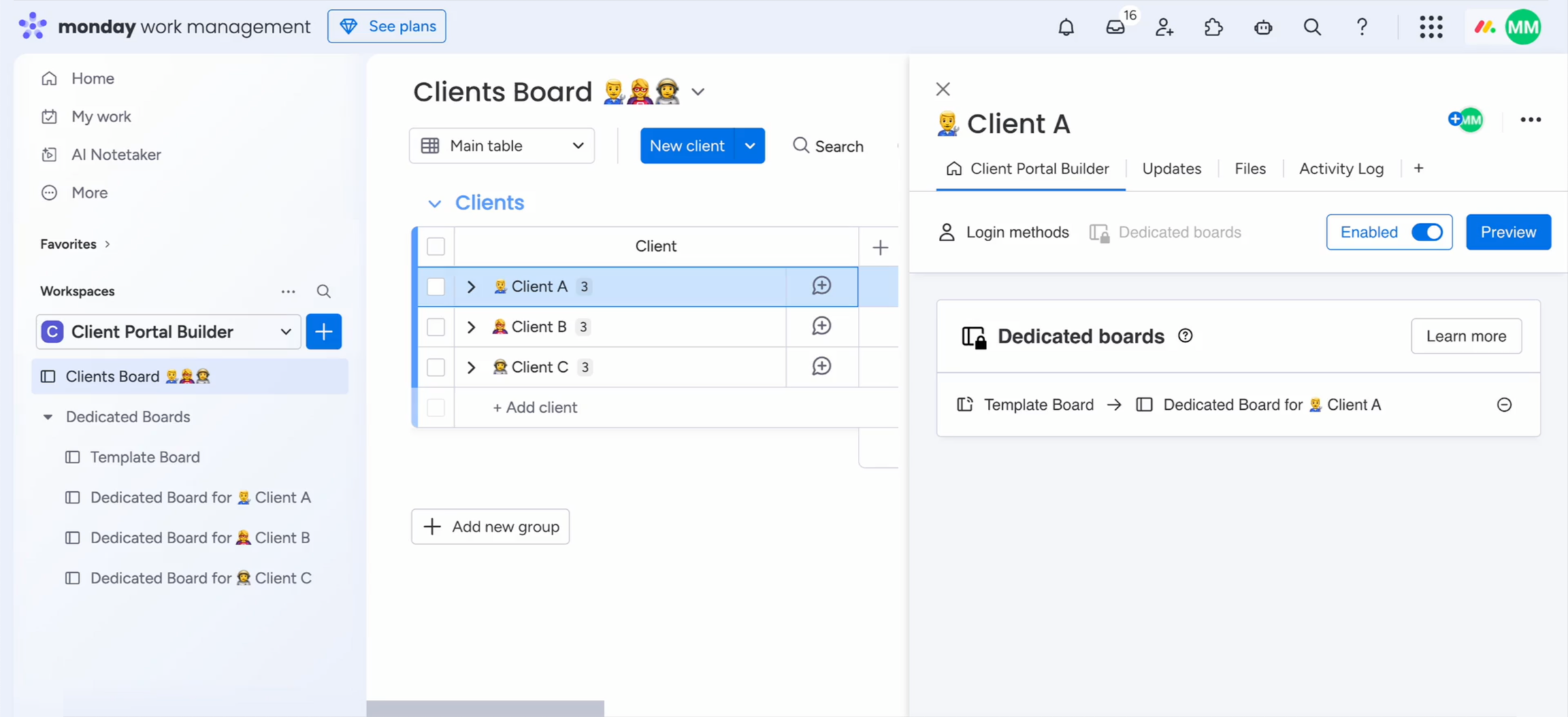
Important
Anything that’s being changed individually on any of the involved boards after the initial setup, might lead to mismatch warnings and potential problems. For example, this includes adding new columns or even changing status column labels, either on the template board or any dedicated client board. Therefore, you must ensure your template board along with each dedicated client board column structure and configuration can stay "as is", before running the board setup. If you have to change the board structure after setup, first ensure you apply changes equally to all associated boards and then enable the Automatic Mismatch Handling feature in the portal settings.
Selected items
Show selected items to specific clients from one board
Use this when one board contains items for multiple different clients. Clients see only their own items in the client portal. Each client will see only the items from this board that belong to them.
Board
This is the board where each item belongs to a specific client. Selected board items can also be connected to multiple clients.
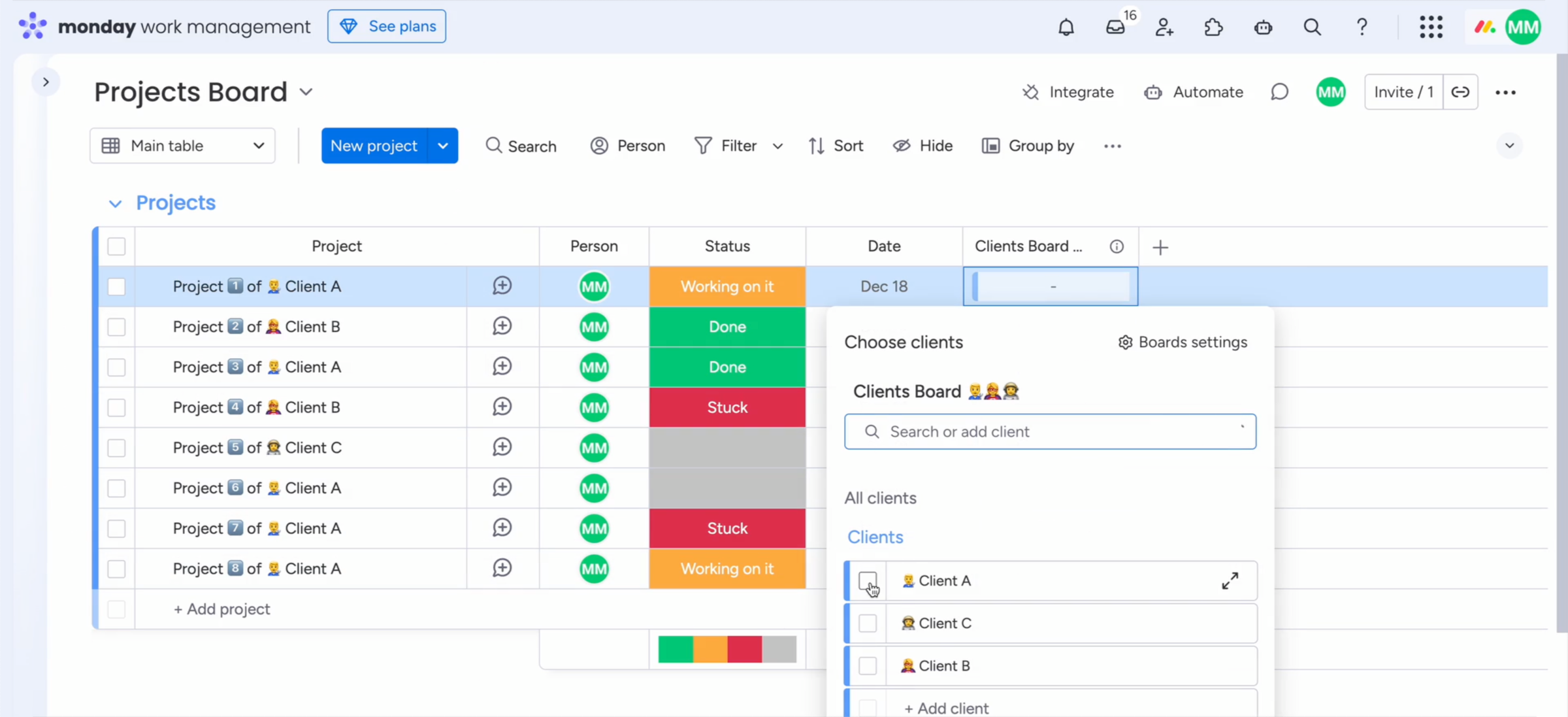
Connect boards column
This column is a connect boards column linked to your Clients Board. Choose an existing one or automatically create and select a new column by clicking the related button.
Name
Choose a unique name that best describes your intended purpose, so you easily recognize it at any given time you manage your content.
Linking clients to items
After completing the board setup and defining which columns to show to clients, you need to open the chosen board and link each item to a specific client from the Clients Board.
Shared boards
Show all items from one board to all clients
Use this when the board contains items meant for every client. Clients see the same items in the client portal. Each client will see all items from this board.
Board
This is the board where all clients will see the same items and content. Choose a board to share general information with your clients.
Name
Choose a unique name that best describes your intended purpose, so you easily recognize it at any given time you manage your content.
Connecting boards
Connecting boards across workspaces and monday.com products
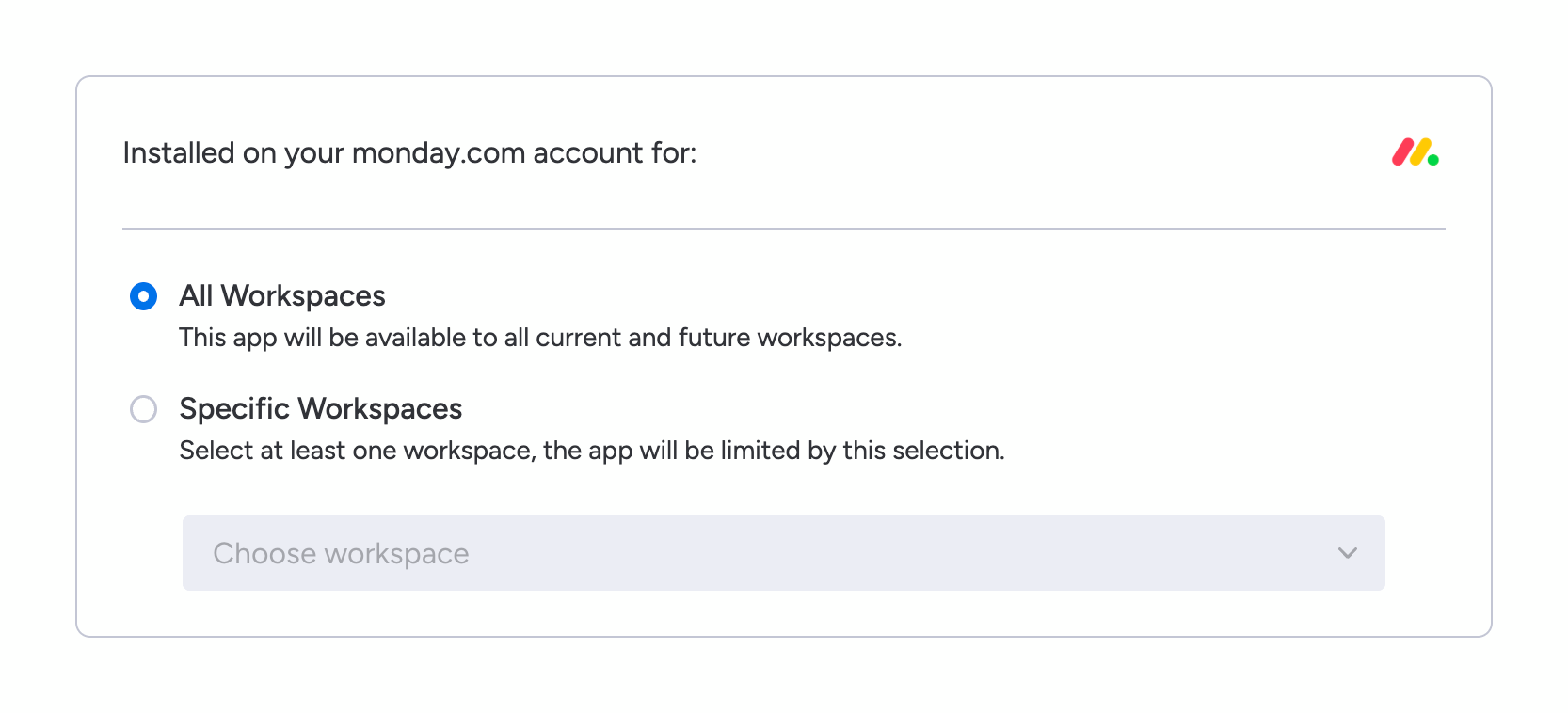
By default, you can search for and access all boards from within the app, where workspace permissions were granted initially. You can connect boards from such monday.com account workspaces, and from across different monday.com products, such as CRM and Work Management for example.
How to grant additional permissions:
- Click your profile having monday.com open
- Open the Administration panel and click Apps
- Find the Client Portal Builder and click
... - Open Permissions and choose additional
Workspaces - Save and return to the Client Portal Builder
Did you know?
With Client Portal Builder you can access boards and display items from across different monday.com products, including monday Work Management, monday Service, monday CRM, and monday Dev. This can be helpful, when you are moving items from one product to another with automations for example.