
Build custom, structured Excel reports from monday.com board data and send them automatically to the right people on schedule.


How to use monday.com boards in a client portal
Turn existing monday.com boards into client friendly portal pages and sections while keeping projects, requests, documents and other workflows organized for your internal team.

Table of contents
Use the navigation below to quickly jump to your desired section and learn more about each topic.
If your team already manages client work in monday.com, much of the information needed for a client portal probably exists there already. Projects may live on a Projects Board. Requests may have their own workflow. Documents may be tracked somewhere else. And client information may live on a central Clients Board.
The goal of a client portal does not have to be bringing all of that information onto one new board. Instead, the portal can create a client facing layer around the monday.com structure your team already uses. With Client Portal Builder for monday.com, existing boards can provide the projects, requests, documents, account information and other data shown throughout the portal. Your internal workflows can remain organized in the way that works for your team, while the portal reorganizes the relevant parts into an experience that makes sense to the client.
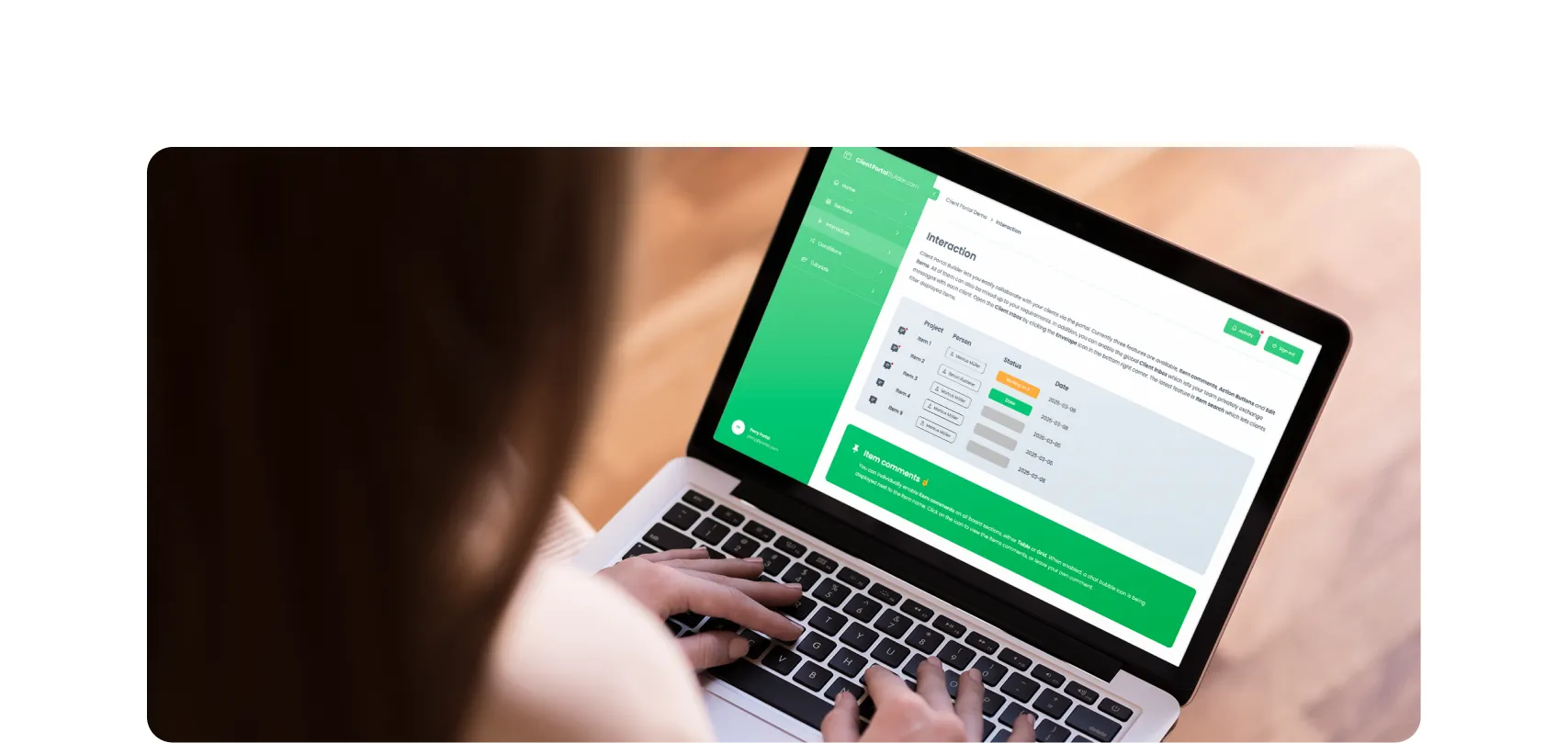
Client Portal Builder turns the work you already manage across monday.com boards into a dedicated client facing experience. Connect existing boards, control what each client sees and organize the relevant information across portal pages and sections.
Client experience
A client portal should not simply mirror your boards
An internal monday.com board is designed around the way your team works. That does not necessarily make it the right interface for a client. Imagine an internal Projects Board with columns such as: Project, Client, Owner, Internal priority, Status, Due date, Budget and Files. Your project team may need every one of those columns. The client may only need: Project, Status, Due date and Files.
The underlying item is still the same monday.com item. The portal simply presents a smaller and more relevant part of it. The same principle applies at a larger level. Your internal team might think in terms of: Projects Board, Requests Board, Documents Board and Clients Board. The client may simply think in terms of: My projects, Requests, Documents and Account.
A useful client portal therefore does more than expose boards. It turns the existing monday.com structure into an interface designed around what the client needs to find and do.
Board sources
Decide how each board relates to the client
Before adding a board to the portal, the most important question is not how it should look, but it is: Which items from this board should this client be allowed to see? Different monday.com structures need different answers. Client Portal Builder supports several board source models so the portal can follow the structure that already exists in your workspace.
Client subitems
Sometimes client related work lives directly below the client item on a Clients Board which serves as a client directory, for example:
Client A→- Subitem 1
- Subitem 2
- Subitem 3
Client B→- Subitem 1
- Subitem 2
If those records are subitems of the client itself, the portal can show each client the subitems belonging to their own Clients Board item. This can work well for relatively simple client relationships where the work naturally belongs directly below the client record.
Selected items from a shared board
A more common structure is one operational board containing work for many clients, for example:
- Item Website redesign → Connected to
Client A - Item CRM implementation → Connected to
Client B - Item Annual report → Connected to
Client C - Item Campaign assets → Connected to
Client A
The project items can be connected back to the relevant items on the Clients Board. The portal can then show Client A only the items connected to Client A, while Client B and Client C see their own work. Your internal team continues managing one shared Projects Board.
This is particularly useful when centralizing work gives your team a better operational overview. For a deeper look at how the same portal can resolve different content for each client, see our guide to creating personalized views in a monday.com client portal.
Dedicated boards
Some companies intentionally maintain a separate board for every client, for example:
- Project Template Board →
Client AProject BoardClient BProject BoardClient CProject Board
Client Portal Builder supports this through a template board model. One template board defines the common column structure. When another client needs their own board, that template is duplicated and becomes the starting point for the new dedicated board. The corresponding board can then be assigned to that client.
- When
Client Aopens the Projects page, the section resolves to theClient AProject Board. - When
Client Bopens the same page, it resolves to theClient BProject Board.
The portal page and section are maintained once, while each client sees their own assigned board. This works best when the dedicated client boards are intentionally standardized. Because they originate from one template, their column structures need to remain aligned.
Shared boards
Not every board needs client specific filtering. Some information is meant for everybody, for example:
- resource libraries
- shared schedules
- general announcements
- help content
- common reference data
A shared board can display the same items to every client.
Subitems can also be used as their own data source
Subitems are not limited to the Client Subitems source described above. If another monday.com board uses subitems as the actual records you want clients to see, those subitems can also be selected directly as a data source. Because monday.com gives subitems their own column structure, Client Portal Builder can work with Subitems of [Board] much like a standalone board.
For example, a Projects Board might use its main items for projects and subitems for individual deliverables. The portal could show those deliverables directly without displaying the parent projects first. Subitems can also remain nested underneath their parent items in a Board Table when that hierarchy is useful to clients.
This gives you another way to follow your existing monday.com structure rather than moving subitem based workflows onto separate boards just for the portal. For the different approaches and current limitations, see our documentation on displaying monday.com subitems in the client portal.
The important point is that you do not need one universal board architecture across the whole portal. One section might use selected items from a shared operational board. Another might use a dedicated board. Another might show the same board to everyone.
The portal can follow the structure that makes sense for each workflow. For the exact configuration of each source type, see our documentation on connecting monday.com boards to the client portal.
Sections
Use one board in more than one portal section
Connecting a board to the portal does not mean it can only appear once. One monday.com board can serve several different purposes in the client experience. Imagine a Projects Board containing both active and completed work. Instead of presenting one long table, the portal could contain:
- Current projects → Show items where
Status is not Completed - Completed projects → Show items where
Status is Completed
Both sections can use the same Projects Board, filters determine which items belong in each section. The presentation can also differ:
- A visual Board Grid might work well for active projects where clients want a quick overview.
- A Board Table might make more sense for a longer project history where several fields need to be compared.
The visible columns can also differ between sections, for example:
- Current projects →
ProjectStatusNext milestoneDue date - Completed projects →
ProjectCompletion dateFinal files
The internal board does not need to be duplicated simply because the same information has more than one purpose in the portal. The portal section determines how that board data should be presented in that particular context.
Multiple boards
Bring several monday.com boards together in one portal
Many mature monday.com workflows span more than one board, a consulting company might use:
- Clients Board
Account and relationship information - Projects Board
Active client projects - Requests Board
New service and change requests - Documents Board
Requested and completed documents - Deliverables Board
Work moving through client review
Internally, keeping these workflows separate can make a lot of sense. Projects and document requests may have different owners, statuses, automations and reporting requirements. There is no reason to flatten them into one large board simply because clients need access to parts of each workflow. Instead, the portal can bring the client facing parts together, for example:
- Dashboard
Overview and important information - Projects
Relevant items from the Projects Board - Requests
Relevant items from the Requests Board - Documents
Relevant items from the Documents Board - Account
Information from the client's item on the Clients Board
The client gets one place to work with your company, your team keeps the board architecture it needs internally. This structure also works well for case and application workflows, where case status, requirements, requests and documents may live across separate monday.com boards. See how to create a client case status portal with monday.com.
That is one of the most useful distinctions between an internal workspace and a client portal: The portal can bring several workflows together without forcing your internal workflows onto one board. For a complete client-facing request workflow, see how clients can submit and track requests through a monday.com client portal.
Portal pages
Organize boards around the client, not your internal workspace
The relationship between monday.com boards and portal pages does not have to be one to one. One internal board does not automatically need one portal page. Likewise, one portal page does not need to come from one board. Imagine a portal Dashboard, which could contain:
- Current projects
Projects Board - Documents required
Documents Board - Recent deliverables
Deliverables Board - Account information
Clients Board
The client sees one coherent Dashboard. Behind it, the information comes from several different parts of monday.com. The opposite can also happen. One Projects Board might provide sections for: In progress, Awaiting client, Completed across one or several portal pages.
See how to build a client dashboard for a practical example that brings key figures, items needing attention and a personal contact together on one home page.
This gives you more freedom to design the portal around common client questions:
- What is happening right now?
- What do you need from me?
- Which files are available?
- What has been completed?
rather than asking clients to understand how your monday.com workspace is structured internally.
Presentation
Show only the columns clients actually need
Even when the right board is connected, it may still contain much more information than the client needs. Internal monday.com boards often include fields such as:
- internal owner
- priority
- profitability
- effort estimate
- internal notes
- dependencies
- automation helper columns
- internal statuses
Those fields can remain useful to your team without appearing in the portal. Board Grid and Board Table sections can control which columns are visible independently. This allows the same monday.com item to serve both audiences.
- Your team might see:
ProjectClientOwnerPriorityBudgetStatusDue dateFiles - While the client sees:
ProjectStatusDue dateFiles
You can also decide which supported columns are editable, enable file previews, expose comments or add actions depending on what the client should be able to do. For example, the client could:
- view the project status
- download or preview files
- update a requested date
- provide missing information
- leave feedback
- approve a deliverable
without receiving access to the complete internal board.
For examples of those interactions, see how to let clients update monday.com items through a client portal and how to manage client approvals in a monday.com client portal.
Client information
Not every client view needs another board
Some client information already lives on the Clients Board itself, and you might store:
- client name
- account manager
- service level
- renewal date
- onboarding stage
- contact information
You do not need to create another board just to display these values. A Client Item section can show selected information from the currently signed in client's item on the Clients Board. This is useful for an Account page or a Dashboard section where the client should see information about their own relationship. Conceptually this means: Clients Board → identify the signed in client → show selected client values while other portal sections connect to projects, requests or documents elsewhere in monday.com.
This keeps the Clients Board in its natural role as the central client directory behind the portal.
Workspaces
Client facing boards can live across your monday.com setup
Client information does not always live in one workspace. Larger monday.com accounts may organize work across different workspaces or even different monday.com products, for example:
- monday CRM → Client and account information
- monday Work Management → Projects and delivery
- monday Service → Requests or service workflows
A client does not necessarily need to know that those workflows are separated internally. Client Portal Builder can connect boards from the monday.com workspaces the app has permission to access, including boards across different monday.com products. That means the portal can provide one client facing experience even when the underlying workflows are intentionally distributed across your monday.com setup.
The same principle still applies: Keep each workflow where it makes operational sense. Bring together only the client facing information the portal needs.
Architecture
Choose board structures for your internal workflow first
There is no single board structure that every client portal should use. A common mistake would be redesigning the entire monday.com workspace purely to make the portal easier to build. Instead, start with the operational question: How should our team manage this work in monday.com? Then choose the portal connection that fits that architecture:
- If many clients share one operational workflow: Shared operational board and client relationships can work well.
- If every client intentionally has a separate standardized board: Dedicated boards based on one template may be appropriate.
- If client work already exists directly below the client: Client subitems may be enough.
- If everybody should see the same information: A Shared board is often the simplest approach.
And you do not have to use the same model for every workflow. A portal could simultaneously use:
- selected items from a shared Projects Board
- a dedicated Service Board for each client
- a shared Resources Board
- account information from the Clients Board
The portal architecture can combine these sources while your monday.com architecture remains optimized for the people working inside it.
Example
Turn a multi board consulting workflow into one client portal
Imagine a consulting company that manages its client relationships across several monday.com boards.
- Clients Board
Each client has one item containing the client name, account manager, service level and the relationship status. - Projects Board
One shared board contains all active consulting projects. Each project is connected to the relevant client. - Requests Board
Clients can create additional requests, which become new items on a central Requests Board. Each request is also connected to the corresponding client. - Documents Board
Documents requested from or shared with clients are managed separately.
The internal team now works with three purpose built workflows rather than one large board. For Client A, however, the portal could look like this:
Dashboard
Account manager
Sarah
Active projects
Website strategy
Operations review
Projects
Website strategy
In progress
Operations review
Client review
Requests
Additional workshop
Submitted
Documents
Signed agreement
Available
Workshop brief
Required
Client A does not need to know that this information comes from several monday.com boards. Client B signs into the same portal and sees the same structure populated with Client B's projects, requests, documents and account information. The internal team keeps working across the complete boards. Each client gets one simpler view of the parts that concern them.
Summary
Keep your monday.com structure and simplify the client experience
Building a client portal does not require moving all client information onto a single monday.com board.
- Your Projects Board can remain a Projects Board.
- Requests can keep their own workflow.
- Documents can be managed separately.
- Dedicated client boards can remain separate when that structure makes sense.
The portal can sit above those workflows and reorganize the relevant information for the client.
- One board can feed several portal sections.
- Several boards can feed one page.
- Different clients can see different items from the same board.
- Internal columns can stay hidden while clients see only the fields they need.
The result is a simple principle: Manage work where it makes sense in monday.com → connect the relevant boards → organize them into client facing pages and sections → show each client only what they need. Your internal board architecture remains useful to your team while the client gets one clear place to interact with the work that concerns them.
Connect your monday.com boards
For the technical setup, see our documentation on connecting monday.com boards to your client portal and displaying board items in portal sections.
Interested in a product demo?
Let's learn about your requirements, answer questions, and
review ways how we can help you and your organization with
our monday.com apps and solutions.
