



Build custom, structured Excel reports from monday.com board data and send them automatically to the right people on schedule.





Share invoices and payment status in a monday.com client portal
Turn your monday.com invoices board into a client-facing overview: each client sees their own invoices, payment status and totals from the records your team maintains.

Table of contents
Use the navigation below to quickly jump to your desired section and learn more about each topic.
"Did you get our payment?" "Can you resend the invoice from August?" "What's still open?" Questions like these reach every finance team and account manager, and each one means looking something up and writing an email.
If your invoices are already tracked on a monday.com board, a monday.com client portal can answer most of these questions before they are asked. Each client signs in and sees their own invoices, payment status, amounts and due dates, straight from the board your team already works with. This use case follows a shared invoices board through to a client-facing page, with clear totals, documents and a route for billing questions.
Client Portal Builder creates a dedicated client facing layer around the boards and workflows you already manage in monday.com. Give clients secure access to selected information and actions without rebuilding the underlying workflow somewhere else.
Example
Give clients one place to check their invoices
Brightline Studio tracks invoices for Acme Corp and Globex on one monday.com board. Its finance team maintains the amounts, due dates, payment status and invoice PDFs. Clients currently email the agency to ask for copies or check what is still open.
The agency wants an Invoices page where each client can find their own records, open the invoice document and ask a question about a specific item. Open invoices should be easy to find, while paid invoices remain available as a history.
Finance team maintains the invoice record → portal shows the client's invoices → client checks the status or opens the PDF → questions stay connected to the invoice
The portal displays invoice information from monday.com. This setup does not issue invoices, process payments or reconcile bank transactions. Payment status is only as current as the board your team or accounting integration maintains; showing a record in the portal does not confirm that money has arrived.
Board
Start with one invoices board for all clients
Brightline Studio can keep one Invoices board with an item per invoice, linked to the appropriate client. A separate board per client is not required for this setup. A typical board has:
- Name with the invoice number, such as
INV-2026-058 - Client, a connect boards column to the client's item on your Clients Board
- Payment, a status column with labels like
Open,PaidandOverdue - Amount, a numbers column
- Issued and Due date columns
- optionally a Files column with the invoice PDF
Decide who maintains these records and how payment updates reach the board, manually or through your existing accounting integration. Brightline's finance team remains responsible for confirming payments and keeping the displayed status accurate. A passing due date alone does not tell the portal whether an invoice has been paid.
Board source
Show each client only their own invoices
In the Client Portal Builder, add the invoices board as a board source with the setup Show selected items to specific clients from a board. Choose the board and the connect boards column that links each invoice to its client. That column decides which client sees which invoice.

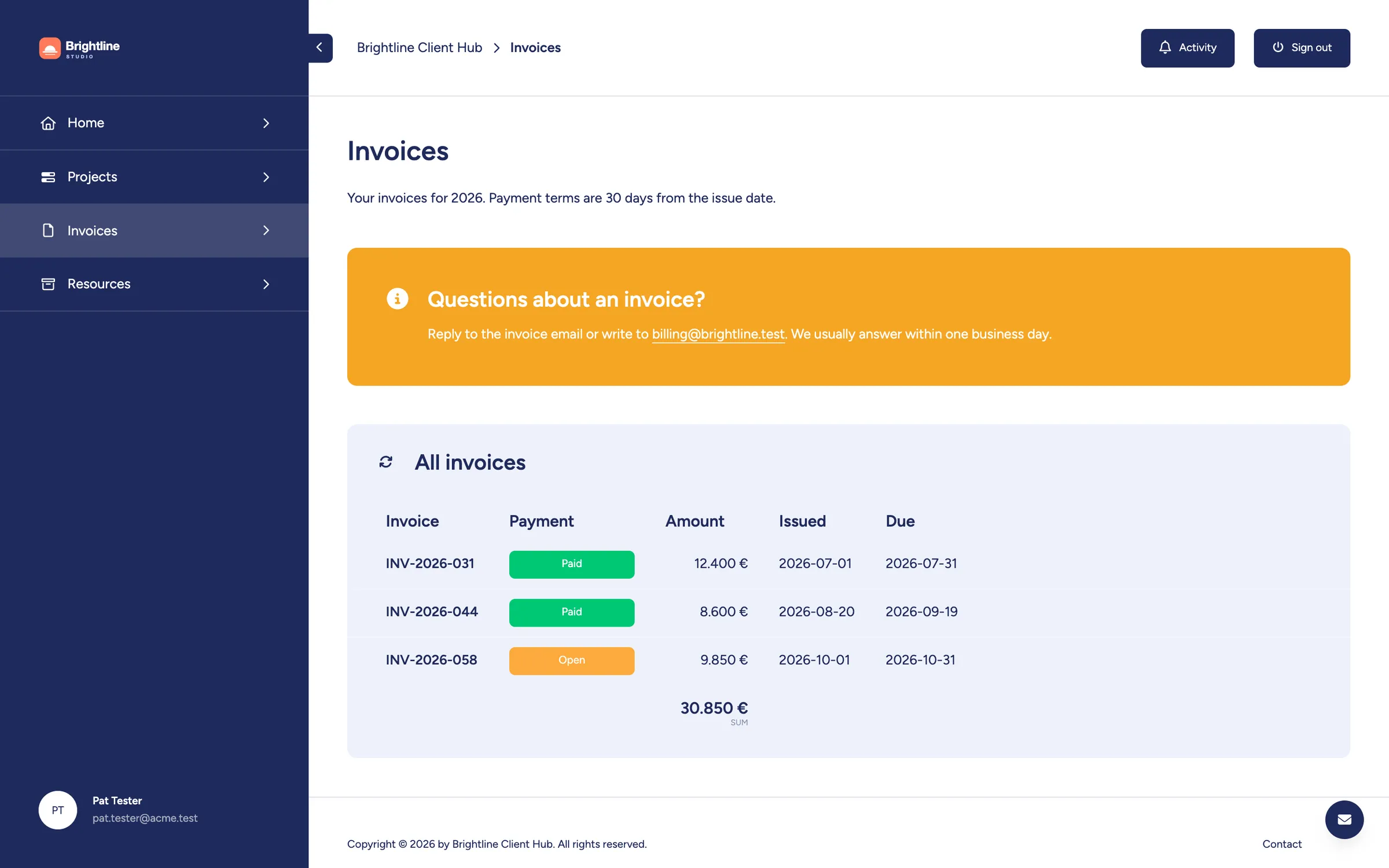
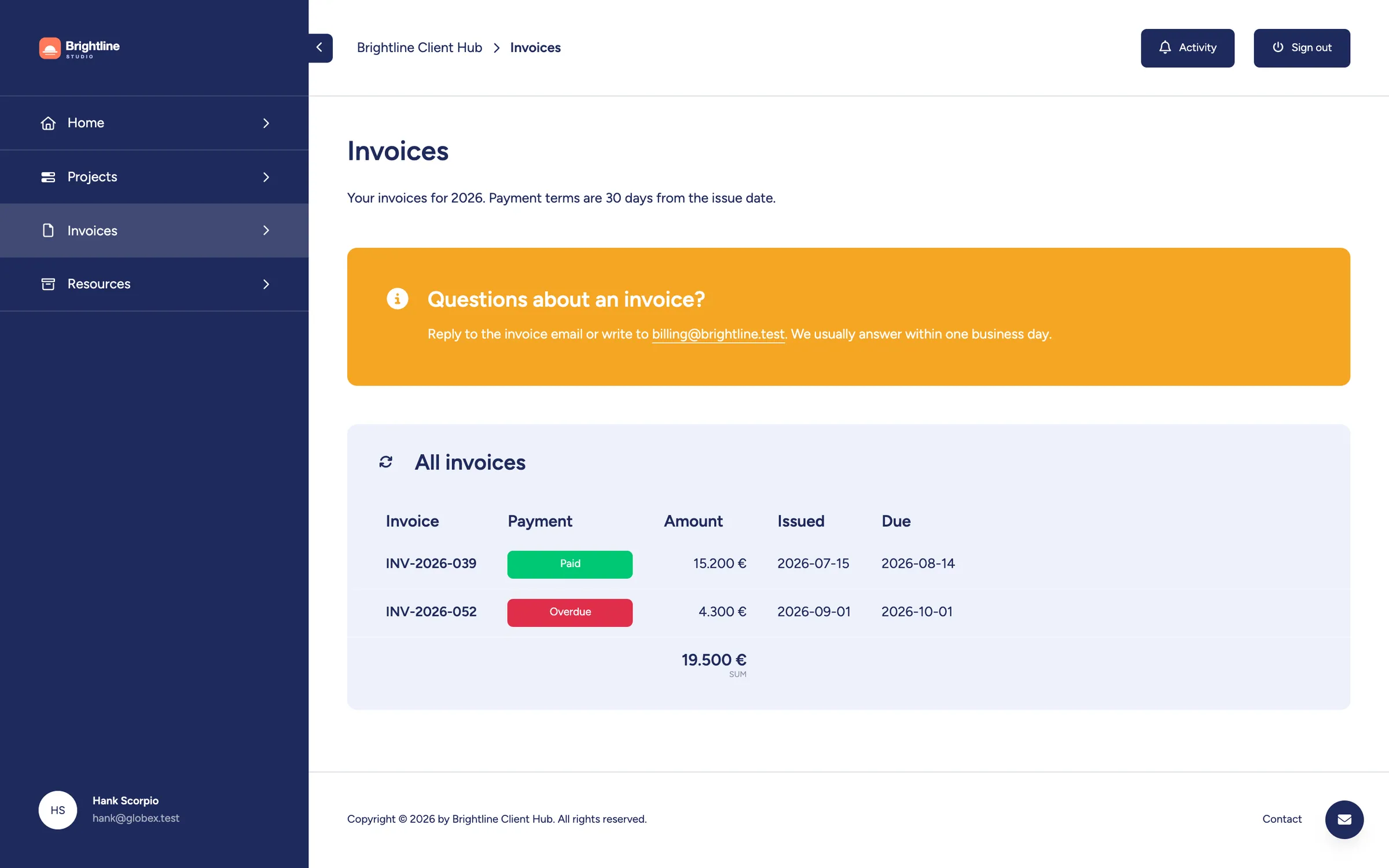
With those relationships configured, the same page shows different invoices depending on who signs in. Acme Corp sees Acme's invoices and Globex sees theirs. Check both client views before sharing the page.
Table
Choose what clients see in the invoice table
Add a Board Table section to an Invoices page and link it to the board source. In the section's column list, choose the invoice number, payment status, amount, dates and PDF in the order clients need them. Hide internal notes and the Client column from the client-facing table.
Rename columns where your internal names don't fit, for example Invoice instead of Name. Keep amounts, payment status and invoice identifiers read-only. Editing must be enabled explicitly; if you allow uploads or other changes later, enable only the intended columns.

Amounts
Format amounts and show the total
Numbers columns have their own column settings. Turn on a custom number format to show amounts as currency in the locale your clients expect, for example 12.400 € or $12,400, with the number of decimals you want.
A column summary can show a Sum in the table footer across the items matching the applied filters. In the screenshots, Acme's invoice amounts add up to 30,850 €. That is the sum of those invoice amounts, not automatically the amount still owed.
Decide what the number should mean before presenting it to clients. If invoices can be partly paid, keep a separate Outstanding amount column maintained by your team or accounting integration, and use that for an outstanding-balance total. Summing the original Amount column would still include the portions already paid.

Currency formatting changes how a number is displayed; it does not convert its value. Do not add euros and dollars into one currency total. If you track several currencies, record the currency explicitly and create separate filtered views and totals for each one.
Filters and sorting
Put open invoices first
Clients can sort the table themselves by clicking a column header. Sorting works for item names, status, date, number and text columns, so a client can bring the largest amount or the next due date to the top.

For a fixed view, set board filters and a default sorting on the section with Filter + Sorting. Status filters can match several labels at once, so one section can show every invoice that is Open or Overdue. A common layout is two sections on the same page:
- Open invoices, filtered to
OpenorOverdue, sorted by due date, with a sum of invoice amounts or outstanding amounts, clearly explained above the table - Paid invoices, filtered to
Paid, as a history
Keep partly paid invoices in Open or Overdue until they are fully settled. If your board uses a separate Partly paid status, include that label in the open view's filter too, so invoices with an outstanding balance do not disappear from the page.
Documents
Let clients open the invoice itself
If the invoice PDF is attached in a Files column, show that column in the table and turn on the file preview. Clients can then open the invoice right in the portal instead of searching their inbox for the original email.
If clients need to send something back, such as a remittance advice or a signed purchase order, use a separate Files column for their documents and make it editable. Their upload lands on the invoice item in monday.com, where your team sees it immediately.
Context
Answer the follow-up questions on the same page
Add a short Text section with your payment terms, and a Callout with the contact for invoice questions. Both appear above the table, so clients don't have to look for them elsewhere.
For questions about a specific invoice, enable item comments on the table. Clients can comment on the invoice itself, and the comment lands as an update on the monday.com item, so your finance team has the context right there. General billing questions can go through the Client Inbox.
In the section's comment settings, choose Clients will only see comments they made or that were addressed to them to keep conversations client-specific and avoid exposing internal discussions. Add the Client Comments item view to the Invoices board so your team can read and reply to the portal conversation from the invoice item.
Automation
Keep clients informed when something changes
Brightline can connect notifications to its invoice process so clients know when to return to the portal. These are workflows to configure in monday.com, rather than messages the invoice page sends automatically:
- New invoice: an invoice is ready to share and linked to its client → an email with a link to the portal goes to the client
- Overdue: the due date passes and the invoice is still unpaid → the workflow marks it
Overdue→ the client gets a reminder - Paid: the status changes to
Paid→ a short confirmation goes out
The email notifications guide shows how to find the client connected to an item and email them from a monday.com workflow.
Verification
Check the invoice page before inviting clients
Use test clients and sample invoices to check the complete workflow. Start with Preview draft to review the page, then use real test logins on the published portal to confirm access. Use test recipients when checking emails, and remember that comments and uploads can change real board items.
Sign in as Acme and Globex separately. Confirm that each sees only the intended invoices and can open the correct PDFs. Check the client links on the board if an invoice is missing or appears for the wrong client.
Keep financial fields read-only
Confirm that clients cannot change invoice numbers, amounts, due dates or payment status. If you allow supporting-document uploads, test that separate Files column without making the original invoice documents editable.
Verify filters, currencies and totals
Compare the portal's rows and sum with the sample records on the board. Check that paid invoices leave the open view, that partial payments produce the intended outstanding amount and that each total contains only one currency. Include a client with no open invoices so the empty view makes sense too.
Check questions and notifications
Post a sample invoice comment and confirm that your team can find it on the correct item. Run notification workflows with test recipients, checking that the email reaches the intended client and links to the portal. Confirm that paid invoices do not receive overdue reminders.
Summary
One board, every client's invoices
Brightline Studio can give each client a place to find invoices, check the status recorded by its finance team and ask questions with the invoice in context. Client relationships select the records, a read-only table presents the financial details, and filtered views make open invoices easier to find.
Keep payment updates connected to your accounting process, make the meaning of each total clear and verify the page with sample invoices. The result is a useful client-facing overview of the records your team already maintains in monday.com.
Share invoices with your clients
Client Portal Builder for monday.com lets you show each client their own invoices, payment status and totals from your monday.com boards. See how Board Table sections work in the documentation.
Interested in a product demo?
Let's learn about your requirements, answer questions, and
review ways how we can help you and your organization with
our monday.com apps and solutions.
