



Build custom, structured Excel reports from monday.com board data and send them automatically to the right people on schedule.





Previewing files
Preview files in your monday.com client portal
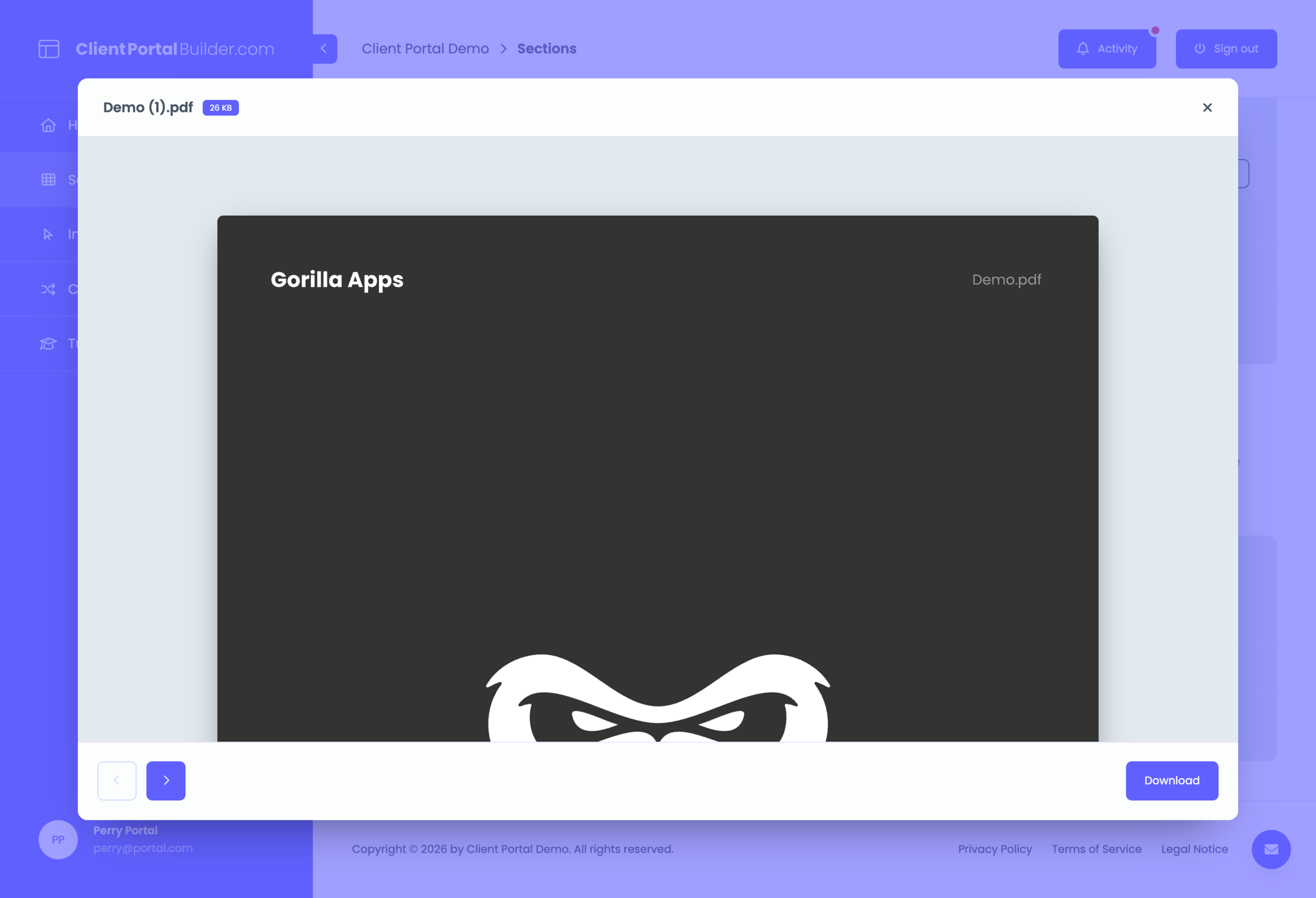
Let clients preview images, videos and PDFs directly in your monday client portal, with optional downloads for supported file types.
Setup
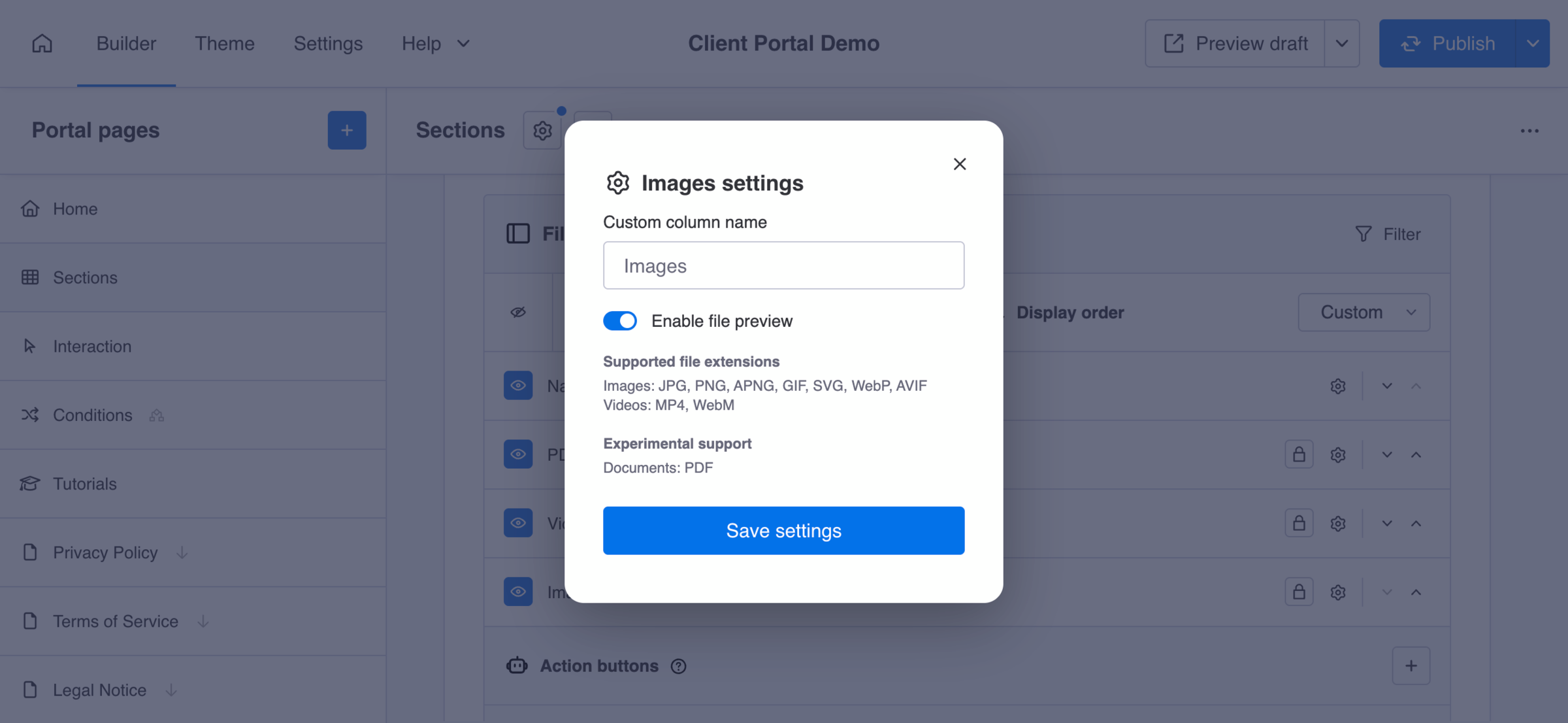
How to enable the file viewer
- Open the Client Portal Builder board view.
- Open the portal page with a Board Table or Grid section.
- Find the Files column and open its
⚙column settings. - Toggle the Enable file preview feature.
- Save the settings and publish your portal.
Now a file click opens the file viewer instead of triggering a download.
Did you know?
In combination with Action buttons, the file preview feature perfectly synergyzes to build document approval workflows across your portal and monday.com workspace.
Limitations
Supported file types today
As of today, the following file types are supported with the file viewer:
- Images
JPG, PNG, APNG, GIF, SVG, WebP, AVIF - Videos
MP4, WebM - Documents
PDFExperimental
Other file types may be supported in future updates.
Did you know?
You might want to split supported from unsupported file types into multiple file columns on your monday.com board. And only enable the feature on the file column containing supported formats.