



Build custom, structured Excel reports from monday.com board data and send them automatically to the right people on schedule.





Embedding boards
Display monday.com boards in your client portal
Display live monday.com board items directly in your Client Portal using tables, grids or client specific item sections. Depending on how you want to present the board items, you can choose between three section types:
- Board Table → Structured table layout with optional subitems
- Board Grid → Visual card layout for a high-level overview
- Client Item → Shows data for the currently logged-in client
Connecting boards
How board data is connected
All board-based sections use a board source.
A board source defines:
- how the board is organized
- which board to be used
- which items are shown
Depending on your setup, items can be shown:
- to all clients
- only to specific clients
- or automatically per logged-in client
Client ItemClient Subitems
Learn more about connecting boards.
Connecting boards across workspaces and monday.com products
The app lets you connect boards from across monday.com account workspaces, and even across different monday.com products, such as CRM and Work Management for example. To gain access to such boards, you have to grant the app permissions to those workspaces via the monday.com Account Administration.
Board sections
Choose the right section type
Depending on your requirements you want to choose a different board section.
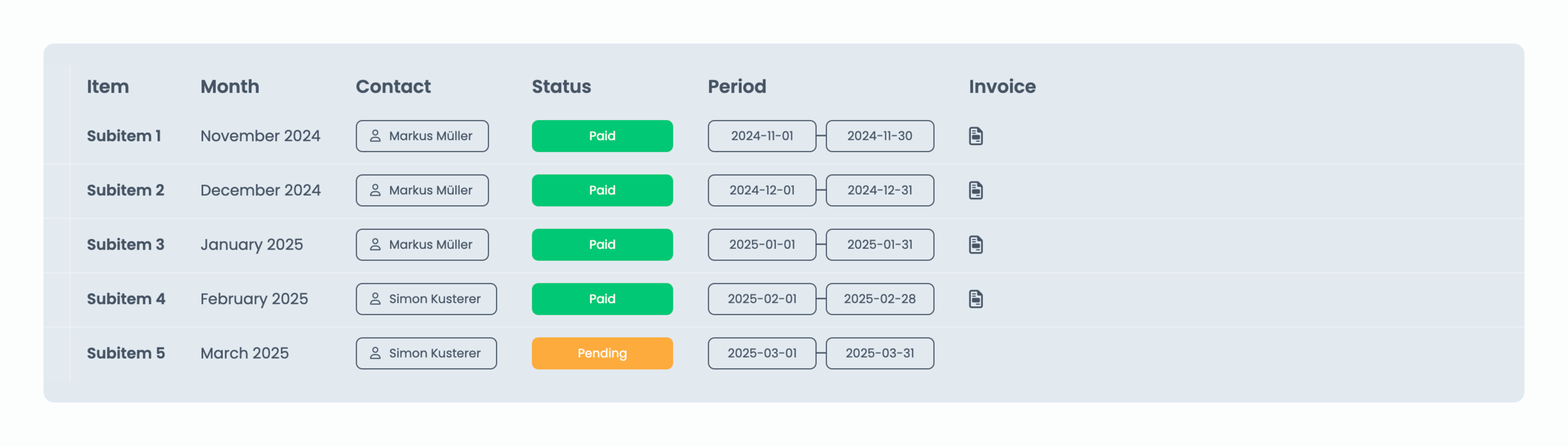
Board Table
Use Board Table when you want to:
- show structured data in rows and columns
- allow editing of values
- display subitems under each item
- compare multiple fields at once
The Board Table section is typically used when the data you want to show is stored on a board somewhere in your monday.com workspace.
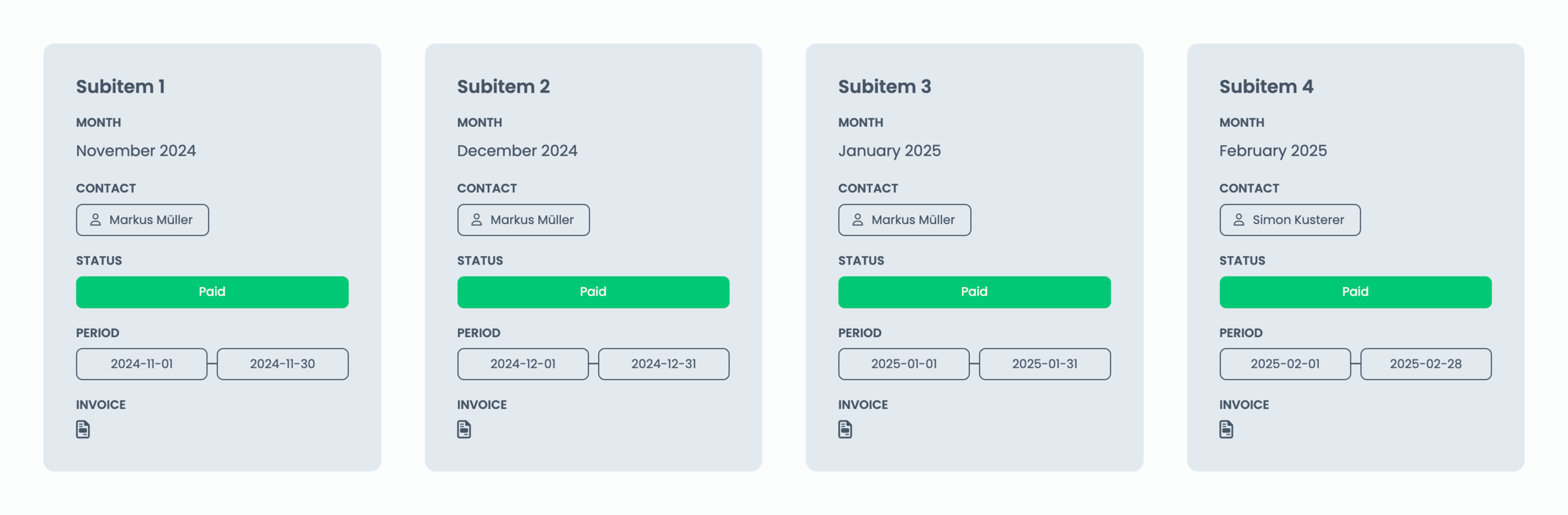
Board Grid
Use Board Grid when you want to:
- display items visually as cards
- highlight key information
- create a more visual client experience
The Board Grid section is typically used when the data you want to show is stored on a board somewhere in your monday.com workspace.
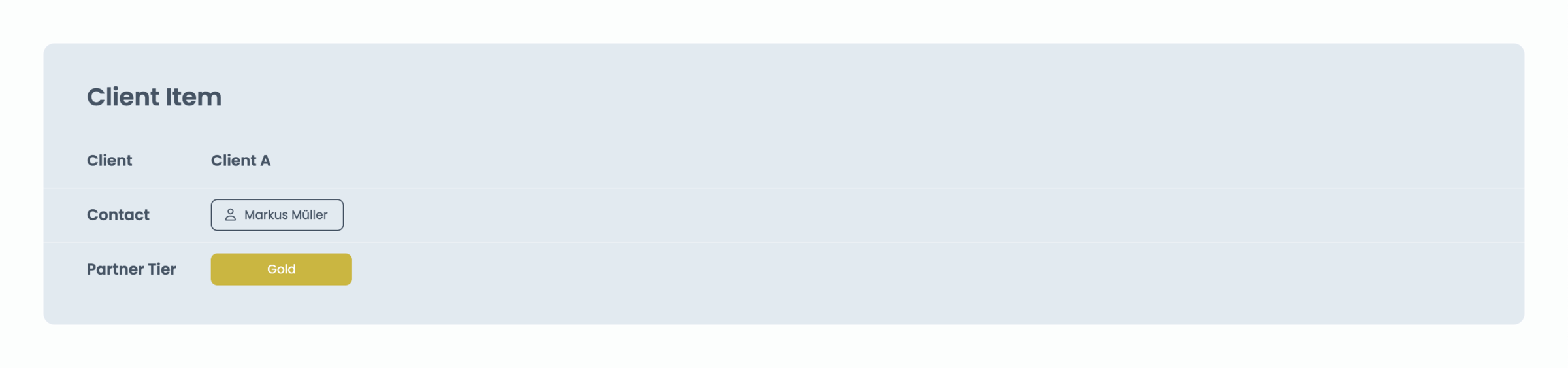
Client Item
Use Client Item when you want to:
- show client data from the Clients Board
- display profile, account, or contract data
- avoid filtering or board relations
The Client Item section is typically used when the data you want to show is already stored on the client item itself on your Clients Board.
Tips & Tricks
Best practises on embedding boards
- Keep the number of visible columns focused
- Use custom column names for client-friendly labels
- Use Board Table for structured data and editing
- Use Board Grid for visual overviews
- Use Client Item for client-specific data
Did you know?
Each board section not only comes with a different layout, they also provide different options and features. Learn more about the capabilities of each content section.