



Build custom, structured Excel reports from monday.com board data and send them automatically to the right people on schedule.





Subitems
Display monday.com subitems in your client portal
Display detailed tasks and line items in your monday Client Portal, either nested below parent items or as their own table or grid data source.
Did you know?
This gives you full flexibility to structure your portal based on your workflow and how you want clients to consume information around subitems.
Nested subitems
Display nested subitems within Board Tables
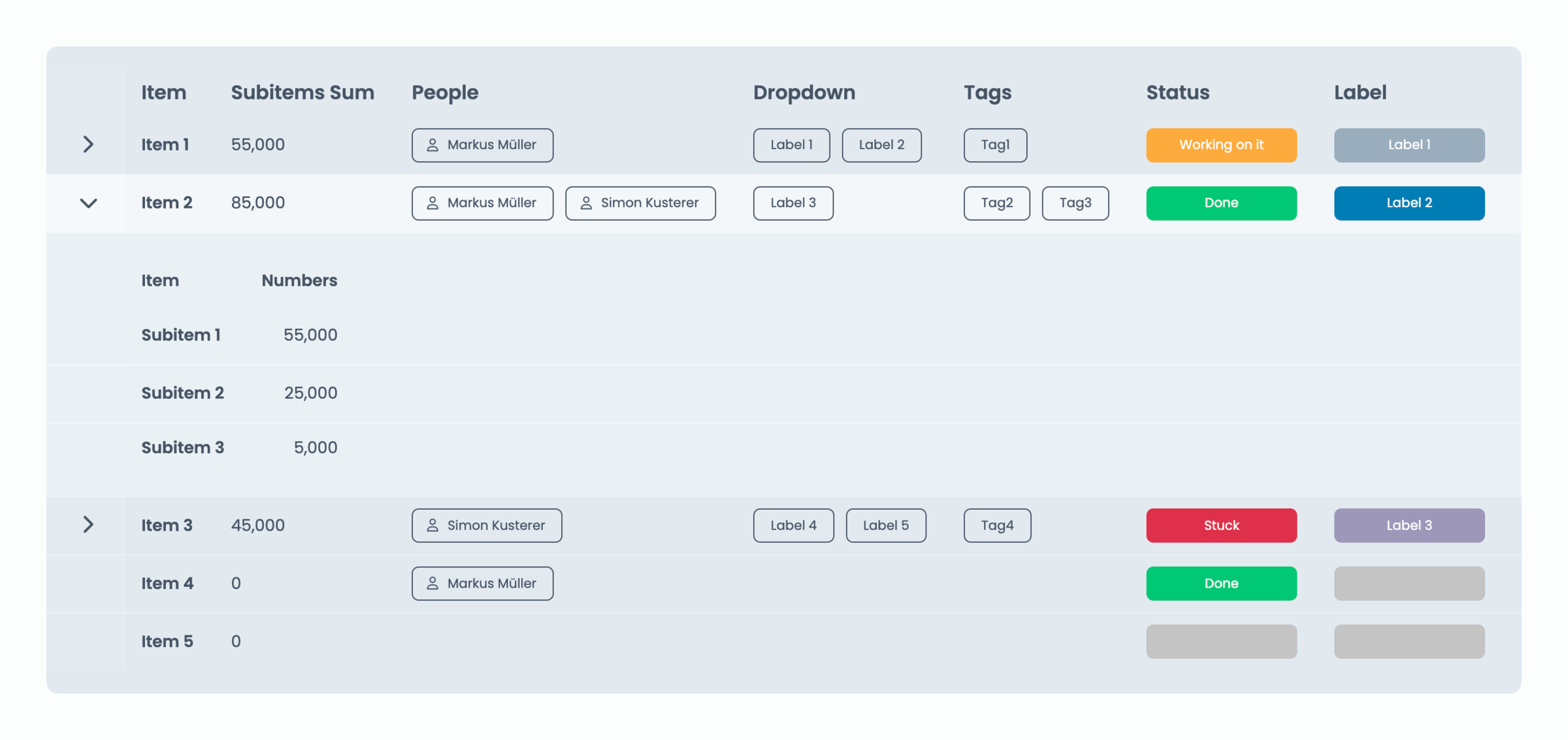
In Board Table sections, subitems can be displayed as expandable rows beneath their parent item.
- Each item includes a
>toggle to expand or collapse subitems - Subitems appear in their own column structure beneath the main item
- You can configure column visibility, order, names, and settings independently
This is ideal when subitems represent tasks, deliverables, or line items that belong to a main item.
Important
A maximum of 100 nested subitems per main item can be displayed in the portal.
How to enable and display nested subitems
- Open the Client Portal Builder view and head to the Builder tab
- Find the Board Table where you want to enable nested subitems
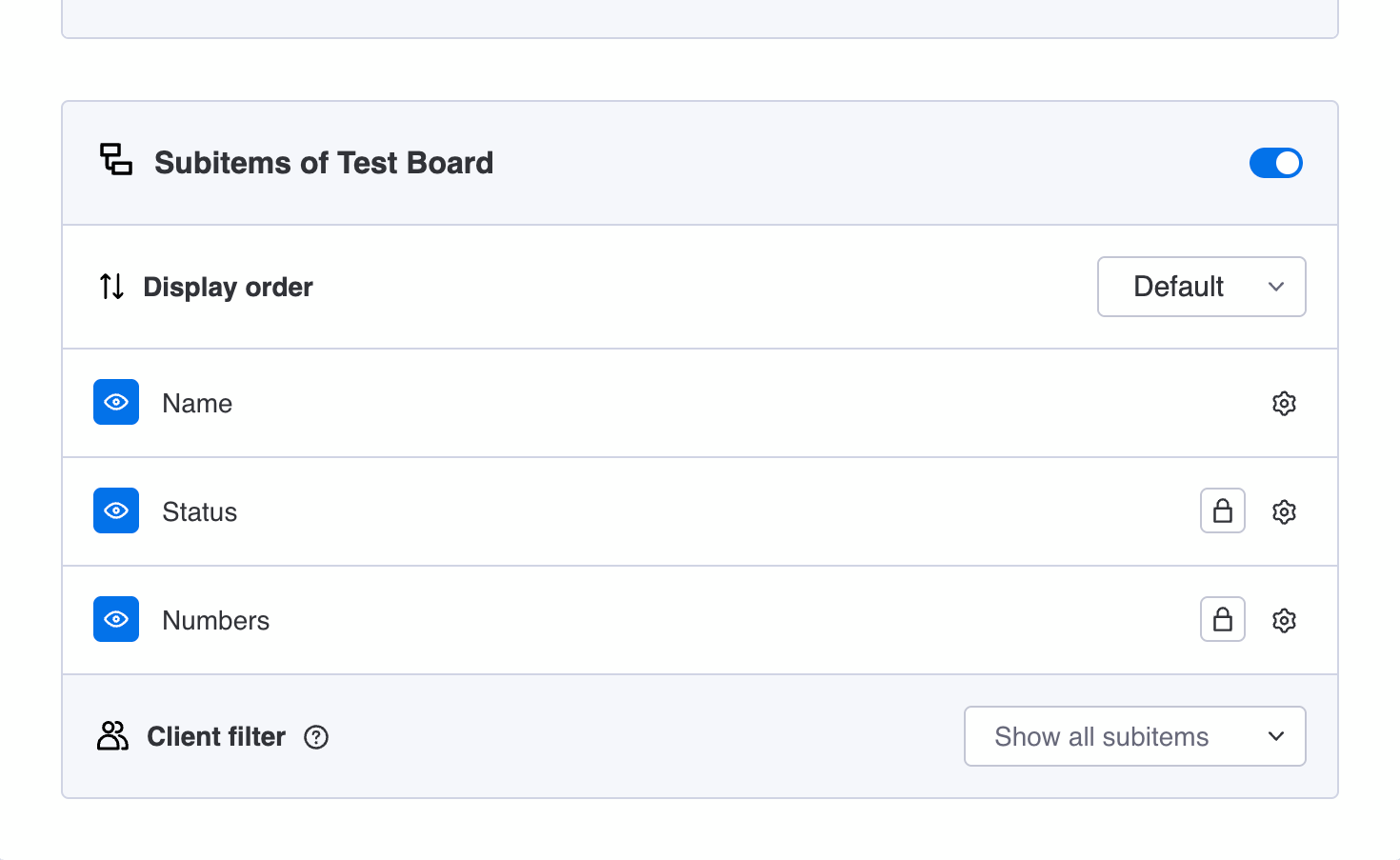
- Enable the Subitems visibility toggle below the main item settings
- Configure the subitem columns and display settings to your needs
- Preview or publish your Client Portal
How to show nested subitems to selected clients
If a main item is visible to multiple clients, you can control which subitems each client can see. With the Client filter for subitems, each client will only see the subitems that are assigned to them, while the parent item remains shared.
- Create a Connect boards column on the subitems to your Clients Board
- Choose and connect a certain client to each subitem for reference
- Back on your Board Table section, find the Client filter feature
- Select the Connect Boards column you created above
- Now subitems will only be displayed to their related client
For example, you want to share general information in your main item with multiple or all clients, but its subitems should be displayed per client.
Did you know?
Showing nested subitems to only selected clients is useful when your board section setup originates from the Show selected items to specific clients from one board or the Show all items from one board to all clients option.
How nested subitems are sorted
Currently the sorting of nested subitems can’t be changed within the app. Instead, the display order of nested subitems within a table section is always inherited from the manually applied and saved subitem order on the board.

Any top-level sorting applied to a monday.com board is being ignored and not inherited into the client portal, since that information is technically not accessible via the monday API.
Standalone subitems
Display subitems as their own data source
In monday.com, subitems have their own column structure. Because of this, they can be used as a separate data source in your Client Portal. This means you can display subitems without showing the parent items at all. Learn more below about the two ways to do this.
Show each client their subitems from the Clients board
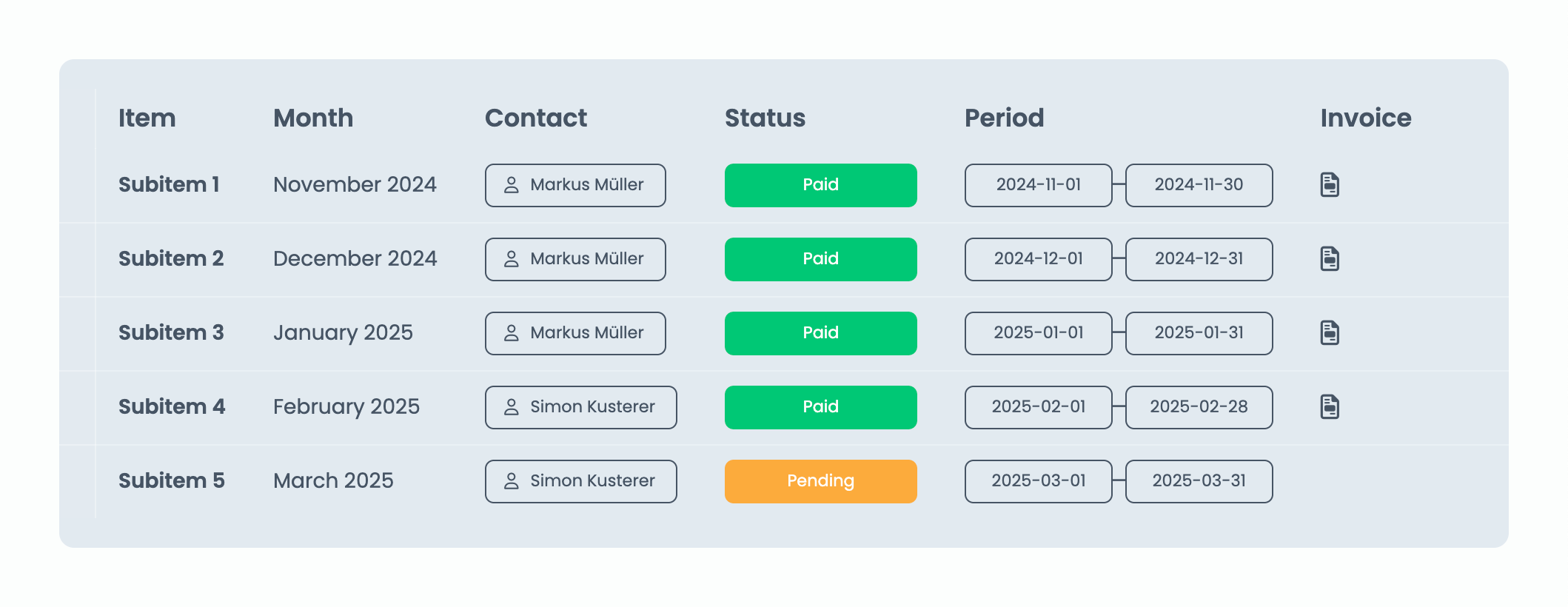
If your Clients Board contains subitems for each client item, you can display these subitems in a Board Table or Board Grid section directly in the portal. Each client automatically sees only their own subitems without its main item.
This setup is ideal for use cases like:
- Recurring deliverables
- Invoices and documents
- Monthly reports
- Time tracking entries
How to set up client subitems:
- Add a Board Table or Board Grid section to a portal page
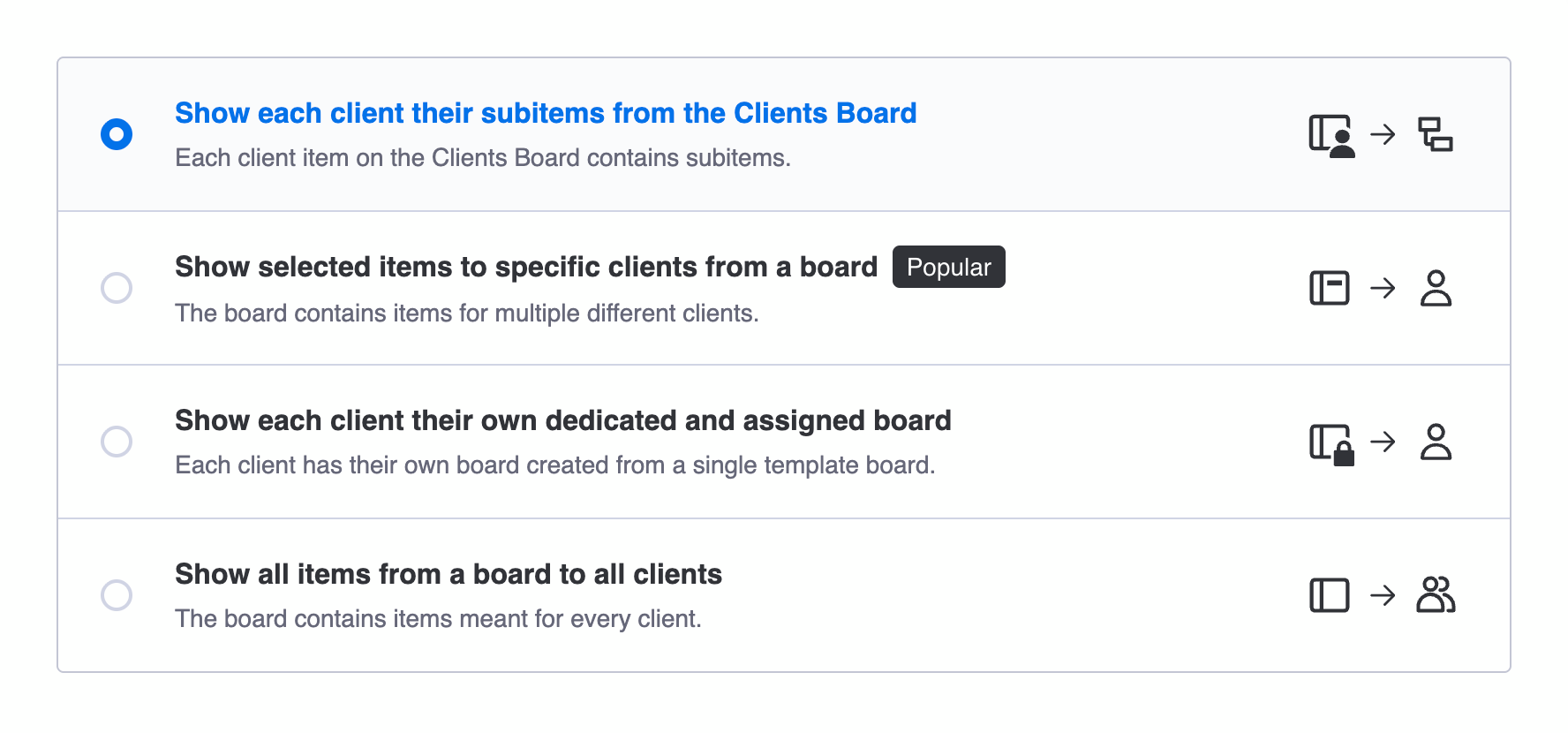
- Choose Show each client their subitems from the Clients Board
- Configure the subitem columns and display settings to your needs
- Preview and publish your Client Portal
Important
This board source type supports a maximum of 100 subitems that can be displayed in the portal.
Select subitems directly as a board source
When setting up a Board Table or Board Grid section, you can select subitems directly as your data source. For this, choose any of the available board source types aside from the first option. When prompted to choose a board, simply search for Subitems of [Board] instead its board name. This works because monday.com treats subitems as a separate structure with their own columns. And therefore, subitems can be used and connected like if they were a standalone board.
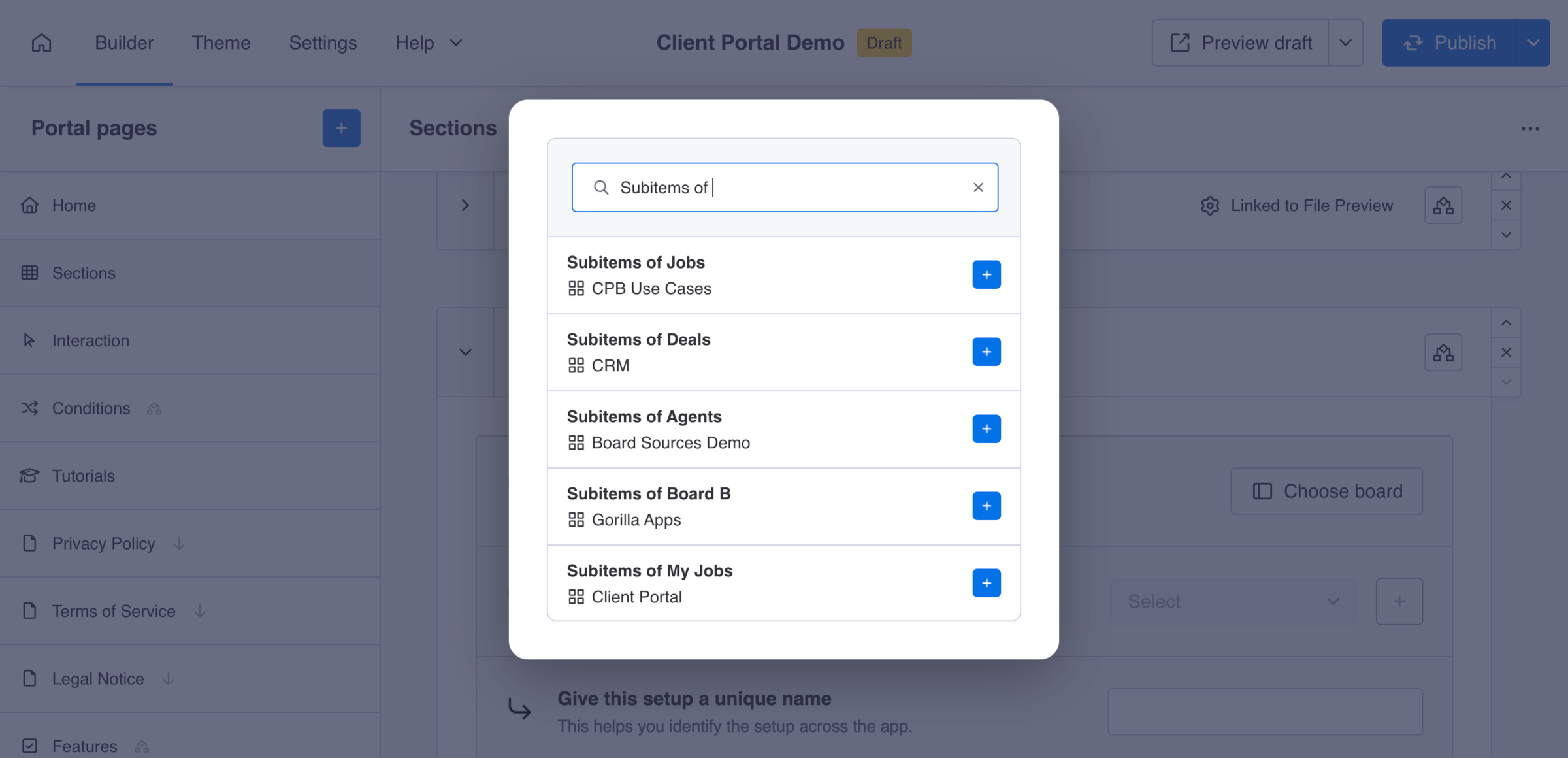
How to set up standalone subitems:
- Add a Board Table or Board Grid section to a portal page
- Choose one of the board source types, but the first option
- When a board is requested, search for
Subitems of [Board] - Configure the subitem columns and display settings
- Preview and publish your Client Portal