



Build custom, structured Excel reports from monday.com board data and send them automatically to the right people on schedule.





Notifications
Send client portal email notifications automatically
Use monday.com automations to notify clients when something new is available in their monday.com client portal, such as an inbox message, item comment or assigned board item. Learn how email notifications fit into a broader client communication workflow.
Did you know?
You can use Board automations and Workflow automations to keep your clients in the loop when something new happens in the client portal.
Comment: Board automation
How to notify clients with a board automation about new inbox messages and client comments
Every time your team writes a new Client Inbox message or an Item Comment through the dedicated Client Comments item view, you want to notify your client by email. For this we can make use of a Board automation with one custom app trigger, and one native monday.com action:
- Open your Clients Board and click
Automate - In the Automations overlay click the
Managetab - Then click the
Create automationbutton - As trigger choose When client portal owner comments
- As action choose Send email via
OutlookorGmail - Click
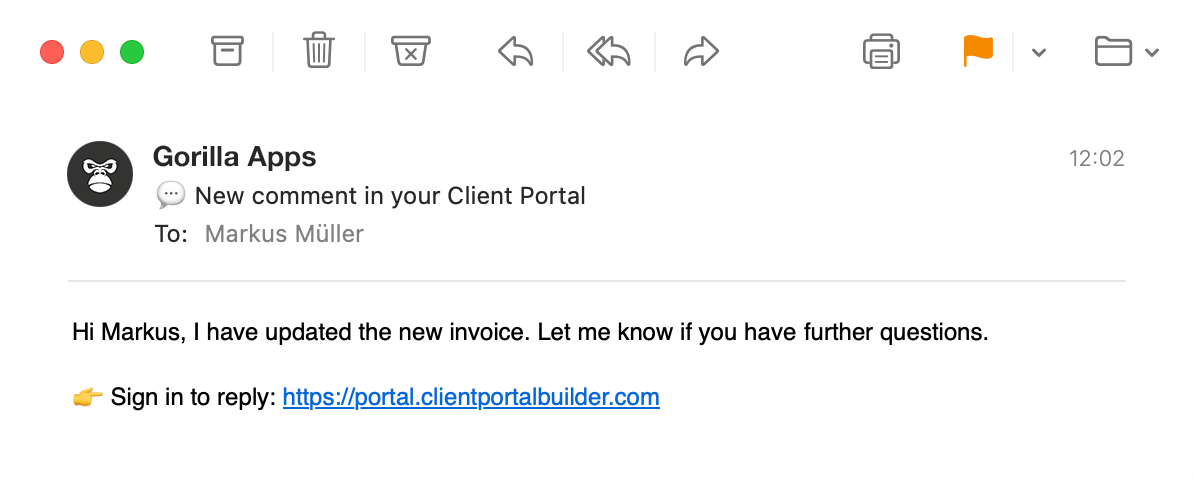
Emailto set it up:- Choose a Subject line, e.g. 💬 New comment in your Client Portal
- Choose a Message with the
Commentvalue to directly embed the message, and optionally add a call to action link to your client portal if you require an action from your client, e.g. 👉 Sign in to reply: https://portal.clientportalbuilder.com
- Click
Someoneto add the email addresses:- In the Email address field choose the
Client Email Addressesvalue
- In the Email address field choose the
- Click
Create automationand test it afterwards

Did you know?
When using a Board automation to notify your clients, you only have to create it once right on your Clients Board. It's recommended to keep the subject line and message as generic as possible to cover both use cases, Client Inbox messages and Item Comments.
Comment: Workflow automation
How to notify clients with a workflow builder automation about new inbox messages and client comments
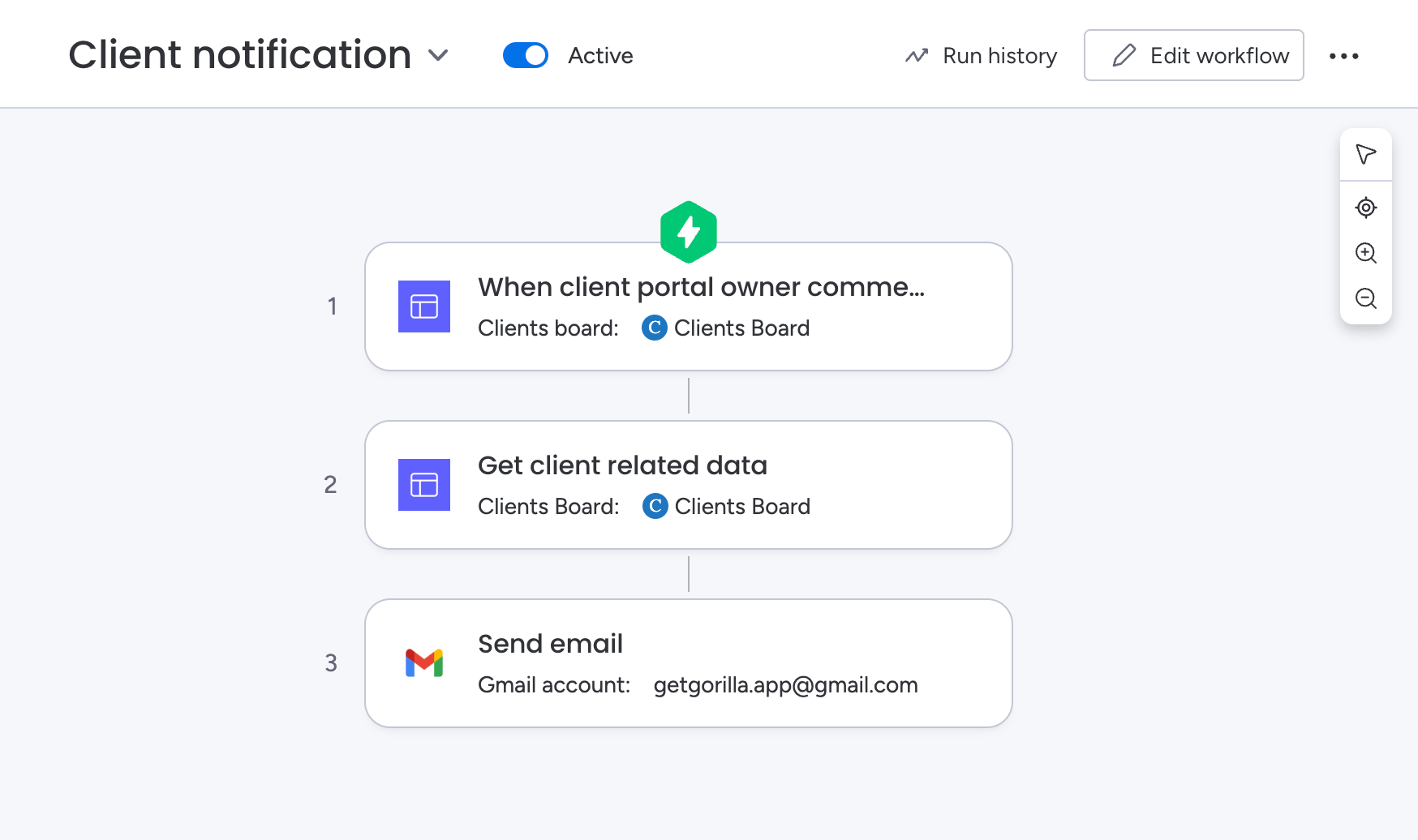
Every time your team writes a new Client Inbox message or an Item Comment through the dedicated Client Comments item view, you want to notify your client by email. For this we can make use of a Workflow automation with a mix of custom app and native monday.com triggers and actions:
- Open your monday.com workspace and create a new Workflow by clicking the
+button - With Choose a trigger open, click
Explore all triggers- Search and choose When client portal owner comments
- Choose your Clients Board from the dropdown
- Add a new action by clicking
+below the trigger- With What happens next? open, search and choose Get client related data
- Keep the action settings as is with your
Clients BoardandClient Item ID | Step 1selected
- Add a new action by clicking
+below the previous action- With What happens next? open, search and choose Send email via Gmail or Outlook
- Select your connected Gmail or Outlook account first
- In the To field add the
Client Email addresses | Step 1value - Choose a Subject, e.g. 💬 New comment in your Client Portal
- Choose a Message with the
Comment | Step 1value to directly embed the message, and optionally add a call to action link to your client portal if you require an action from your client, e.g. 👉 Sign in to reply: https://portal.clientportalbuilder.com
- Click
Publish workflowand test it afterwards
Did you know?
When using a Workflow automation to notify your clients, you only have to create it once somewhere in your monday.com workspace where the app does have permissions. It's recommended to keep the subject line and message as generic as possible to cover both use cases, Client Inbox messages and Item Comments.
New item: Workflow automation
How to notify clients with a workflow builder automation about new board items in the client portal
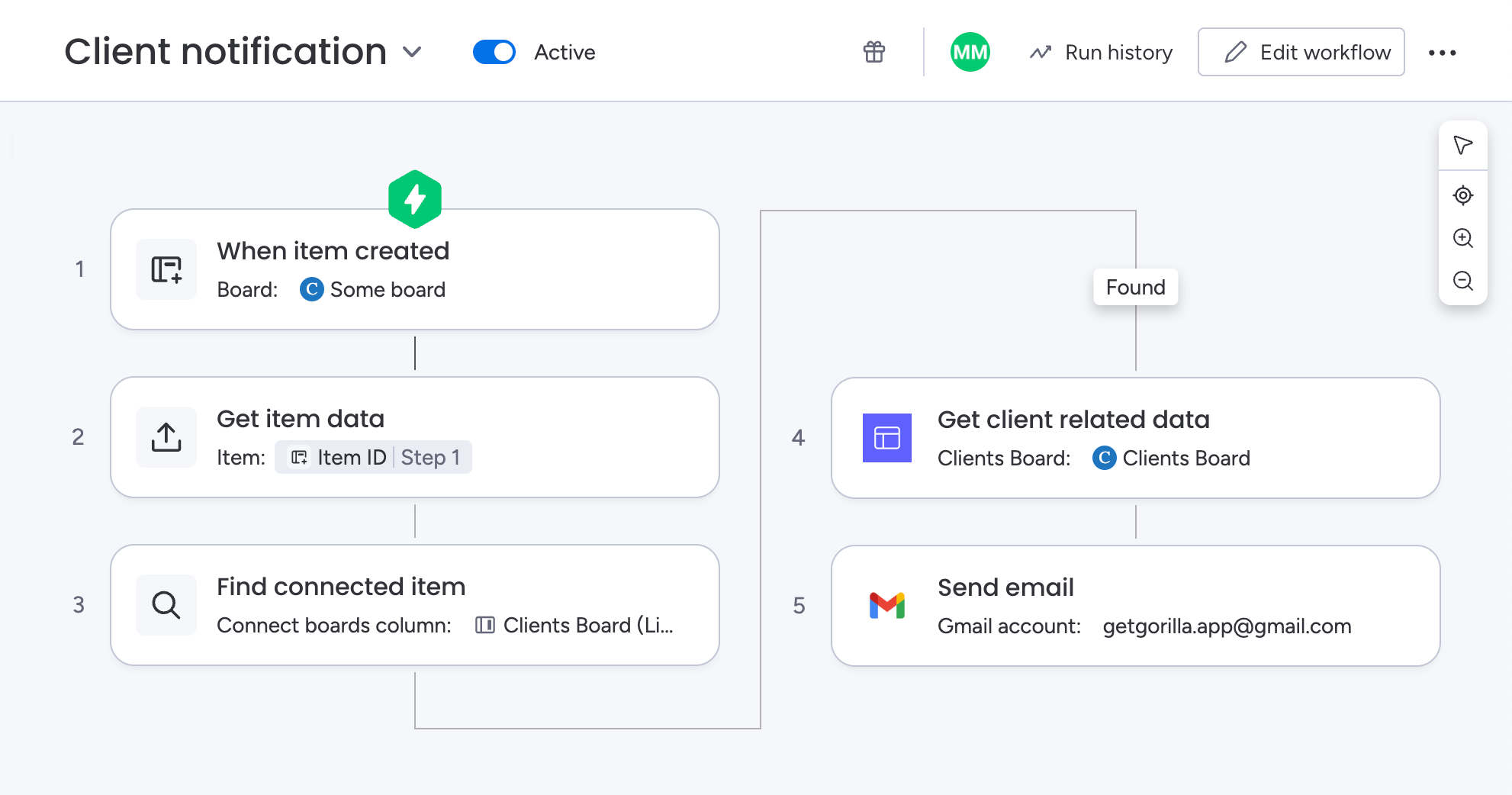
Every time a new board item is created and assigned to a client, you want to notify your client by email about its appearance in the client portal. This example expects using the Show selected items to specific clients from one boards board setup. For this we can make use of a Workflow automation with a mix of custom app and native monday.com triggers and actions:
- Open your monday.com workspace and create a new Workflow by clicking the
+button - With Choose a trigger open, click
When item created- Search and choose your target board from the dropdown
- Add a new action by clicking
+below the trigger- With What happens next? open, search and choose Get item data
- Keep the action settings as is with your
Target BoardandItem ID | Step 1selected
- Add a new action by clicking
+below the previous action- With What happens next? open, search and choose Find connected item
- Keep the action settings as is with your
Target BoardandItem ID | Step 1selected - Select the Connect boards column to your Clients Board, and select your Clients Board below
- Add a new action below the
Foundbranch by clicking+- With What happens next? open, search and choose Get client related data
- Find and choose your
Clients Boardand selectItem ID | Step 3as Client Item
- Add a new action by clicking
+below the previous action- With What happens next? open, search and choose Send email via Gmail or Outlook
- Select your connected Gmail or Outlook account first
- In the To field add the
Client Email addresses | Step 4value - Choose a Subject, e.g. 🚨 New task assigned in your Client Portal
- Choose a Message with the
Item » Name | Step 1value to directly embed the item name, and optionally add a call to action link to your client portal if you require an action from your client, e.g. 👉 Sign in to view details: https://portal.clientportalbuilder.com
- Click
Publish workflowand test it afterwards
Did you know?
When using a Workflow automation to notify your clients about a new assigned item, you can enhance your email message with further content than just the item name if you are keen.