



Build custom, structured Excel reports from monday.com board data and send them automatically to the right people on schedule.





Client inbox
Set up the Client Inbox for portal messaging
Use the Client Inbox to exchange private messages and files between clients in your client portal and your monday.com team without tying communication to a specific item. For a broader look at when to use the Client Inbox, Item Comments and email notifications, see our guide to managing client communication in a monday.com client portal.
Overview
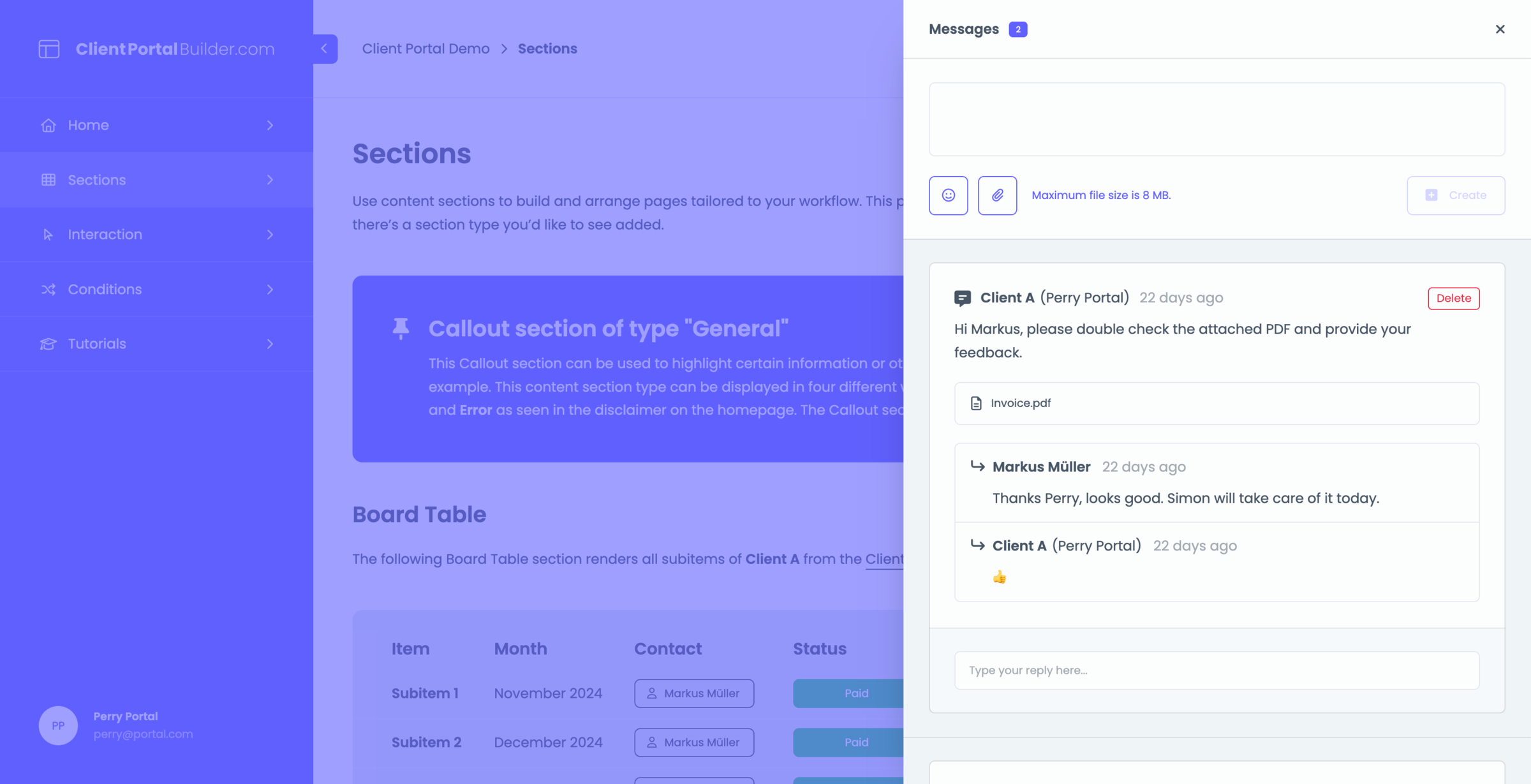
Global communication
Clients can chat and exchange files with your team across the client portal. Messages and files are always tied to the related client item on the Clients Board, keeping conversations private and easy to follow for both clients and portal managers.
Setup
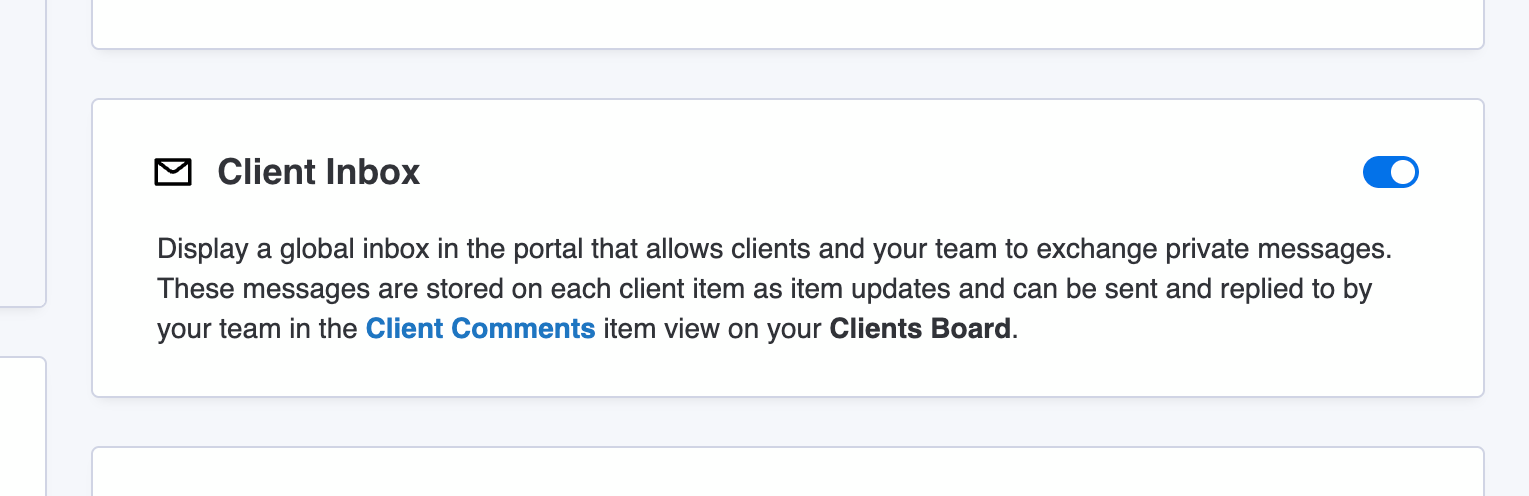
Enable the Client Inbox with a click
The Client Inbox is enabled globally.
- Open the Settings tab in the Client Portal Builder view.
- Enable the Client Inbox toggle.
- Publish your portal.
- Open the first client item on your Clients Board.
- Add the Client Comments item view by clicking the
+button. - Open a dedicated client item and its Client Comments view.
- Start messaging to each client.
Did you know?
Both, the Item comments and the Client Inbox feature share the same underlaying Clients Comments item view. But in context of the Client Inbox, the item view needs only to be added once to your Clients Board items.
Usage
Messaging and file sharing
Clients access their Client Inbox via the ✉ button and can:
- Create new messages
- Reply to existing messages
- Attach and download files
Portal managers can respond through the Client Comments item view on each client item on the Clients Board, keeping all communication in one place.
Did you know?
Messages have a 50 MB upload limit per file today. This may be expanded in future releases.
Use cases
Common examples for using the Client Inbox
- Collect general feedback
- Answer general client questions
- Keep communication out of email