



Build custom, structured Excel reports from monday.com board data and send them automatically to the right people on schedule.





Content sections
Add content sections to your client portal
Content sections are configurable blocks used to display board data, text, callouts, embeds and other information in your client portal.
Did you know?
You can display content sections conditionally per a client status. Learn how to set up a condition.
Board Grid
Show items as visual cards
Displays items from a monday.com board in a grid layout for a more visual, high level overview. Ideal for showcasing projects, tasks, or assets with key details at a glance. This is a standard section to display board items from across your monday.com workspace with a board source.
- Headline
- Headline size
SmallMediumLarge
Board
- Board filter
Optional - Column visibility
Show allHide all - Items per page
102550100 - Column display order
DefaultCustom - Column visibility toggle
ShowHide - Column name
- Column settings
Column dependent - Column editing toggle
Column dependentRead-onlyEditable - Item details column visibility
SectionPanelBoth
Features
- Thumbnail
OptionalFiles column - Headline
OptionalText column - Action buttons
Optional - Item search
OptionalNameTextLong textPeopleDropdownLinkPhoneEmailCountry - Item details
Optional - Item comments
Optional - Disable auto fetching
Optional
When auto-fetching is disabled, the portal will not automatically fetch and update data from the board after interaction, including item editing or action buttons. Clients have to manually reload the related section. This can be useful, when many board columns have to be edited, and you want to avoid automatic data syncing after each change. - Hide reload button
Optional

Did you know?
The Board Grid section displays data from a selected monday.com board. See Board sources to learn how to connect and configure your data source.
Board Table
Show items in a detailed table
Displays board items in a structured table format, with support for subitems. Best for reviewing multiple fields, comparing data, or tracking progress in a familiar table style layout. This is a standard section to display board items from across your monday.com workspace with a board source.
- Headline
- Headline size
SmallMediumLarge
Board
- Board filter
Optional - Column visibility
Show allHide all - Items per page
102550100 - Column display order
DefaultCustom - Column visibility toggle
ShowHide - Column name
- Column settings
Column dependent - Column editing toggle
Column dependentRead-onlyEditable - Item details column visibility
SectionPanelBoth
Features
- Action buttons
Optional
Action buttons are pinned by default and therefore consistently visible in desktop breakpoints. - Item search
OptionalNameTextLong textPeopleDropdownLinkPhoneEmailCountry - Item details
Optional - Item comments
Optional - Disable auto fetching
Optional
When auto-fetching is disabled, the portal will not automatically fetch and update data from the board after interaction, including item editing or action buttons. Clients have to manually reload the related section. This can be useful, when many board columns have to be edited, and you want to avoid automatic data syncing after each change. - Hide reload button
Optional
Subitems
- Subitems visibility toggle
OptionalShowHide - Column visibility
Show allHide all - Column display order
DefaultCustom - Column visibility toggle
ShowHide - Column name
- Column settings
Column dependent - Column editing toggle
Column dependentRead-onlyEditable - Client filter
OptionalAll subitemsClient
Use this feature when a main item is visible to multiple clients, but you want to control which subitems each client can see. To set this up, add a Connect boards column linking your subitems to the Clients Board, and assign each subitem to the relevant client.

Did you know?
The Board Table section displays data from a selected monday.com board. See Board sources to learn how to connect and configure your data source.
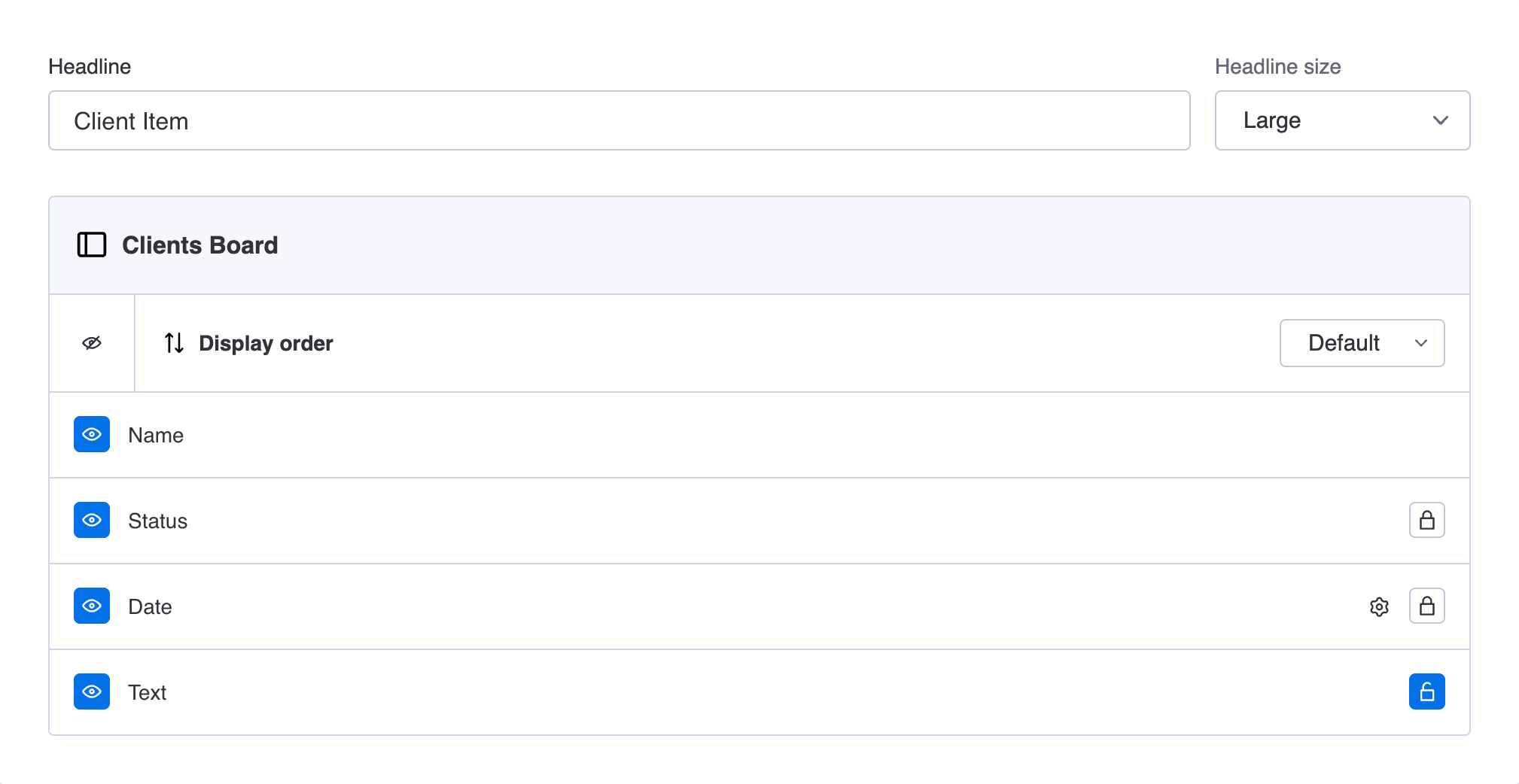
Client Item
Show data for the current client
Displays the current client’s item as a clean list of column values. Automatically surfaces client specific columns directly from the Clients Board. Use the Client Item section to display any client related information that lives on the Clients Board.
- Headline
- Headline size
SmallMediumLarge
Clients Board
- Column visibility
Show allHide all - Column display order
DefaultCustom - Column visibility toggle
ShowHide - Column name
- Column settings
Column dependent - Column editing toggle
Column dependentRead-onlyEditable
Did you know?
The Client Item content section uses your Clients Board as its data source.
Callout
Highlight important information
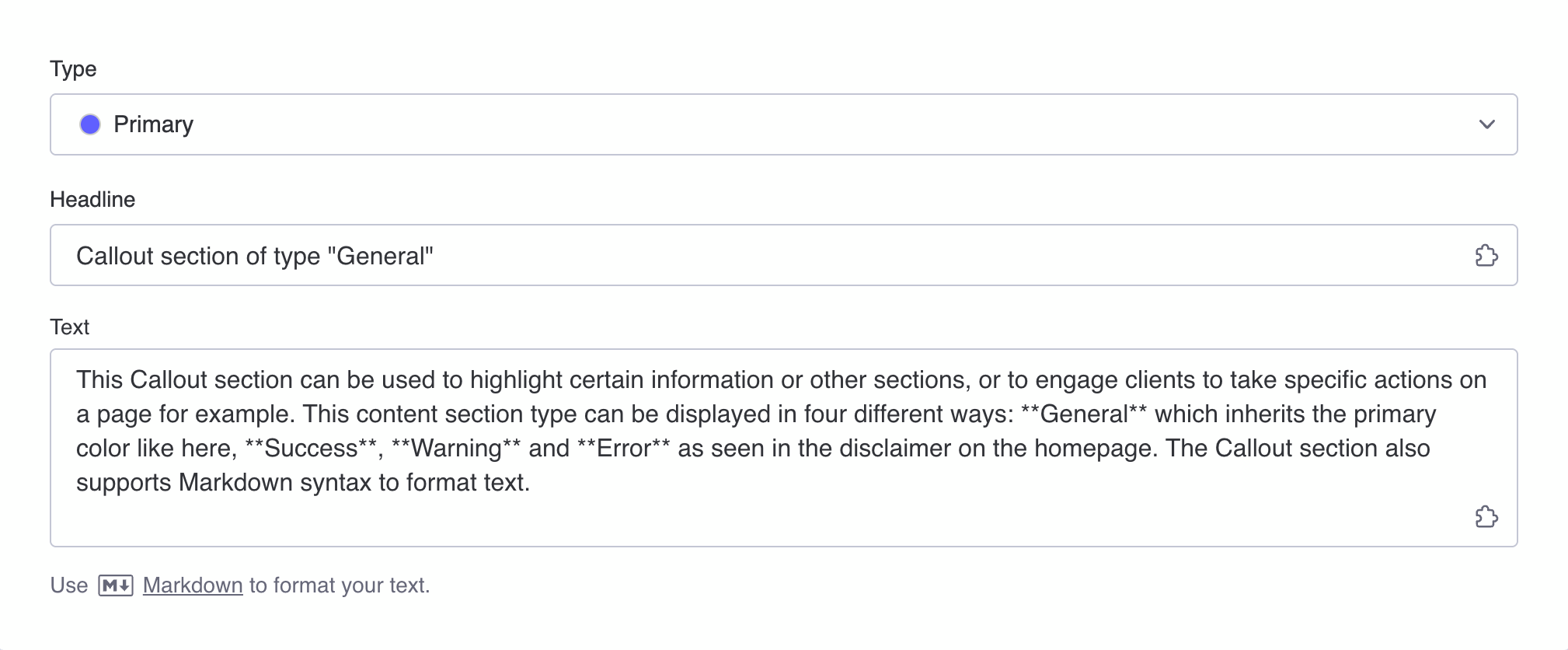
Displays key messages in a prominent, styled text box. Use it for announcements, instructions, deadlines, or important updates you do not want clients to miss. The Callout section supports placeholders to insert dynamic content and Markdown to format your text.
- Type
PrimarySuccessWarningError - Headline
Placeholders - Text
PlaceholdersMarkdown
If all provided fields in the Callout section stay empty, the section will not be displayed in the portal.
Text
Display formatted text content
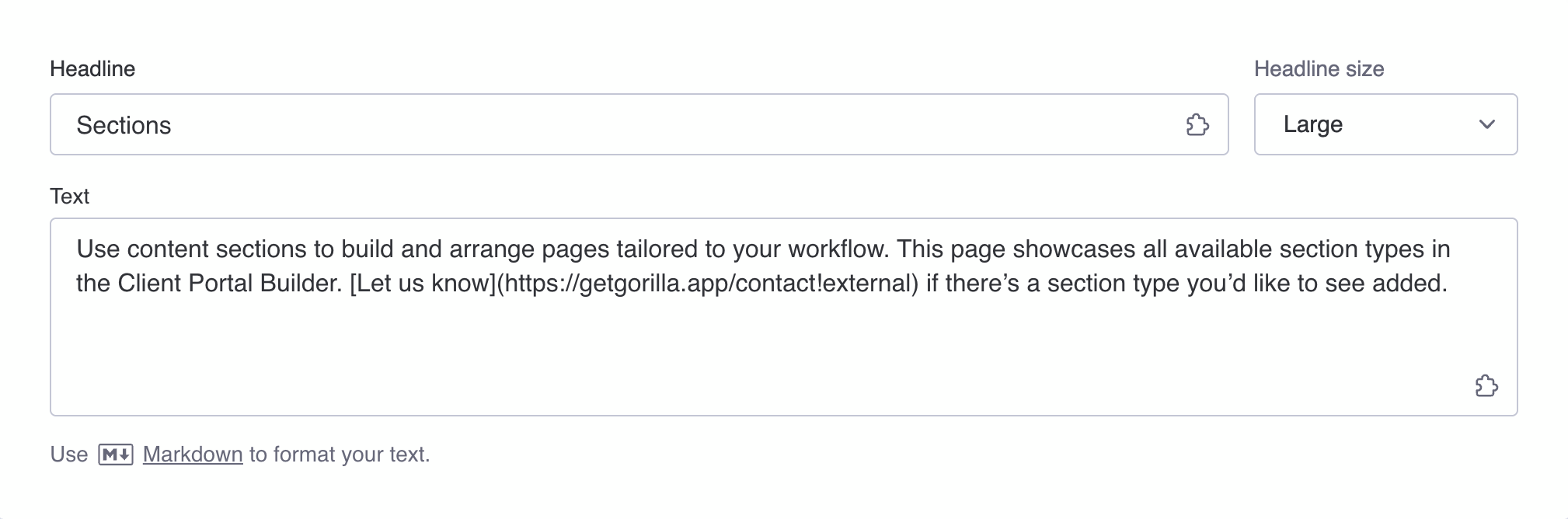
Use this section for headings, paragraphs, instructions, descriptions, or any written content that supports the rest of the portal. The Text section supports placeholders to insert dynamic content and Markdown to format your text.
- Headline
Placeholders - Headline size
SmallMediumLarge - Text
PlaceholdersMarkdown
If all provided fields in the Text section stay empty, the section will not be displayed in the portal.
Embed
Embed external content in the portal
Integrate monday WorkForms or other external websites so clients can interact with tools or resources without leaving the portal. You can use placeholders in the URL to display different embedded content per client, such as individual WorkForms.
- URL
Placeholders - Height in pixel
Number
If all provided fields in the Embed section stay empty, the section will not be displayed in the portal.

Teaser
Link to pages or external resources
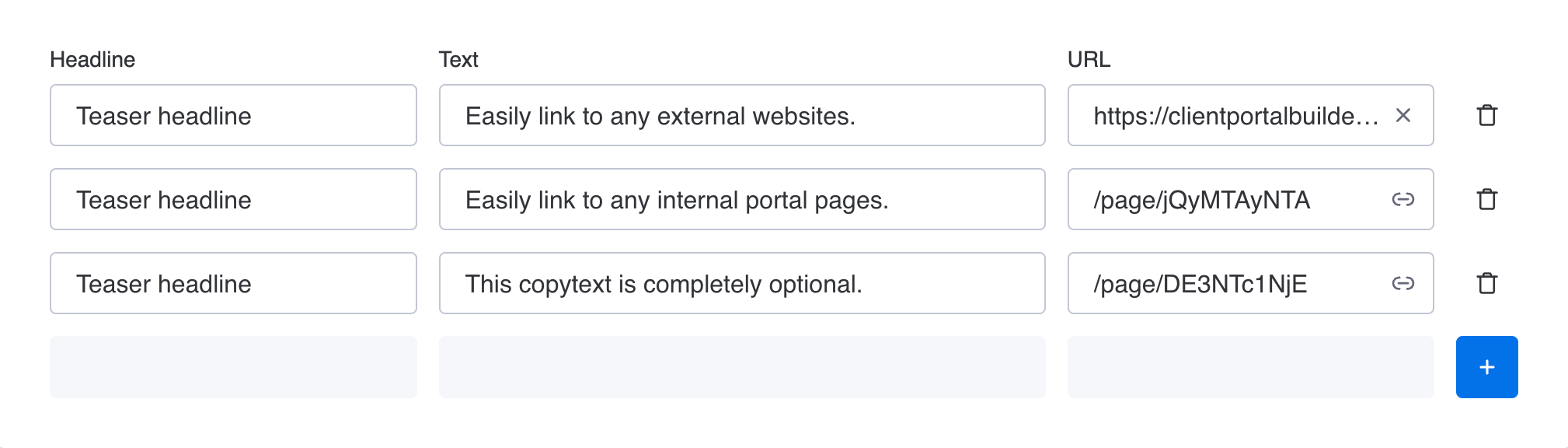
Displays visual link cards that guide clients to other portal pages or external websites. If no link is provided, teasers can also be used as static content cards, making them useful for building flexible grid layouts and highlighting key information.
- Headline
- Icon
Page iconFallbackExternal - Text
- URL
Optional
If all provided fields in the Teaser section stay empty, the section will not be displayed in the portal.
Page anchors and deep links
You can optionally use teaser cards as page anchors on the same portal page, or deep link to certain sections on another page. This can be helpful if you want to guide clients to a specific section on a portal page, or when a page has many content sections.
How to add page anchors or deep links:
- Choose the same or another portal page in a teaser card
- Head to your target section, hover and click the name to copy its ID
- Paste the section ID after the portal page URL in your teaser section
A regular internal portal page URL looks e.g. like /page/zE2NjgxNTQ, one with a page anchor looks like /page/zE2NjgxNTQ#TYxNjM2Njc
Section conditions
Show or hide sections based on a client status
Use conditional sections to display specific sections only to clients that match certain conditions, such as a specific status in your Clients Board. Learn how to set up and display a section conditionally.

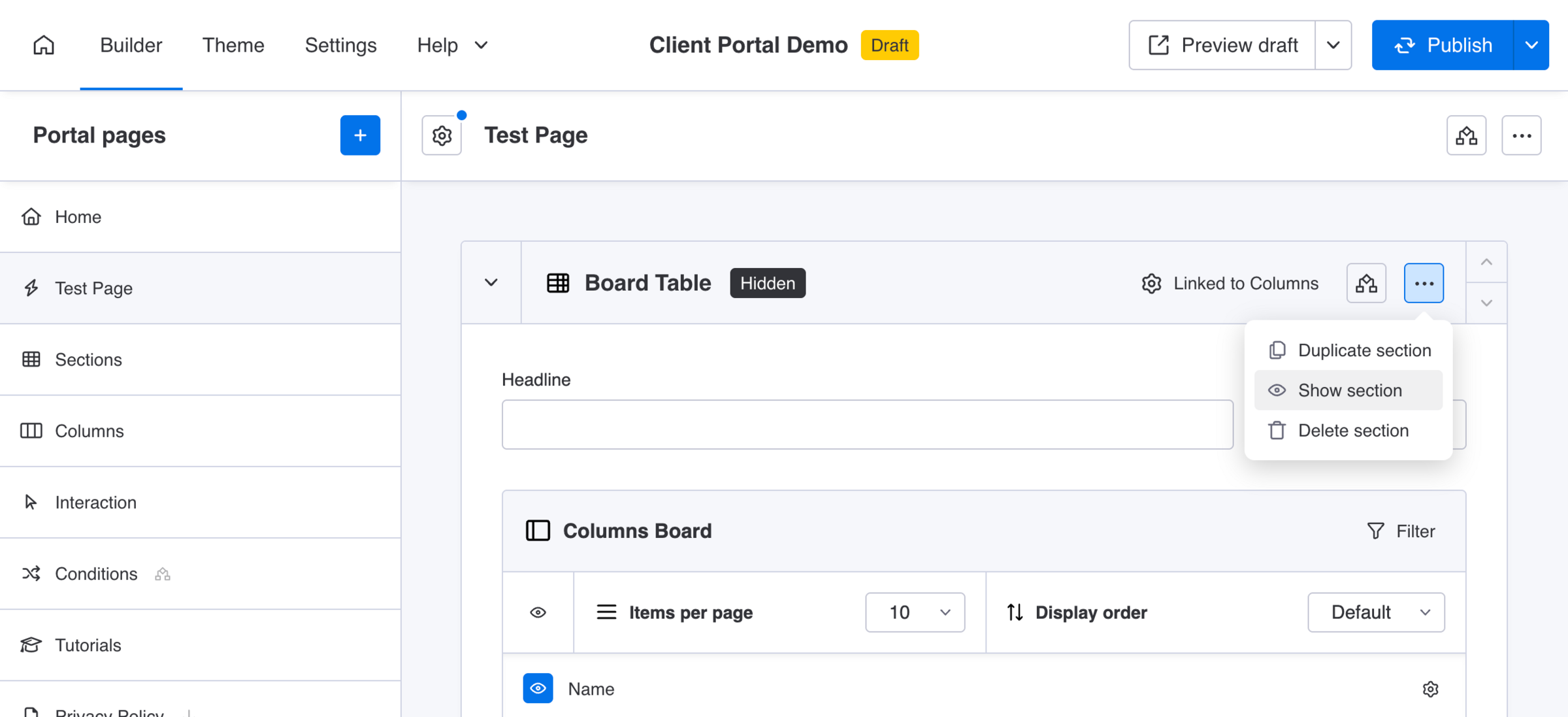
Section visibility
Hide sections when working on drafts
Use section visibility to hide individual sections from clients in their portal when working on new draft content. Besides toggling visibility, you can duplicate, delete and move a section to another portal page.
Column settings
Configure how specific column types are displayed
Column settings let you control how certain monday.com column types appear in the client portal per section, such as formatting, visibility, or behavior. Column settings are available in Board Grid, Board Table, and Client Item sections.
How to access column settings:
- Find a column with the
⚙icon and click it - Adjust the column settings to your needs
Find below a list of all column settings that apply to its supported sections, and specific settings that only apply to certain column types, such as Date, File and Mirror columns.
All columns in Board Grid
In Board Grid sections, each column value is displayed with its column name as a label above it. You can overwrite it with a Custom column name and control the Column name visibility.
- Custom column name
TextOptional - Column name visibility
AutoShowHide
All columns in Board Table
In Board Table sections, each column displays its column name in the table header. You can overwrite it with a Custom column name.
- Custom column name
TextOptional
All columns in Client Item
In Client Item sections, each column displays its column name next to its value. You can overwrite it with a Custom column name.
- Custom column name
TextOptional
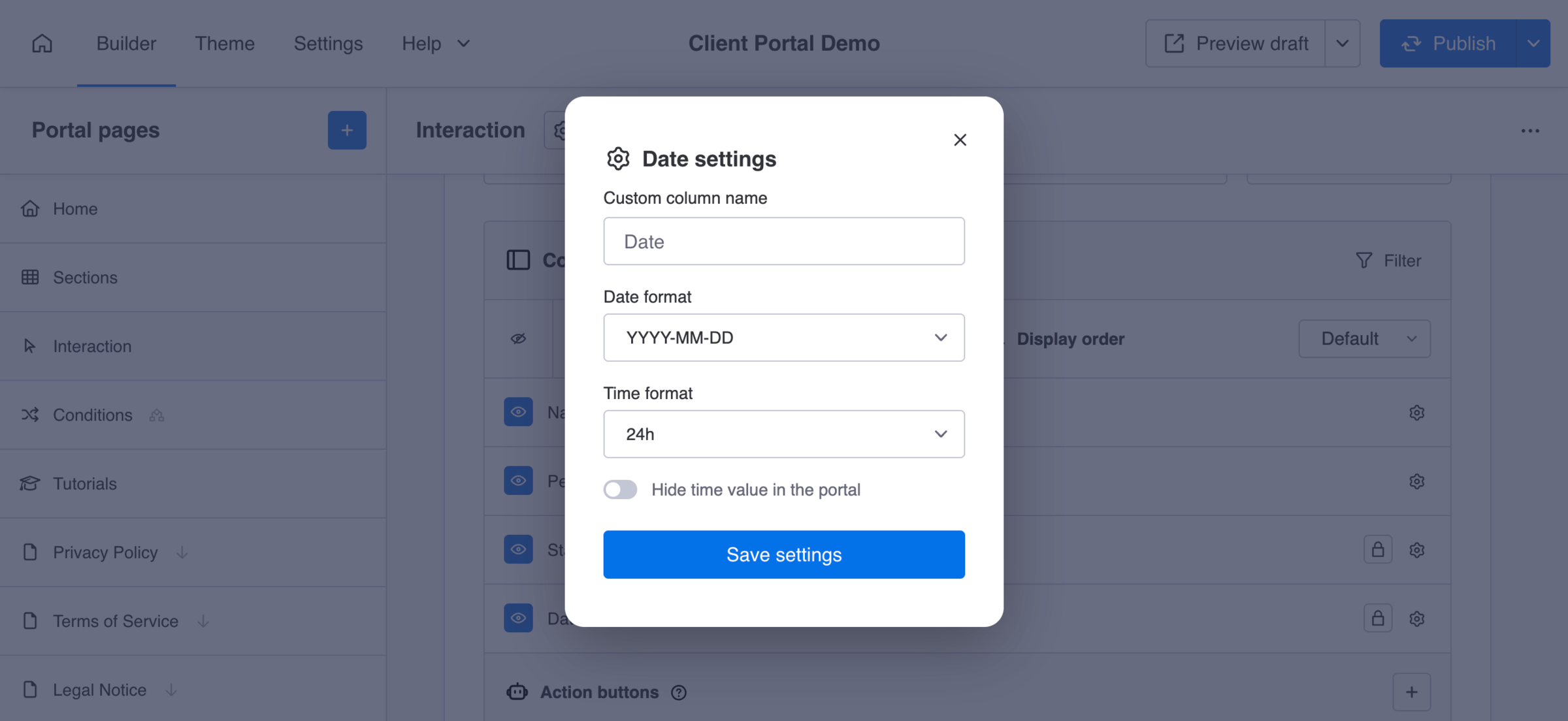
Date columns
Configure how date values are displayed to clients. Change the date and time format to your regional standard and hide time values in general.
- Date format
YYYY-MM-DDMM/DD/YYYYDD-MM-YYYYDD/MM/YYYY - Time format
12h24h - Hide time
ToggleOptional
File columns
Configure how files are displayed in the portal. By default, a click on files trigger a download. If file preview is enabled, supported file types, such as images, videos and PDF files, are previewed directly within the client portal.
- Enable file preview
ToggleOptional
Mirror columns
Configure how values from linked items via Mirror columns are formatted. For example, display the sum of numeric values across linked items.
- Value formatter
Summarize mirrored numbersOptional - Enable custom number format
Optional
Define granular how numbers should be displayed. - Enable compact mode
ToggleOptional
Numbers columns
Configure how values from Numbers columns are formatted, or aggregate their values across items to display a column summary in Board Table sections.
- Enable custom number format
Optional
Define granular how numbers should be displayed. - Column summary
SUMAVGMINMAXCOUNTMEDOptional
Calculate a summary value for this number column across items matching applied filters. The result is shown in the table footer.
Connect Boards columns
Configure how values from connect boards columns are formatted. Disable splitting, when linked items likely contain commas to avoid incorrect display. Enable compact mode to limit display to one item, and let clients display more items on click.
- Disable item splitting into tags
ToggleOptional - Enable compact mode
ToggleOptional
Dropdown, People and Tags columns
Configure how values from dropdown, people and tags columns are formatted. Enable the compact mode to limit display to one value, and let clients display more values on click.
- Enable compact mode
ToggleOptional
Did you know?
Column settings only affect how data is displayed in the portal, they do not change the data stored in your monday.com board. Available options may vary depending on the section and column type.