



Build custom, structured Excel reports from monday.com board data and send them automatically to the right people on schedule.





Client Comments
Client Comments item view
Use Client Comments to write and reply to messages and share files with clients through your monday client portal, either globally or on specific board items.
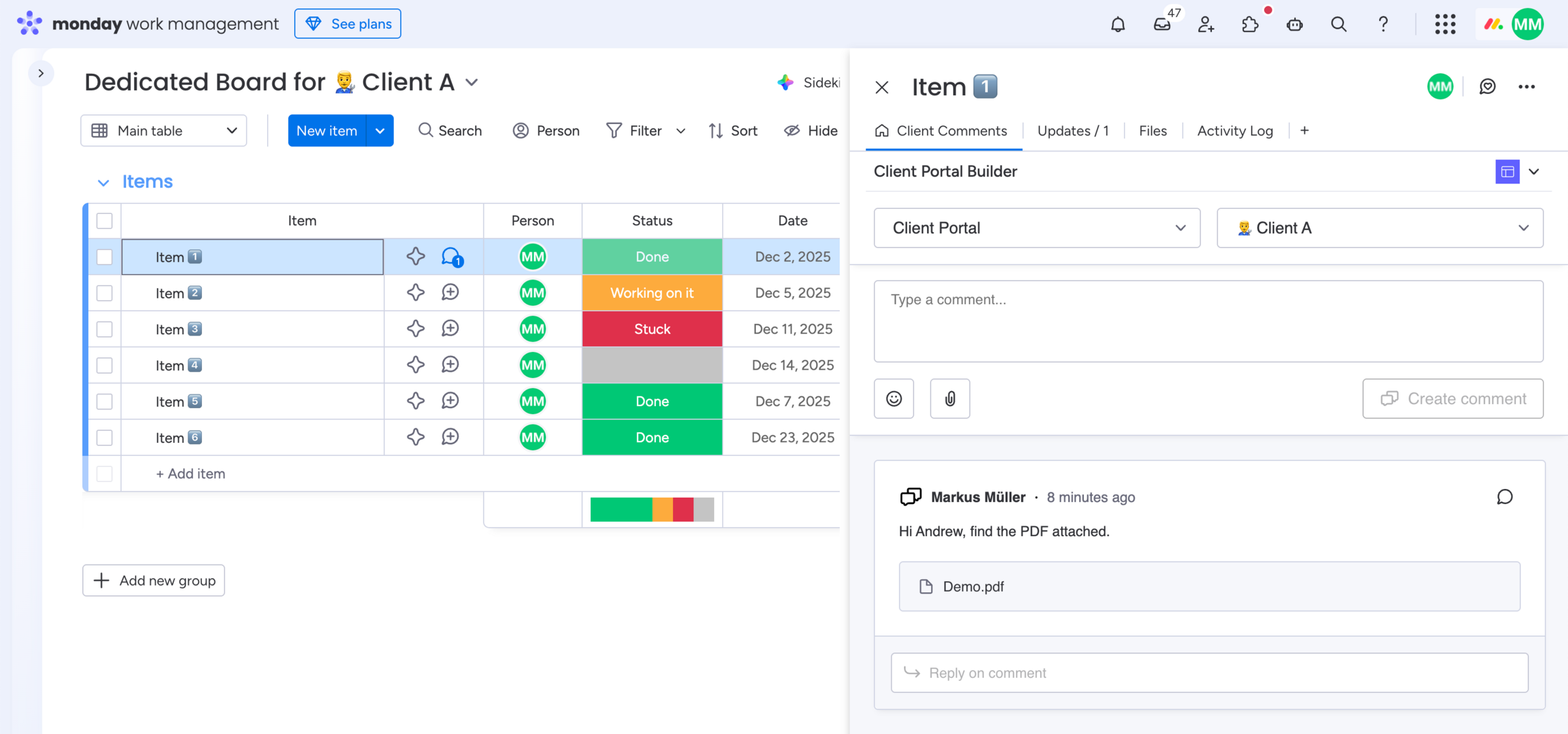
How to add the Client Comments view:
- Open one item on your target board
- Click the
+button to add a view - Click
Explore more viewsat the bottom - Search for Client Comments
- Find the view and click
Add to item
How to use the Client Comments view:
- Open the view on an item
- Choose the
client portal - Choose a
specific client - Write and create a new comment or
- Reply to an existing comment
Portal and client selection is needed, since you may have multiple client portals running in your account, and you may share a board item with multiple clients in the portal. This ensures the right client in the right portal is addressed. Any communication will be logged within the monday.com native Updates section.
Did you know?
The Client Comments app view is optional and only needs to be added feature dependent.
Item comments usage
Communicate with clients on specific board items
Add and use the Client Comments view on a connected board within your client portal configuration where Item comments are enabled. That way your team can communicate with clients on selected board items and exchange files.
Client Inbox usage
Message with clients across the portal
Add and use the Client Comments view directly on your Clients Board in case you have enabled the Client Inbox feature in the portal settings. That way your team can message and exchange files with clients on a global level.