


Build custom, structured Excel reports from monday.com board data and send them automatically to the right people on schedule.


How to test your monday.com client portal before clients see it
Preview the portal as any client, compare your draft with what is live and keep unfinished pages out of sight, so every change you publish works for every client.

Table of contents
Use the navigation below to quickly jump to your desired section and learn more about each topic.
A client portal shows different things to different people. Acme sees Acme's projects, Globex sees Globex's invoices, and a premium client may see a page that others don't. That is the point of a portal, but it also means a change that looks right for one client can look wrong, or empty, for another. Client Portal Builder for monday.com separates your work in progress from what clients see, and lets you look at both through the eyes of any client. This guide shows how to use those tools to test a portal before launch and before every change you publish.
Client Portal Builder creates a dedicated client facing layer around the boards and workflows you already manage in monday.com. Give clients secure access to selected information and actions without rebuilding the underlying workflow somewhere else.
Draft
Your changes stay a draft until you publish
Every change you make in the Client Portal Builder view is saved automatically to a working draft. Clients keep seeing the published portal until you click Publish. As long as the draft differs from what is live, a Draft label appears next to the portal name.
Rearrange pages, rewrite texts or configure a new board section in the draft while clients continue using the published portal configuration. Publishing controls when those configuration changes reach clients.
A draft preview still uses real board data
A draft is a separate version of your portal configuration, not a copy of your monday.com boards. If item editing, comments, uploads or action buttons are enabled in the preview, using them can change real items, post real updates or run connected automations without publishing the draft.
Use clearly marked sample items for interaction tests and check which automations and notification recipients they affect. A test client or a separate test portal does not isolate the boards it connects to.
Preview
Open the portal as a client
Click Preview draft in the Builder to open the working draft in a new window, exactly as a client would see it, with their name, their board items and their conditions applied. A banner at the bottom of the window shows which version you are looking at and for which client.

The arrow next to the button has two more options:
- Preview published portal opens what clients see right now
- Change preview client picks the client whose data the preview shows
Check more than one client
By default, the preview uses the first client on your Clients Board. Use Change preview client to pick another one, and the app remembers your choice for the next preview.

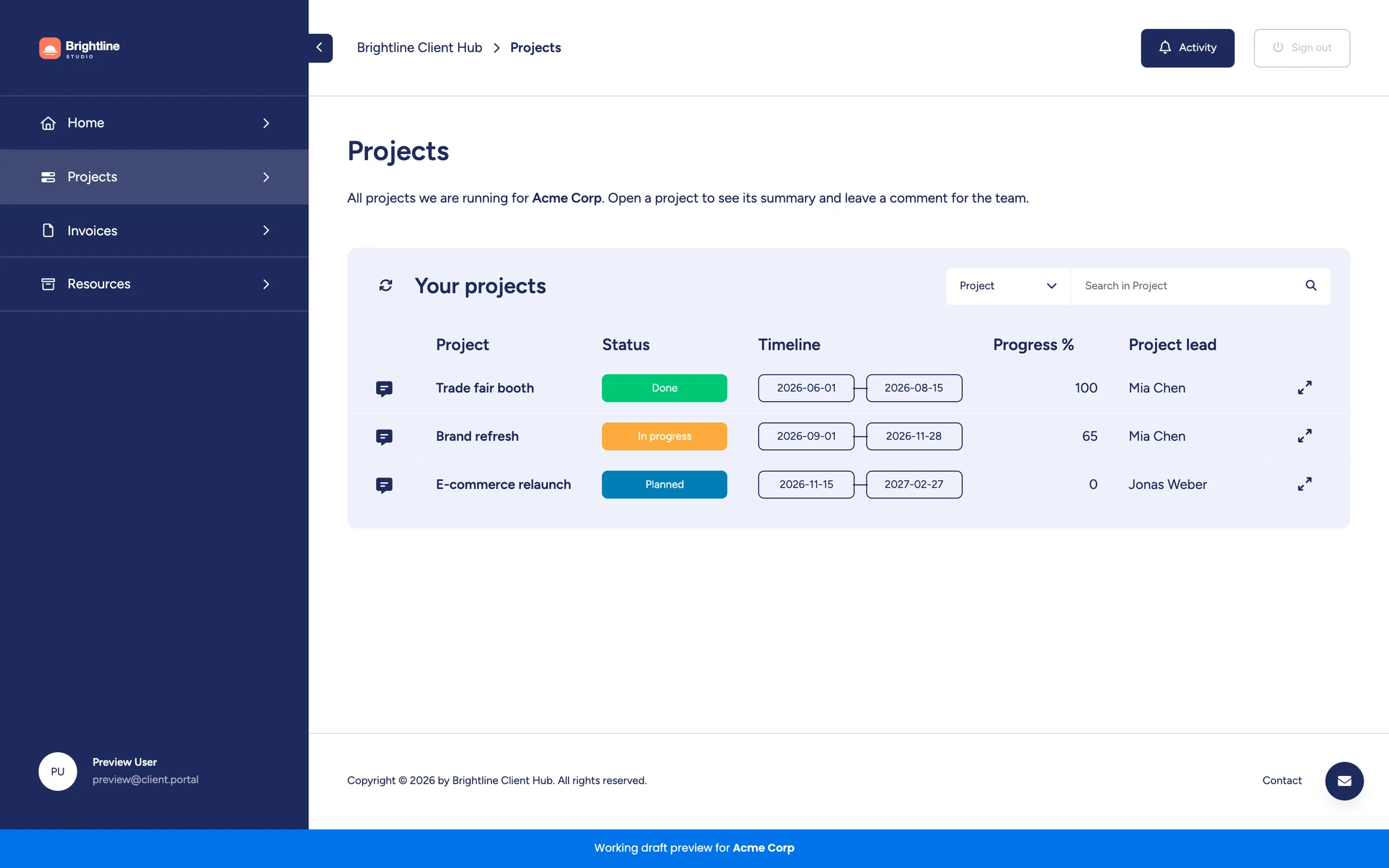
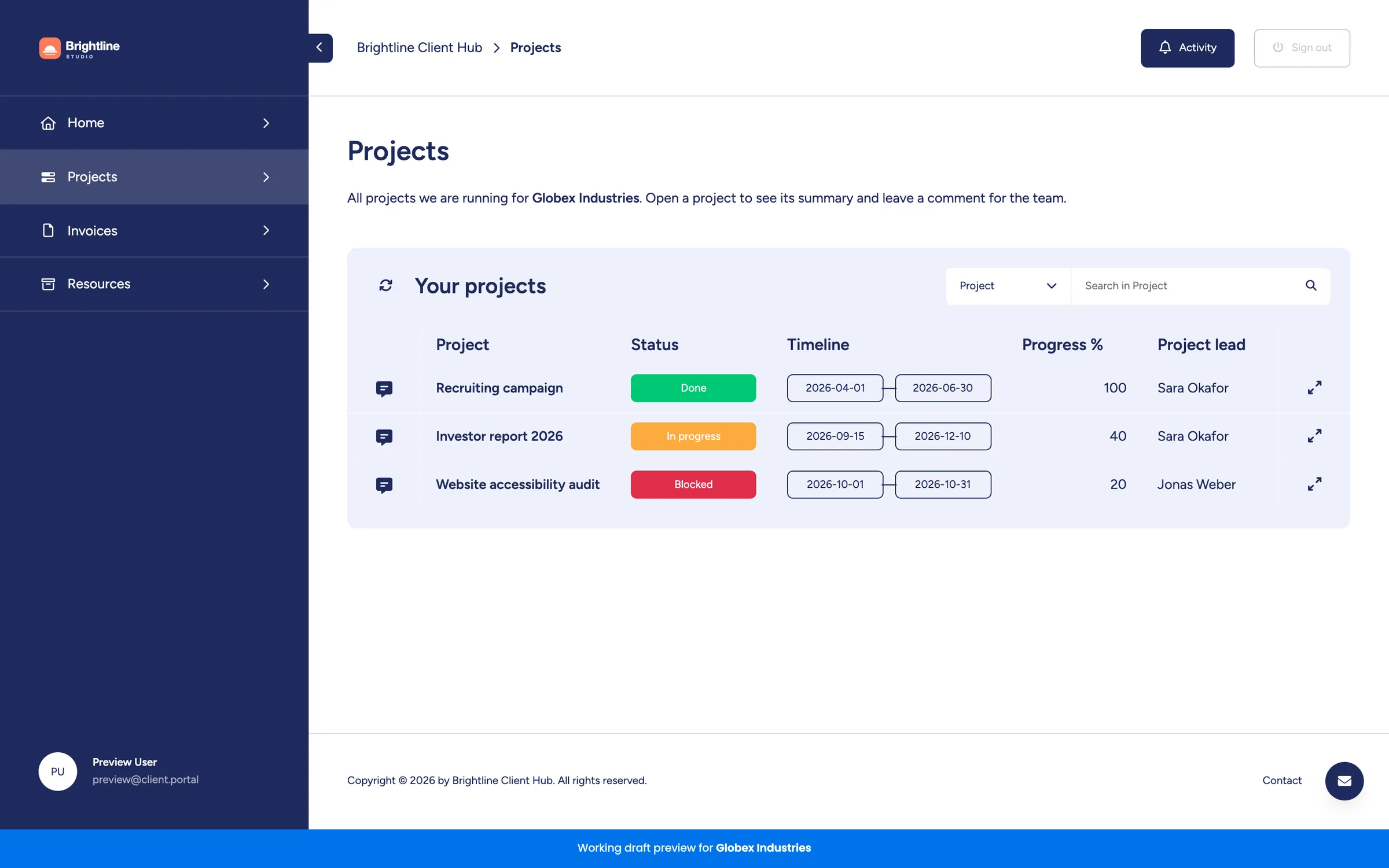
Switching clients is the quickest way to check the parts of a portal that depend on who signs in: board sources that filter items by client, placeholders such as {{client.name}}, and page and section conditions based on a client's status. The slider below shows the same Projects page previewed for two clients.
Use a small set of test cases
Choose clients and sample items that cover the differences in your portal, rather than checking only your favourite client:
| Test case | What to check | Expected result |
|---|---|---|
| Clients with different access levels or statuses | Open the same page for each client and check conditional pages and sections. | Each client sees only the content intended for their access level. |
| A client with no matching items | Open a board section whose items or filters do not match that client. | The empty state is understandable and no other client's items appear. |
| A client with missing optional data | Leave an optional contact value, file or client-specific link empty on a sample item. | Missing values are handled clearly, without misleading labels or unusable links. |
| Two clients with similarly named projects | Compare which items appear in each client's preview. | Client connections or dedicated-board assignments select the correct records, regardless of similar names. |
Also check long client names and column values. They can reveal layout problems that short sample names hide, especially on mobile screens.
Preview a specific client from their item
When a client reports that something looks off, you don't need to change the preview client in the Builder. Open their item on the Clients Board, switch to the Client Settings view and click Preview draft, or Preview published portal from the arrow next to it. The preview opens for exactly that client, so you see what they see.

Draft vs. published
Compare your draft with what is live
Before you publish, open both versions for the same client and compare them side by side. In the example below, the draft moves the next check-in from Thursday to Friday. The published portal still shows the old date, so clients see the change only after publishing.
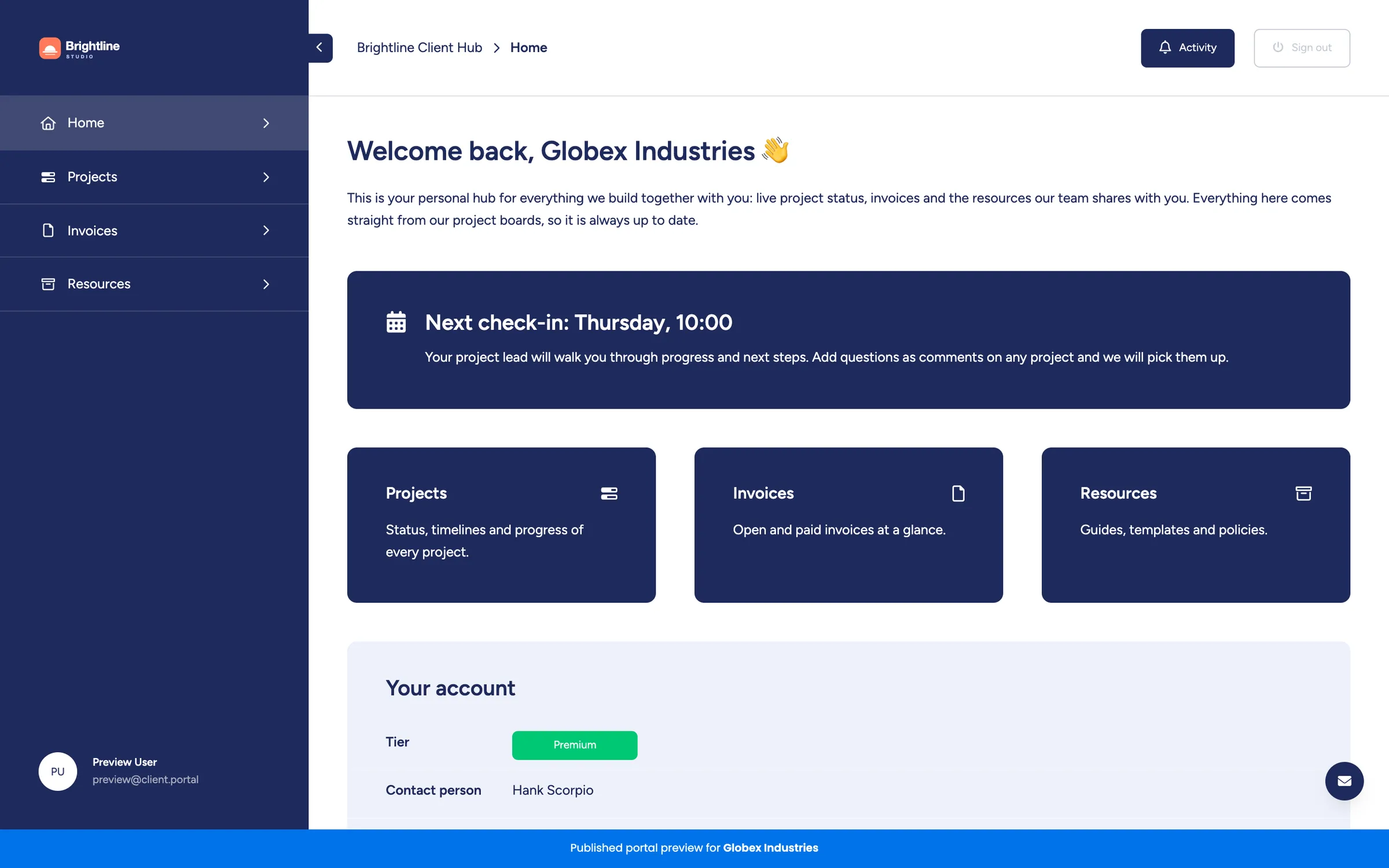
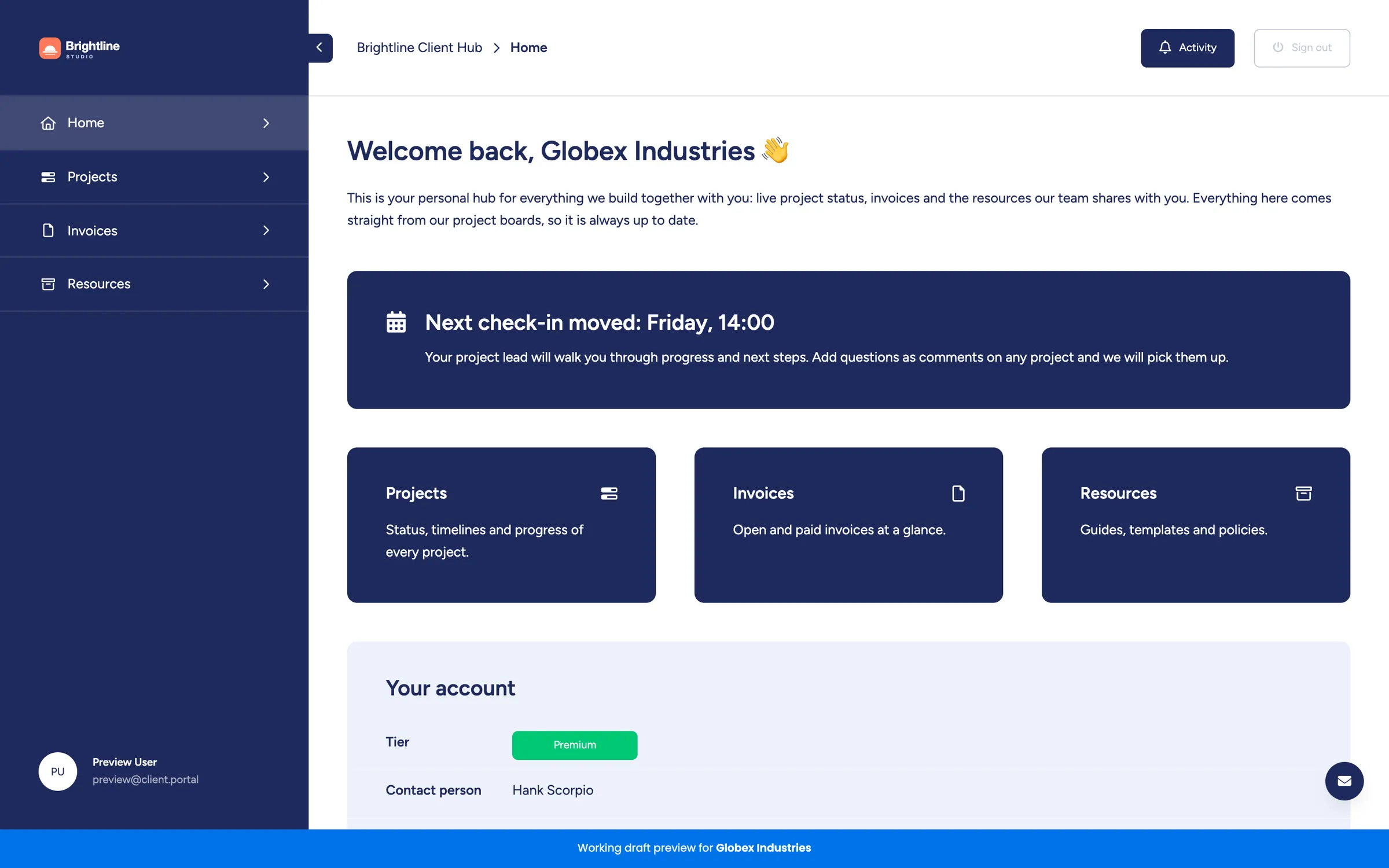
Comparing the two versions also helps after a publish. If a client says something changed unexpectedly, preview the published portal for that client to see exactly what they see.
Visibility
Keep unfinished pages out of sight
Sometimes a bigger change takes longer than one session, but you still need to publish a quick fix elsewhere in the meantime. That's what Hide page and Hide section are for. You'll find them in the three-dot menu of a page or section. A hidden page or section stays in the Builder, so you can keep working on it, but it isn't part of the portal when you publish.

Hidden content is also left out of previews. To review a new page before it goes live, keep it visible and look at it with Preview draft. Hide it only when you have to publish other changes before the page is ready.
Mobile layout
Check the phone layout
Many clients open the portal from a link in an email on their phone. On small screens, the navigation turns into a top bar with a menu, and tables and cards stack differently. Resize the preview window, or use your browser's device toolbar, to check that wide tables, long texts and teaser cards still work on a narrow screen.
Test client
Test sign-in and interactions with a test client
A preview opens the portal directly, without a login. That's convenient, but it skips everything that happens before a client is signed in: the login page, the invitation, password resets and Google sign-in.
To test those, add a test client to your Clients Board, connect it to a few sample items and give it a login method with an email address you control. Then sign in on your portal's address in a private browser window, as your clients do. When you don't need it, turn the test client off with the Enabled toggle in its Client Settings view.
Once signed in, test the interactions your portal offers using those sample items:
Post a comment and reply, then check the thread in monday.com's Client Comments item view and the item's Updates. Confirm the comment is associated with the intended client.
Attachments
Upload a harmless sample file where uploads are enabled. Check that it appears on the intended item or comment in monday.com and can be opened again from the portal.
Item edits
Change an editable value, such as a sample task's status, and confirm the change on the monday.com board. Check that columns intended to be read-only cannot be edited.
Action buttons
Run an action configured for the sample item and check its automation history and intended result in monday.com. Check any notifications using recipients you control.
These tests affect real data too. Review the changes and notifications before repeating them with another test client; disabling the test client afterwards does not undo item edits, comments, uploads or completed automations.
After publishing
Know when changes reach clients
Changes to the portal are live for clients as soon as you publish. Changes on your boards don't need a publish at all, because the portal reads them from monday.com.
One exception: if you enable the cache in the portal settings to speed up loading, changes on the Clients Board can take up to three minutes to reach clients. Draft previews are not affected by the cache, so if a client doesn't see a change yet that your preview shows, give it a few minutes.
Clean up
Remove portals you only used for testing
If you built a separate portal to try out an idea, remove it once you are done. monday.com account admins can delete unused portals in the Client Portal Admin view. This removes the portal's settings, login methods and any connected domain. Your boards and app views stay untouched.

Checklist
A checklist before you publish
- Preview the draft as at least two clients, including one with few or no items.
- Check every page that has conditions with a client that meets them and one that doesn't.
- Compare the draft with the published portal for the same client.
- Hide pages and sections that aren't ready yet.
- Check the layout on a phone-sized window.
- Sign in once as a test client after changing login methods or the login page.
- Publish, then preview the published portal to confirm the result.
Summary
Publish with confidence
A client portal changes with every client who signs in, so testing it means looking at it as more than one client. The working draft keeps your changes private, previews show the draft or the live portal through any client's eyes, and hidden pages and sections let you publish in small steps. A few minutes of previewing before each publish saves you from the email that starts with "We can't see our projects anymore".
Preview your client portal
Client Portal Builder for monday.com lets you work on a draft, preview it as any client and publish when it's ready. Learn more about previewing client portals in the documentation.
Interested in a product demo?
Let's learn about your requirements, answer questions, and
review ways how we can help you and your organization with
our monday.com apps and solutions.
