


Build custom, structured Excel reports from monday.com board data and send them automatically to the right people on schedule.





Preview
Preview your client portal as a specific client
Preview your monday client portal from a selected client's perspective to verify content, visibility and navigation before publishing changes.
Client Portal Builder
Preview from the Client Portal Builder view
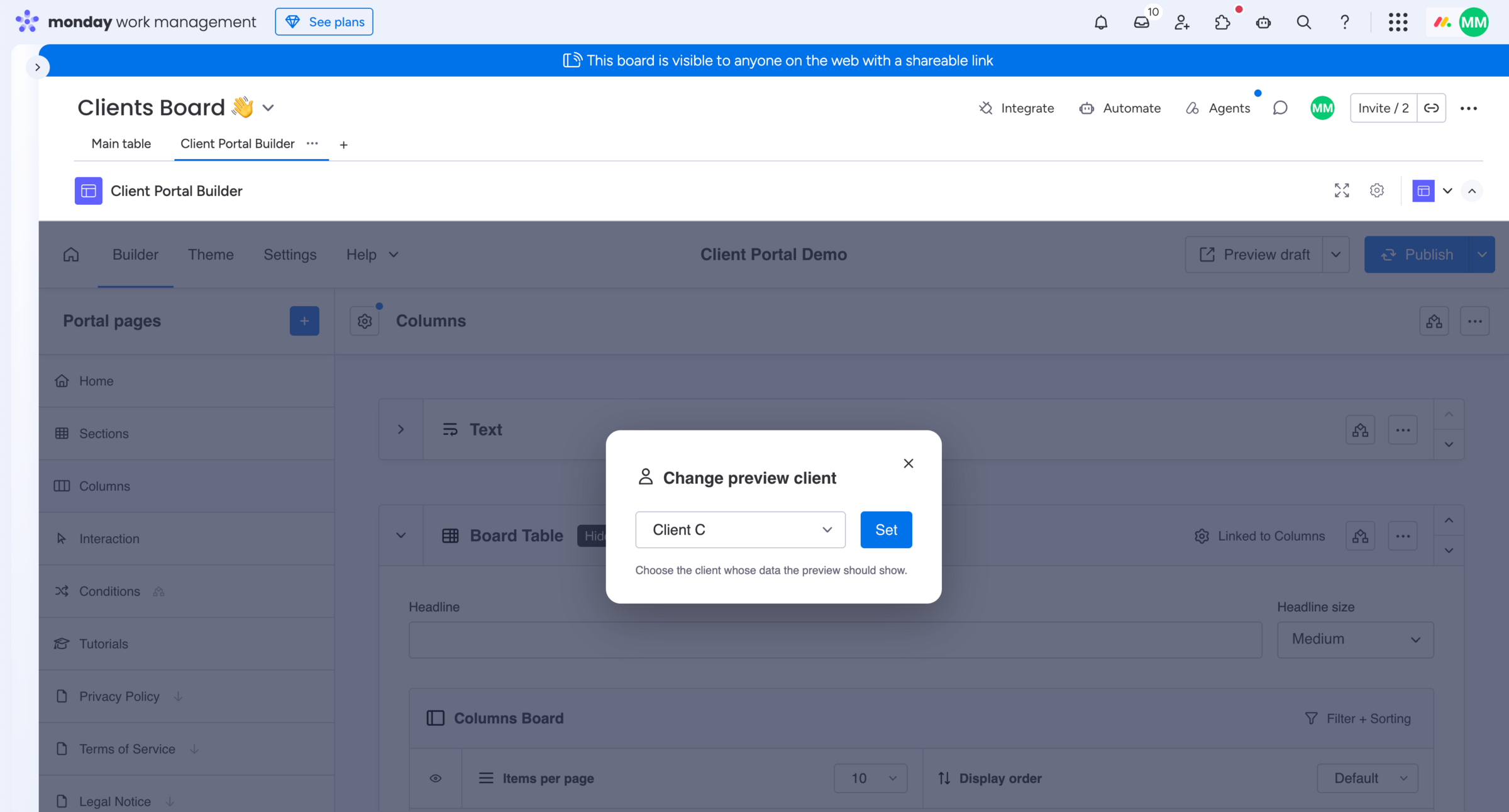
This feature lets you impersonate and preview the portal right from the main Client Portal Builder app view as a specific client when clicking Preview draft or Preview published portal. Using this is useful when you are working on a new draft and want to quickly check portal content for a certain client.
How to change the current preview client:
- Open the Client Portal Builder board view and the Builder tab
- Click the
▾on thePreview draftbutton - Find and select Change preview client
- Choose a client from the list and click
Set - Click
Preview draftorPreview published portalto impersonate the set client
Client Settings
Preview from the Client Settings view
This is the default and recommended way when you need to quickly check portal content for a certain client. Learn more about how to preview a specific client from within the Client Settings item view.