Build custom, structured Excel reports from monday.com board data and send them automatically to the right people on schedule.





Placeholders
Personalize client portal content with placeholders
Placeholders insert live Clients Board values into your client portal built on monday.com, letting one portal configuration show personalized content for every client.
Supported sections
Where to use placeholders
Supported sections
- Text section
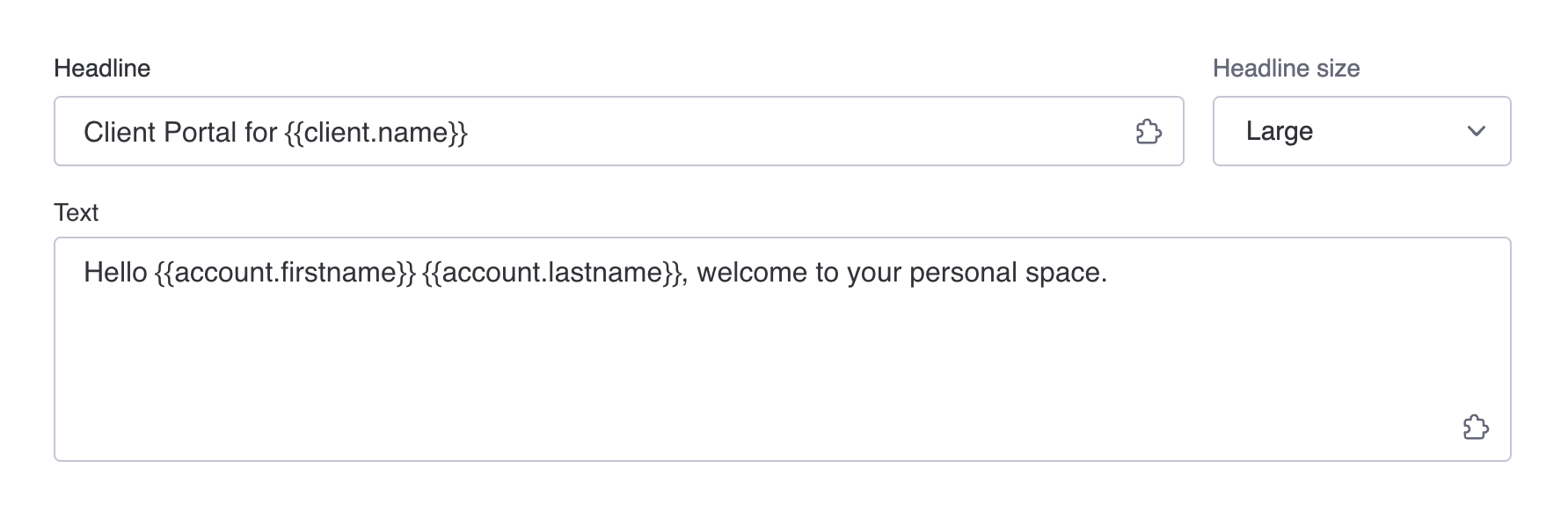
HeadlineText - Callout section
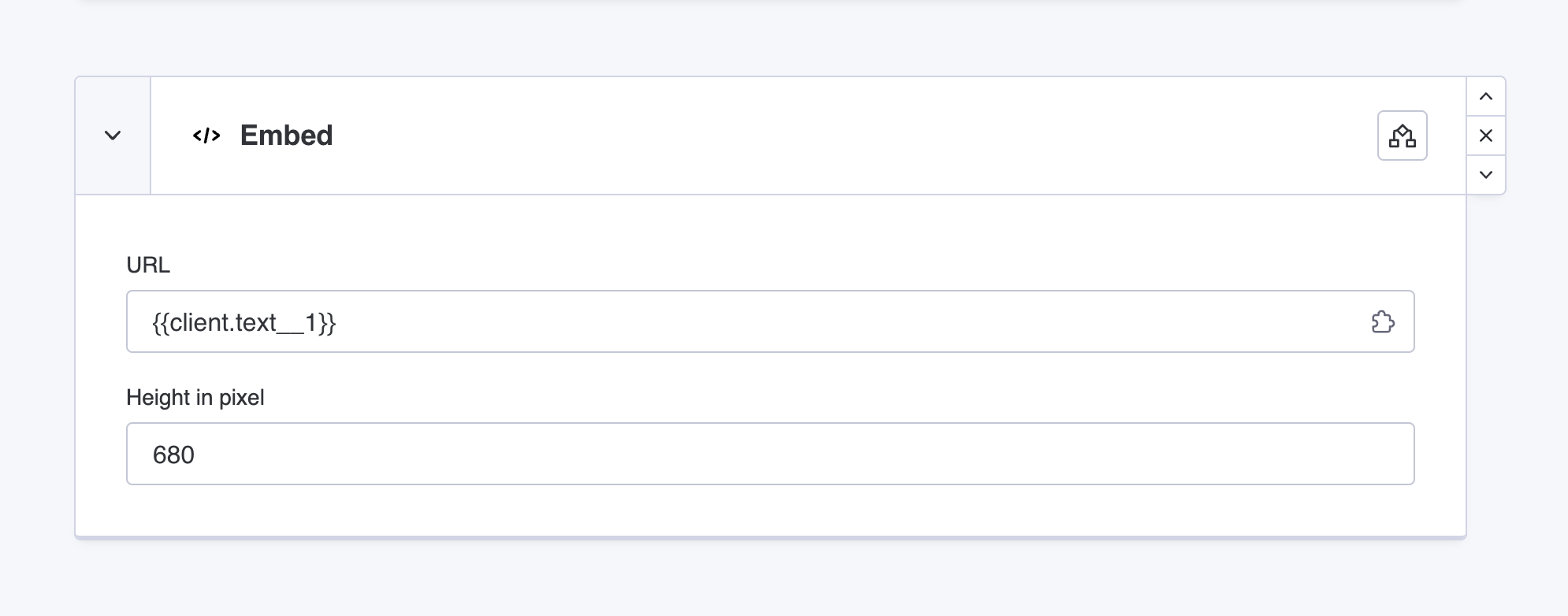
HeadlineText - Embed section
URL
Core placeholders
- {{client.id}}
Item ID - {{account.firstname}}
Login method - {{account.lastname}}
Login method - {{account.email}}
Login method
How to use
Create and apply placeholders
How to create placeholders
- Head over to your Clients Board
- Add
+a new column to the board - Find the new placeholder in-app
How to apply placeholders
- Head over to a supported section
- Click the
Puzzleicon within context - Choose and append
+the placeholder
How it works
How placeholders work
Each placeholder is connected to a specific column in your Clients Board. When the data in that column changes, the placeholder updates instantly within the client portal and individually per client.
Did you know?
Placeholders always have such a syntax {{client.name}}, {{client.text_mky96sq2}} or {{account.firstname}}, and can therefore be easily identified across sections.
Example
Practical usage of placeholders
For example, you can display the client’s name in a welcome message, or show a project status or progress that updates automatically. You can also display an individual WorkForm per client in an Embed section.