



Build custom, structured Excel reports from monday.com board data and send them automatically to the right people on schedule.





Google Authentication
Set up Google authentication for your client portal
Let clients sign in to your client portal with their Google account instead of or in addition to standard email and password credentials.
Overview
What Google authentication is
Google authentication lets clients sign in to your client portal using their Google account instead of or in addition to standard credentials. This improves convenience and reduces friction for clients who already use Google services.
Google Cloud setup
Setting up Google Authentication
To use Google Authentication as a way for your clients to log in to your monday.com client portal, you will need an OAuth client ID created at Google. The prerequisite for this is having a Google Cloud account. Follow the steps below to create your OAuth client ID.
Your client portal must be connected to a custom domain, e.g. portal.domain.com. You can't use the default subdomain coming with the Client Portal Builder app, because it's invalid for Google due to its containing underscore, which results in an Invalid Origin error.
- Ensure you have connected a Custom Domain.
- Log in to Google Cloud.
- Navigate to their Google Auth Platform product.
- Click on Clients in the left sidebar.
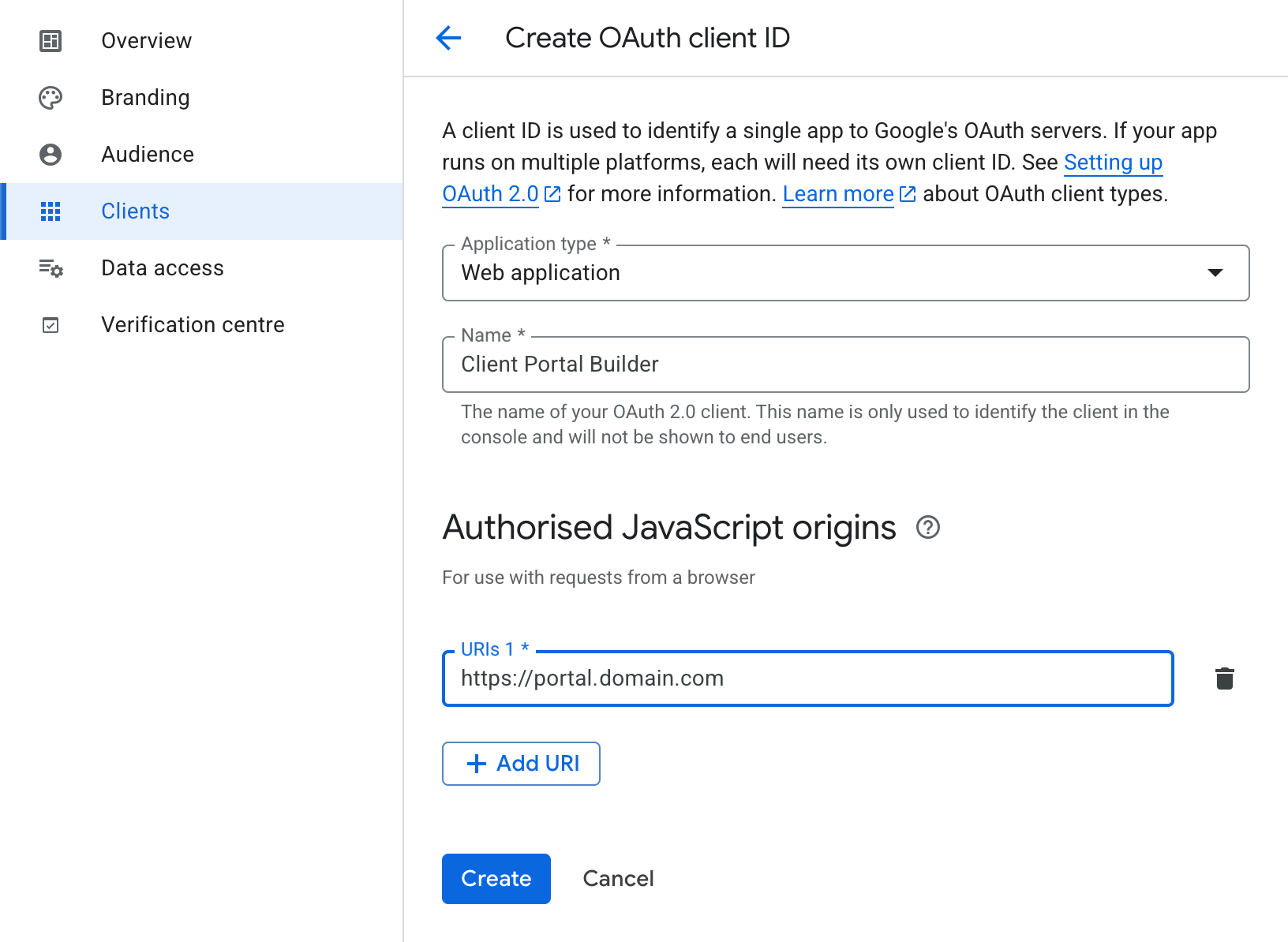
- Create a new client of Application type
Web application. - The name can be freely chosen, e.g. Client Portal Builder.
- Add the URI(s) to your Client Portal under Authorised JavaScript origins. For example, if your portal runs on
https://portal.domain.com, that's the URL you want to enter. This is important, since Google Authentication will not work otherwise. - After creating the client, head to the Clients overview page and copy the Client ID of the client you just created.
Client Portal Builder setup
Steps in the Client Portal Builder app
- Go to your monday.com workspace and log in if you haven't yet. Head over to the Client Portal Builder board view.
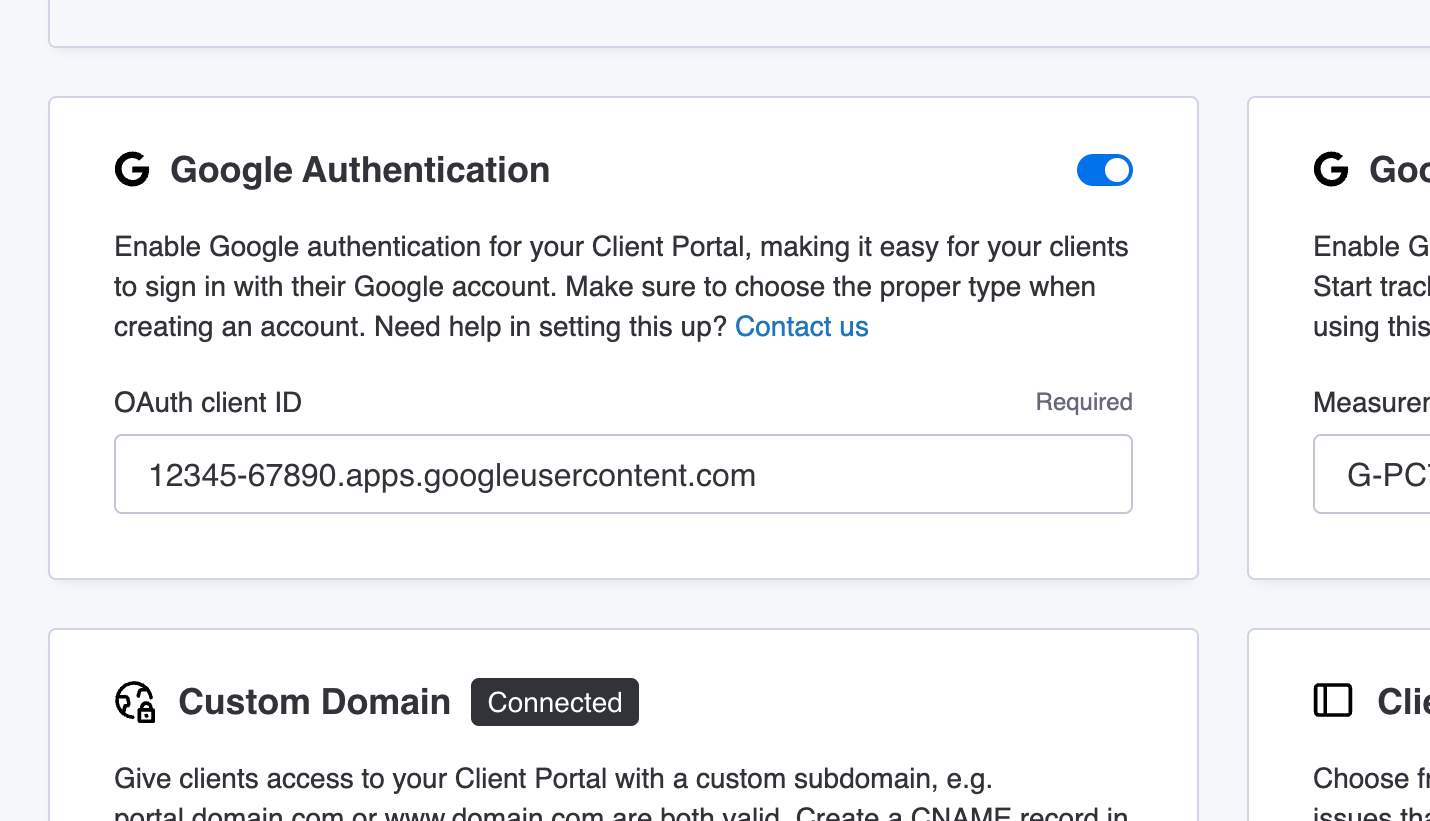
- Open the settings of your client portal, where you enable Google Authentication and paste the Client ID into the OAuth client ID field.
- After republishing your monday.com client portal, you should see a Google Login button on the login screen of your client portal.
Create Google login method
Adding a Google login method to a client
- Go to your Clients Board and open the client item where you want to add a Google Login.
- Open the Client Portal Builder item view.
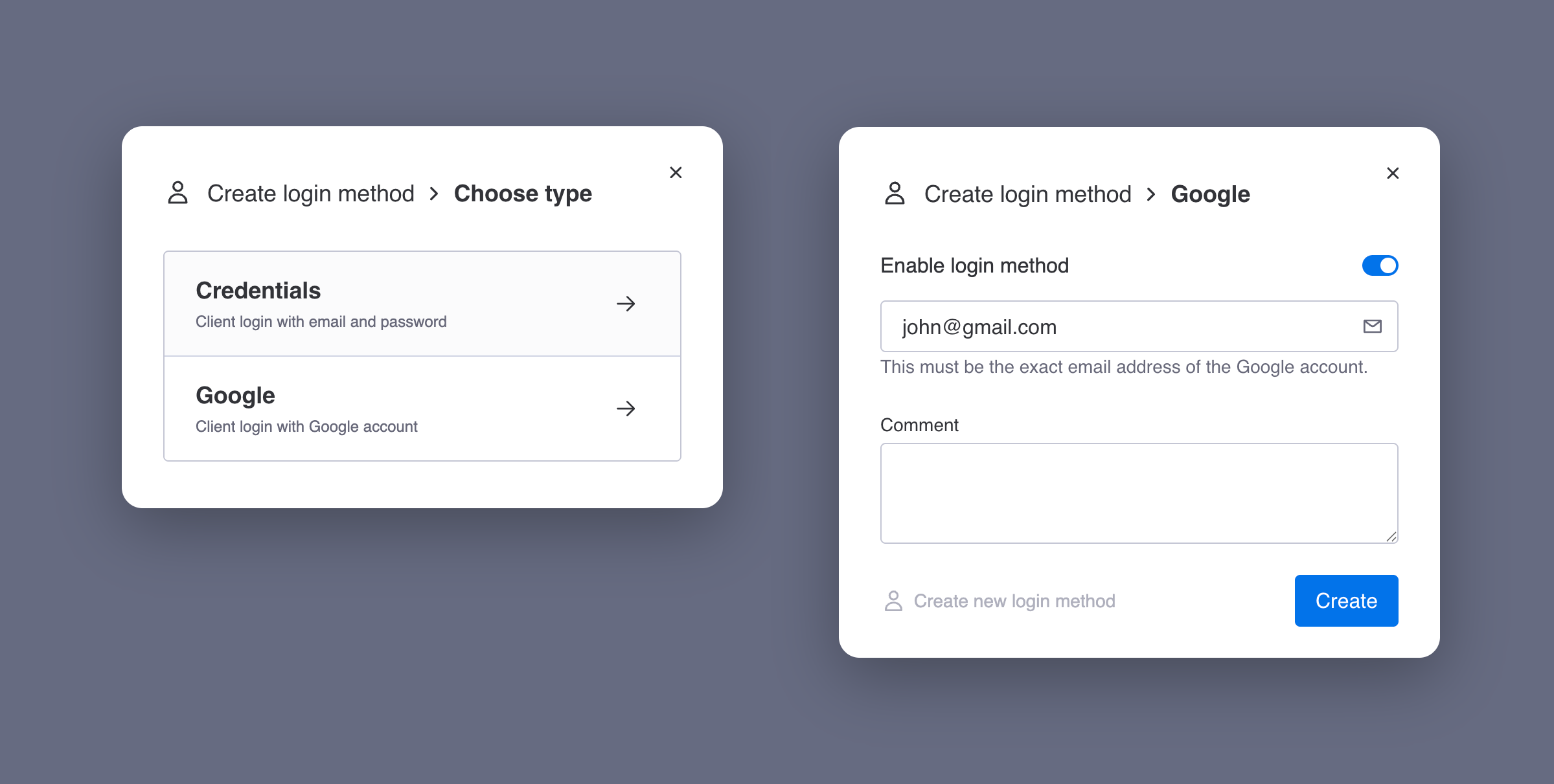
- Click Create on the Login methods tab.
- Choose Google as login method type.
- Now you have to add the Google email address of the user you want to grant access.
- Make sure the recently created Login method and the Client are enabled.
- Now your client should be able to sign into the client portal via Google Auth.
Important
Use only primary Google email addresses, not aliases. Otherwise, the login will not work. When you are logged into Google, the primary Google email address is shown when you click on your profile image.