


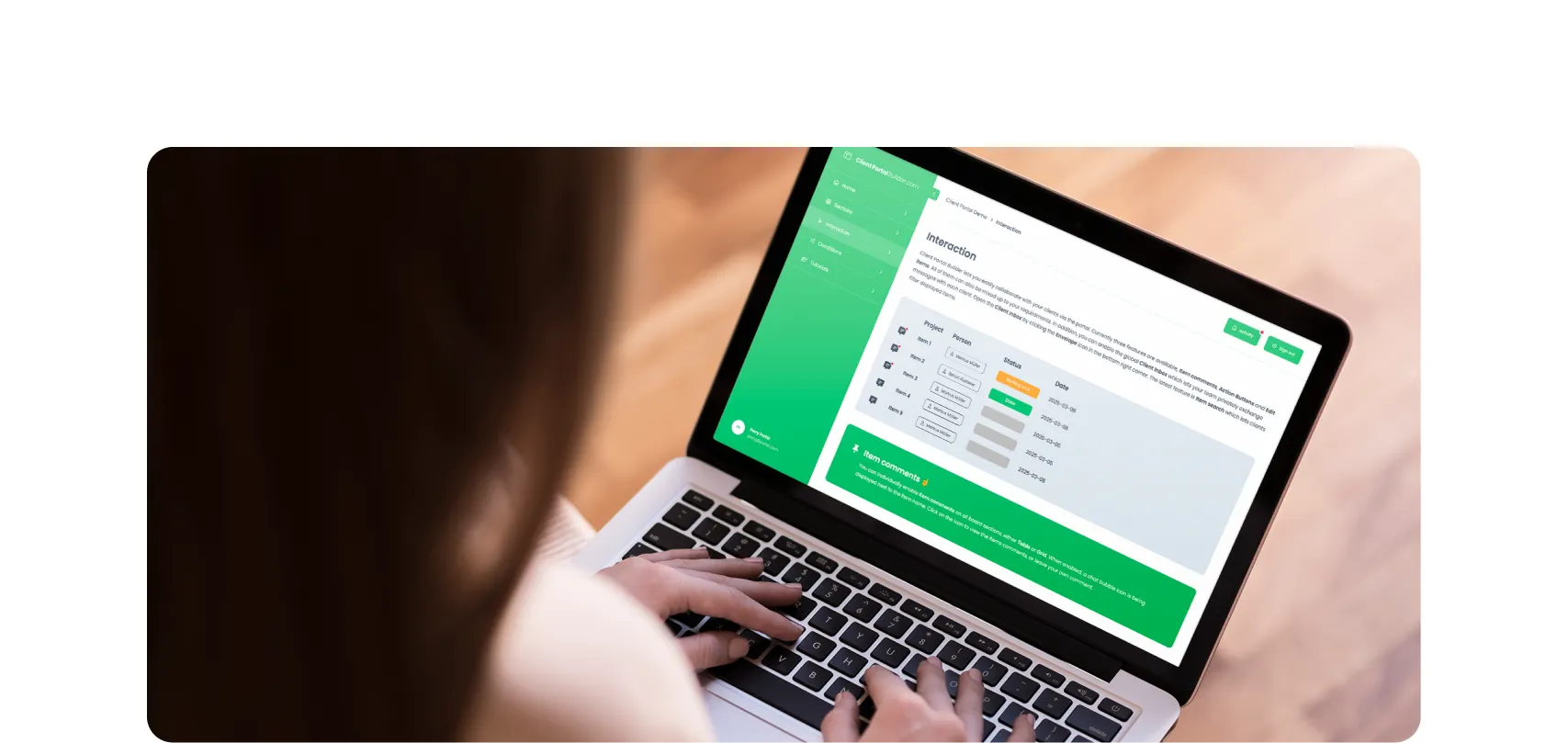

Build custom, structured Excel reports from monday.com board data and send them automatically to the right people on schedule.





Email automations
Send Excel reports from monday.com automatically by email
A Spreadsheet Gorilla automation exports one of your spreadsheet templates and sends the result by email or as a monday.com notification – every Monday at 8am, at the end of each month or whenever something happens on a board. This guide shows how to set one up, what an automation can send, and what to check when a report doesn't arrive.

What it sends
What an automation can send
Every automation exports a spreadsheet template with the board data at the moment it runs. Depending on the recipe you pick, it sends:
- An Excel file (.xlsx) as an email attachment, to email addresses or to a monday.com user
- The spreadsheet as a table inside the email, to email addresses or to a monday.com user
- A monday.com notification with your message text
Automations send by email or notification only. CSV and HTML files are available through a manual export, and automations can't save files to SharePoint, OneDrive, Google Drive, an FTP server or a folder on your computer. If you need the file somewhere else, forward it from the mailbox, for example with a mail rule or a Power Automate or Zapier flow.
Set up
How to set up an email automation
An automation always needs a message: the subject and text of the email, saved in the template. The automation recipe asks for it, and it can't be completed without one – this is the step people most often miss.
- Open the spreadsheet template you want to send and check it with
Preview. - Click
Message managerabove the configuration, thenCreatea message with a name, a subject and the email text, andSaveit. See Message Manager. - Open the board the template belongs to and open monday.com's Automation Center (
Automatein the board header). - Search for
Spreadsheet Gorillaand choose a recipe, for example one that sends an Excel file on a schedule. - Fill in the recipe: when it should run, who receives it, which template to export and which message to use.
- Click
Create.
Did you know?
The message text can contain formulas, so the email can show a key figure such as a total or a count of open items right in its text, next to the attached spreadsheet.
Recipients
Recipients, sender and email size
- Up to 7 email addresses per automation. Separate them with commas. For more people, send to a distribution list or a shared mailbox, or create a second automation.
- The sender is always automation@getgorilla.app. It can't be changed to your own address. Replies go to the person who created the automation, and the email's footer names them as the contact for questions about its content.
- Notifications come from the monday.com user who set up the automation.
- Emails can be up to 30 MB, attachments included.
If your company only accepts mail from known senders, ask your IT department to allow automation@getgorilla.app before you rely on the reports.
Limits
How many automations you can run
Every run of an automation counts once, however many people receive it. Your plan sets how many automation runs your monday.com account has per calendar month, shared by all users and templates:
| Plan | Automations per month |
|---|---|
| Small | 100 |
| Medium | 250 |
| Large | 500 |
The bar at the top of the app dashboard shows how many export automations are left this month. When none are left, automations fail until the next month starts. If you regularly need more, contact us.
A single run may take up to 10 minutes to fetch the board data and build the spreadsheet. Templates with many boards, many items or a lot of mirror columns can take longer, which makes the run fail. Splitting such a template into smaller ones usually helps; see Failed exports.
Automation log
Check what an automation did
Click Automation log at the top right of the app dashboard to see the automation runs of the last 90 days, with their status and result. Admins see the runs of every user, everyone else sees their own. Show in the Details column opens the full log of a run.
When a run fails, the person who created the automation also gets a monday.com notification with the reason.
Troubleshooting
When a report doesn't arrive
Start with the Automation log: it tells you whether the problem is the export or the delivery.
The export itself failed. The Result column says why, for example a deleted board or column, or a run that took longer than 10 minutes. Follow the steps in Failed exports. Many failures are caused by temporary problems at monday.com, so check the status page and whether the next run succeeds.
The log says "Trial or Subscription expired"
Automations only run while the app has an active trial or subscription. If a renewal failed – most often because the credit card expired – the subscription ends and every automation stops. Update the payment details in your monday.com Administration under Apps; billing for monday.com apps is handled by monday.com.
The log says "Execution limit reached"
Your account has used all automation runs of its plan for this month. The automations run again from the first day of the next month, or you can move to a larger plan.
The log says "Too many email addresses provided (max 7)"
An automation can send to at most 7 email addresses. Shorten the list, use a distribution list, or split the recipients across two automations.
The log shows success, but nobody received the email
The email was sent. Look in the spam or junk folder and in your company's quarantine, and ask your IT department to allow automation@getgorilla.app.
Everyone receives the report except one person
Most likely that person's mail server rejected one of the earlier emails. After a rejection, our email provider stops delivering to that address to protect the sender's reputation, even once the mail server would accept it again. Contact us with the affected address so we can lift the block, and ask your IT department why the email was rejected so it doesn't happen again.
Can the report be saved as a CSV file?
Not by an automation: automations attach Excel (.xlsx) files. You can export a template as CSV manually from the
Exportbutton.