Build custom, structured Excel reports from monday.com board data and send them automatically to the right people on schedule.





Organizing columns
Organize and map monday.com columns for Excel exports
Control which board columns appear in your Excel exports on monday.com, reorder them and map board data to the spreadsheet columns required by your report. By default any added board has a start configuration inherited from its board structure. Columns can be reordered, added and deleted. Further you can map board columns to specific spreadsheet columns by changing the target of the board column.
Available column types
- Board column
Default selection that refers to a column from the board. - Custom formula
Choose this to use a custom and advanced formula. - Empty column
Choose this to add extra space in between columns.
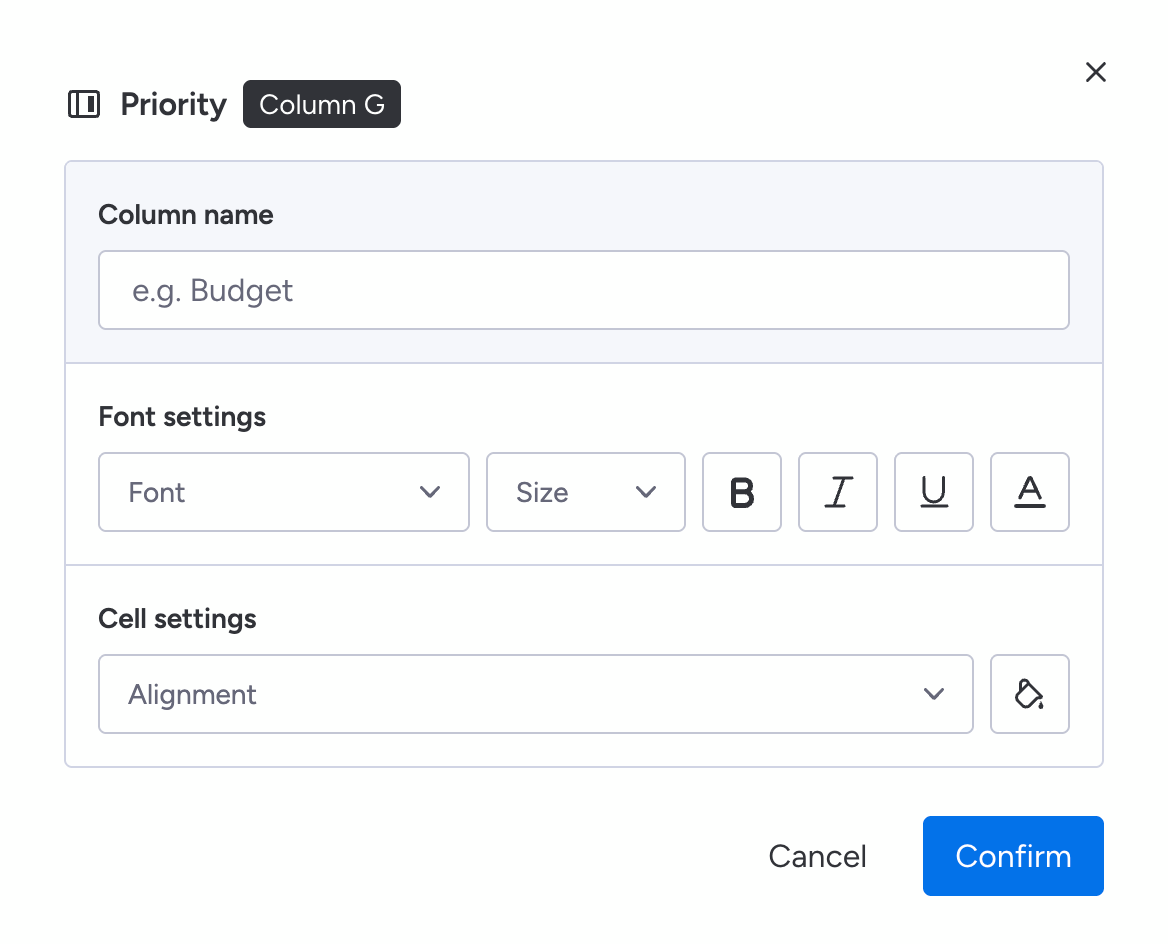
How to access column settings
- Click the
Column A...Column Zbutton - Adjust all the settings to your needs
- Click the
Confirmbutton to save
Available column settings
- Column name
Overwrite the original board column name with a custom one. - Transformers (column specific)
Convert the value of a numbers column to plain text. - Font settings
Change the columns font, font size and adjust its appearance. - Cell settings
Align the column value as needed and apply a background color.