



Build custom, structured Excel reports from monday.com board data and send them automatically to the right people on schedule.





Dynamic boards
Use dynamic boards in Spreadsheet Gorilla templates
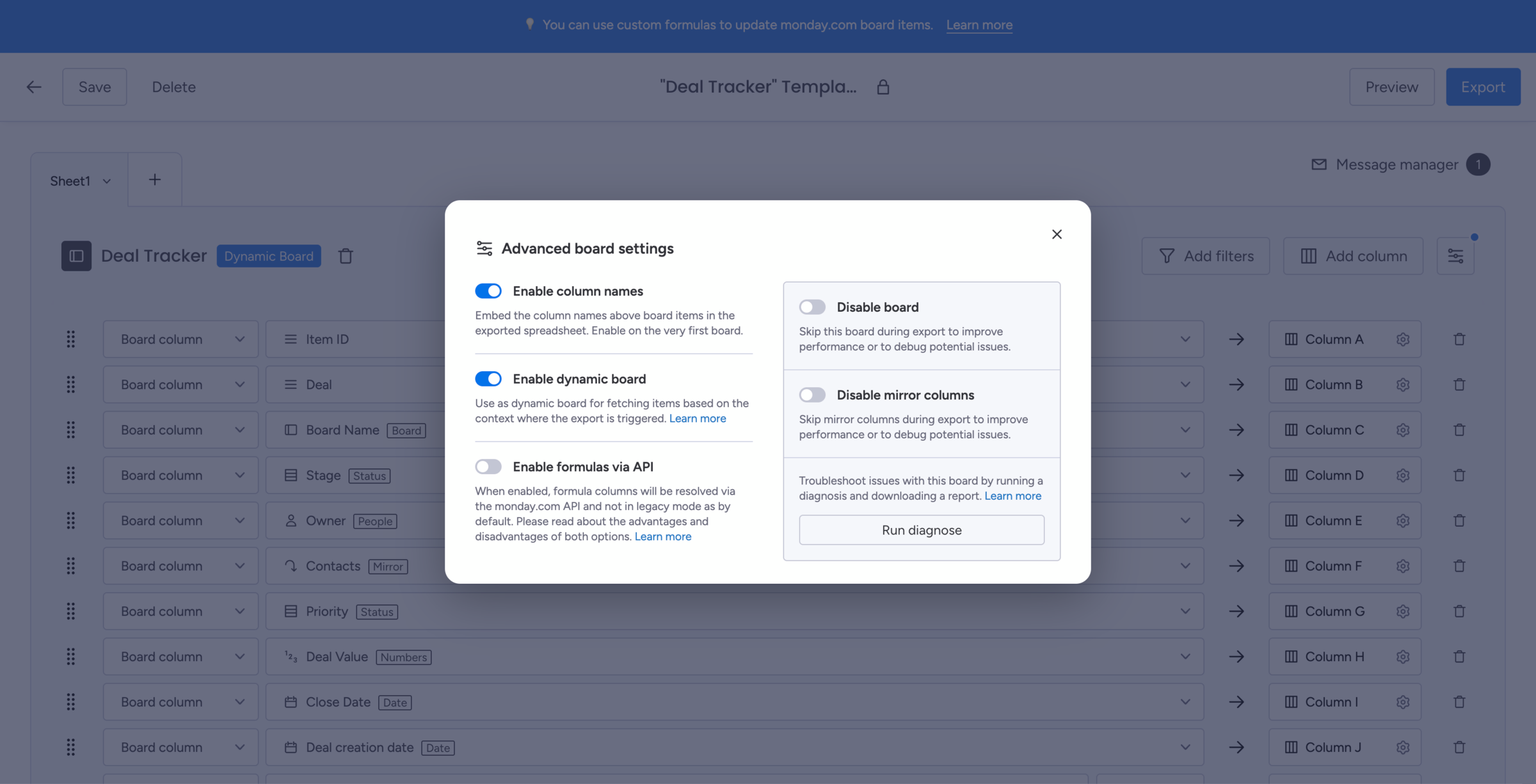
Dynamic boards let one template adapt to different but similarly structured boards, making recurring Excel exports from monday.com easier to reuse across board contexts.
Example
Use case for leveraging dynamic boards
Imagine your team uses multiple monday.com boards for project management, creating a new board for each project. While these boards contain different data, they share the same column structure. You need to send weekly Excel exports from monday.com as structured reports to each customer via email with automations. Previously, you had to create a new spreadsheet template for each board and configure it individually, such as removing specific columns, adding filters, or building custom formula columns.
With dynamic boards, you can configure a "Master Template" once and apply the dynamic board option to your main board. Now, you can easily edit the template in the board view of each new project board and only need to recreate the automations in its automation center. All preconfigured settings and message templates remain intact, while the board data and content updates dynamically.
-
All settings are preserved, except for automations because they are bound to each different board.
-
Can I use the option where boards have different structures?
We do not recommend to use it in that case since it will result in errors.
-
Where do I activate the dynamic board option?
While having your spreadsheet template open, click the ··· button in your board configuration.
-
Can I apply the option to a board with subitems?
No, subitems are currently not yet supported.