



Build custom, structured Excel reports from monday.com board data and send them automatically to the right people on schedule.



How to create a self-service client portal with monday.com
Give clients one secure and dedicated place to find information, submit requests and manage their part of the workflow while your team keeps working in monday.com.

Table of contents
Use the navigation below to quickly jump to your desired section and learn more about each topic.
Clients often depend on your team for information and actions that are already part of the workflows you manage in monday.com. They ask for project updates, request the latest file, submit new work, provide missing information or confirm that a deliverable is approved. A self-service client portal gives them a secure place to handle many of these routine interactions themselves. Instead of relying on email whenever they need something, clients can access the relevant information and actions directly through their portal.
With Client Portal Builder for monday.com, the underlying projects, requests, documents and client records can remain in monday.com. The portal adds a client facing layer around those workflows so clients can find information, provide input and take action without accessing your internal workspace. Self-service does not mean removing communication with your clients. It means making routine information and interactions available when clients need them, while your team remains available for conversations that actually require its involvement.
Client Portal Builder creates a dedicated client facing layer around the boards and workflows you already manage in monday.com. Give clients secure access to selected information and actions without rebuilding the underlying workflow somewhere else.
Self-service
What does client self-service mean in monday.com?
Client self-service goes beyond simply publishing information in a portal. A useful self-service client portal gives clients several ways to interact with the workflows you already manage in monday.com:
- Find: Clients can access information that already exists, such as projects, statuses, dates, documents, deliverables and account information.
- Provide: Clients can give your team something it needs, such as a new request, file, date or additional information.
- Act: Clients can complete a step in the workflow, such as approving work, requesting changes or updating something they are responsible for.
- Communicate: Clients can ask a question or provide feedback when self-service alone is not enough.
The portal becomes the client facing entry point for these interactions while your team continues managing the corresponding projects, requests, files and client records in monday.com.
Conceptually it works like this: Team manages workflow in monday.com → client accesses relevant information through the portal → client finds, provides or acts → changes feed back into the monday.com workflow. This is what turns a client portal from a place that only displays information into a self-service experience.
Information
Let clients find information without asking your team
One of the simplest forms of client self-service is giving clients direct access to information your team already manages. A client might want to check the current project status, find the latest report, see when the next milestone is due or confirm whether a requested document has been received. If that information already exists in monday.com, it can also become available through the client portal.
The same approach works for billing questions. See how to share invoices and payment status in a monday.com client portal, so clients can find invoice PDFs and check the status your team maintains.
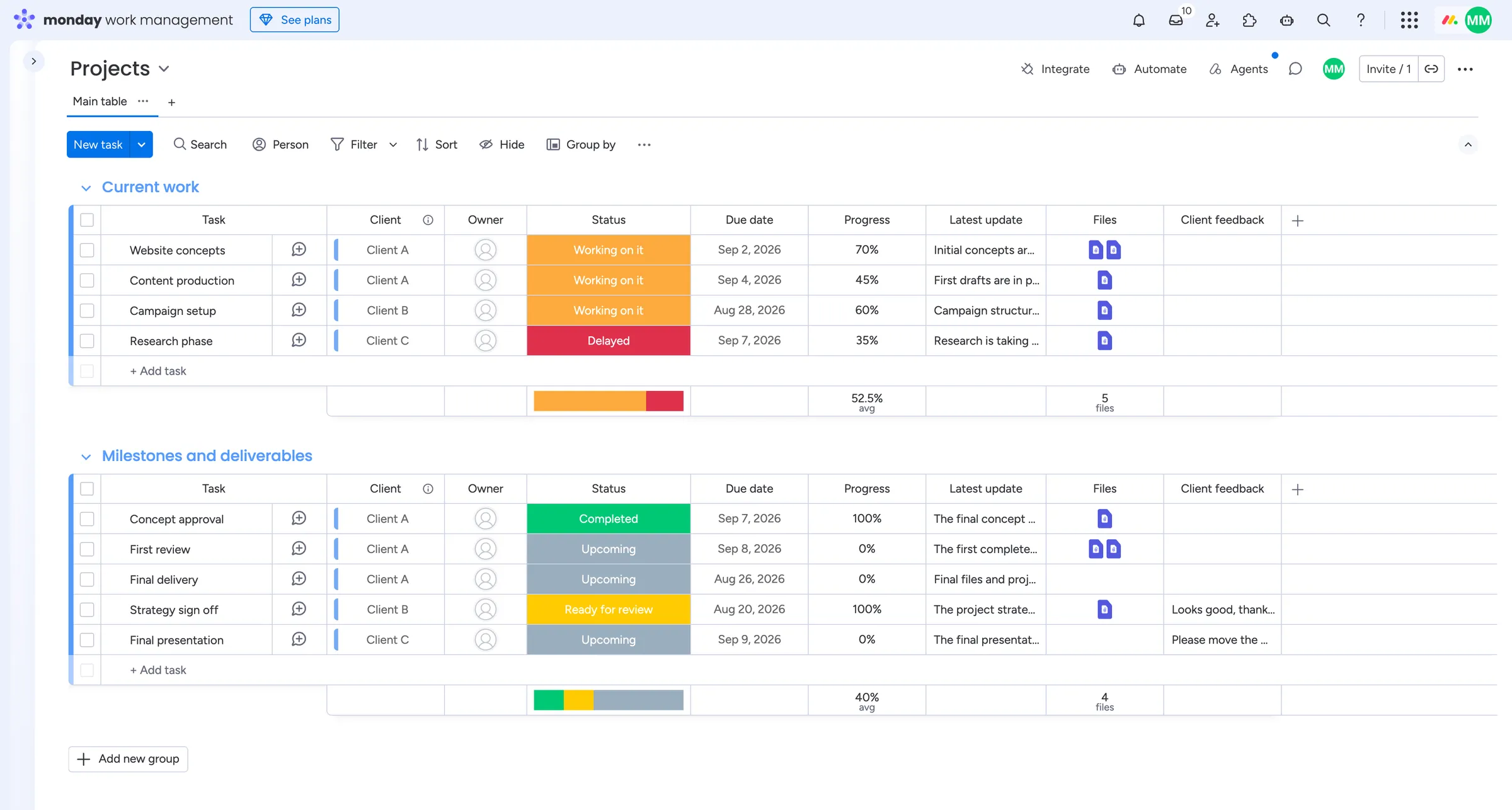
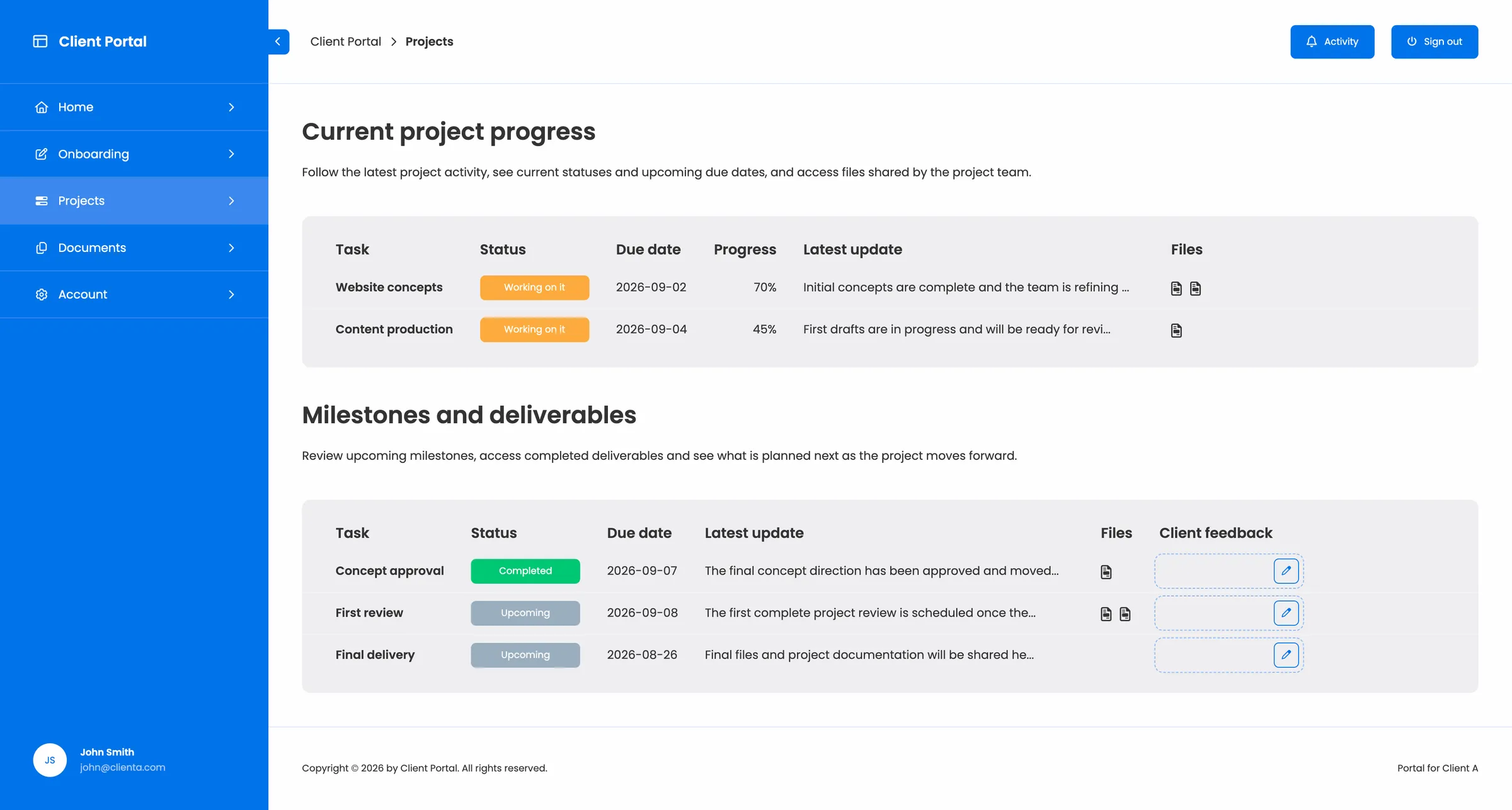
For example, your internal Projects Board could contain columns such as Project, Client, Owner, Priority, Status, Due date and Files. Your team may need all of those columns internally. The client may only need Project, Status, Due date and Files. The underlying item remains the same monday.com item your team works with. The portal simply gives the client access to the information that is relevant to them.
This can reduce routine status requests because clients have one place to return whenever they want to check progress or access the latest information. For a deeper look at organizing existing board data for clients, see how to use monday.com boards in a client portal.
Secure access
Give each client access to their own information
Self-service only works if clients can easily find what belongs to them without seeing information intended for somebody else. One central portal can serve many clients while showing a different experience to each person who signs in. Your internal team can continue working with shared operational boards containing information for many clients.
The portal uses the relationship with the signed-in client to determine which items and information should be shown. The experience can also change according to the client's type or lifecycle stage. An onboarding client might see getting started information and required documents, while an active client sees current projects and ongoing services.
This gives clients self-service access without requiring a separate portal build for every customer. See how to create personalized views in a monday.com client portal for the different ways client-specific items, pages and content can be created from monday.com.
Requests
Let clients submit new requests themselves
Self-service is not limited to finding existing information. Clients often need to start something new, for example:
- a new project request
- a change request
- a service request
- an onboarding submission
- a new brief
- structured feedback
Instead of emailing your team and waiting for somebody to enter the request into monday.com, the client can submit it through a form in their portal. A monday.com WorkForm can create a new item directly on the appropriate board. The workflow becomes: Client opens portal → submits request → new monday.com item is created → existing monday.com workflow takes over
Your team receives structured information in the place where it already manages the work, while the client gets one familiar place to start the process. For the complete workflow, see how to collect client requests with forms in a monday.com client portal. If clients should also follow what happens after submission, see how to build a client request portal for submitting and tracking requests.
Updates
Let clients update work that already exists
Not every interaction should create a new request. Sometimes the relevant monday.com item already exists and the client simply needs to provide or change part of the information. For example, a client might need to:
- provide a missing date
- add more details
- update a status
- upload a required file
- correct existing information
Creating another form submission for each change can result in duplicate records that your team then needs to reconcile. Instead, selected columns from the existing item can be made editable through the portal.
The distinction is simple: For new work → create a new item, for existing work → update the existing item. For example, a project request already exists → client opens it in the portal → uploads the missing file → existing monday.com item is updated → team continues working with the same record
This keeps client self-service connected to the item your internal process already depends on. See how to let clients update monday.com items through a client portal for a deeper look at this pattern.
Documents
Let clients access and provide files
File exchange is another common self-service task. Clients may need to download a report, access a completed deliverable, upload a signed agreement or provide a document your team is waiting for. A client portal can give those files a consistent place in the workflow, for example:
Documents required
Proof of identity → Missing
Signed agreement → Received
Completed documents
Final report → Available
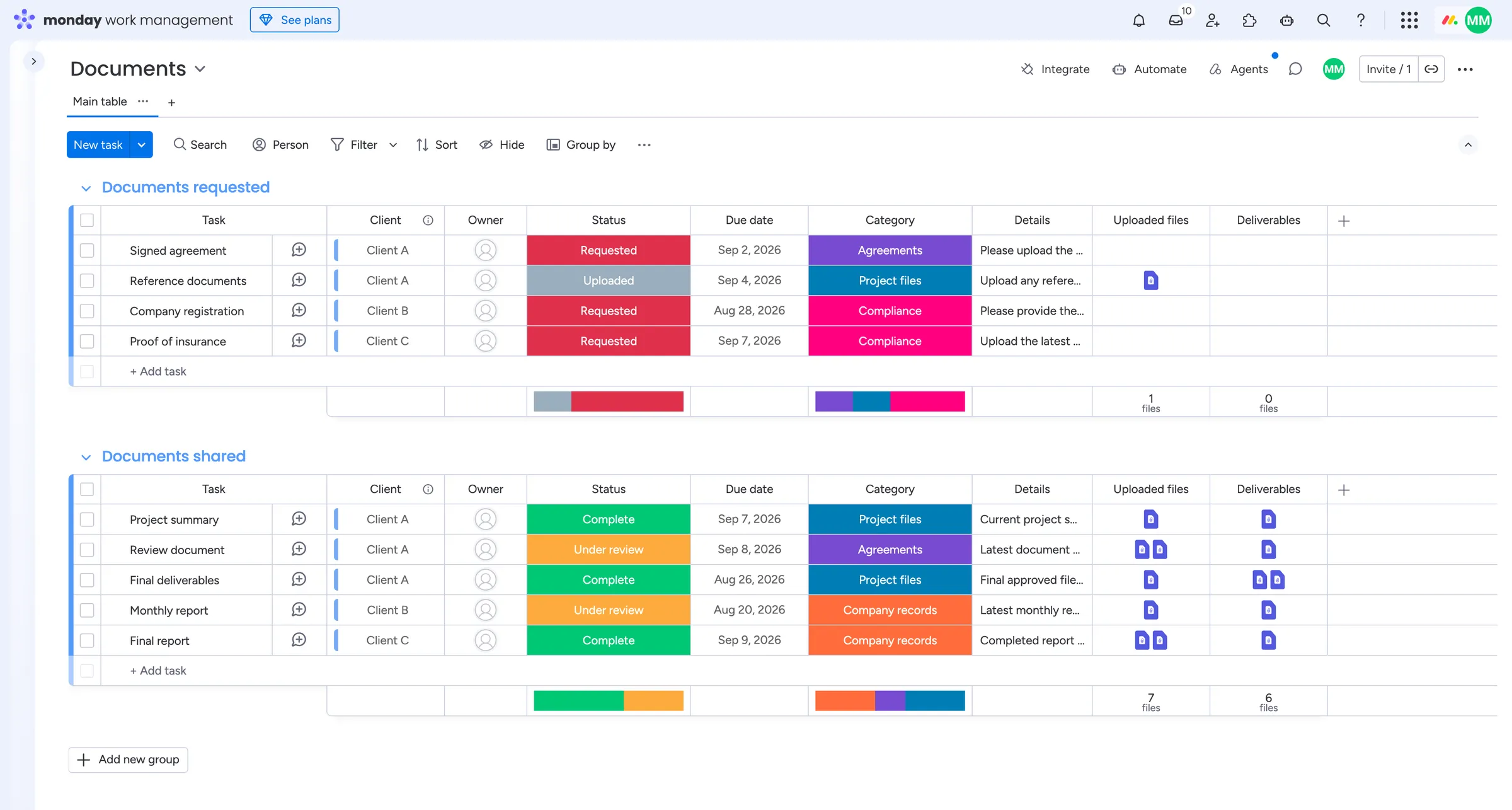
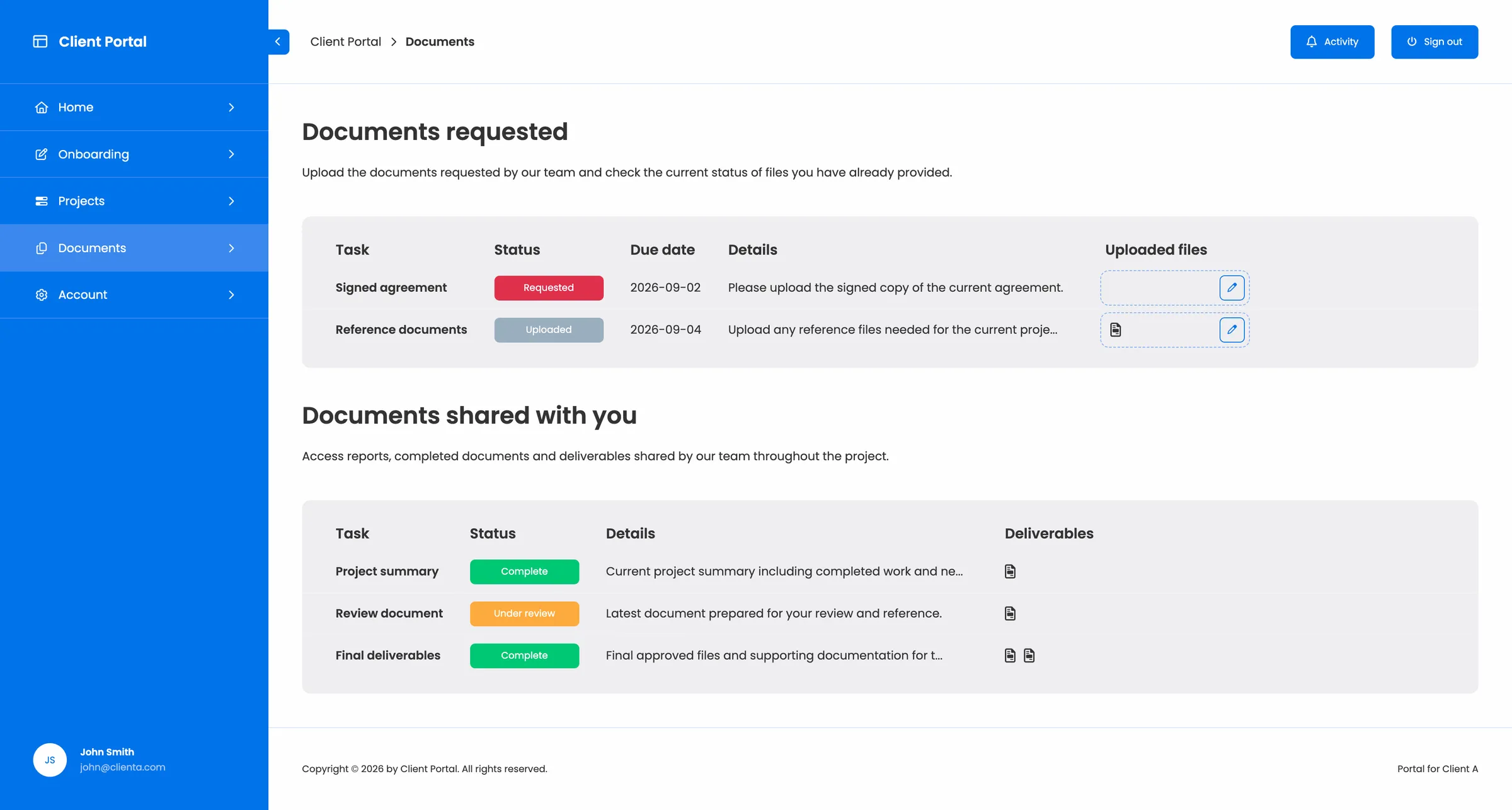
The client can immediately see what is still required and what is already available. Clients can access files attached to relevant monday.com items, preview supported files and upload documents where editing is enabled. Your team continues managing those files through the monday.com items behind the portal rather than maintaining a separate file workflow. For example, immigration agencies can use the same approach to give applicants one place to follow case progress, provide required documents and complete next steps.
Some documents are useful to every client. A shared client resource library gives guides, templates and policies a central home alongside each client's own files.
This can be particularly useful for onboarding, inspections, consulting engagements, applications and other processes where documents move between the client and your team over time. If documents are the primary workflow, see our client document portal for monday.com. For longer processes organized around stages, requirements and next steps, see how to create a client case status portal with monday.com.
Actions
Let clients complete the next step themselves
Sometimes self-service means more than providing information. The client needs to make a decision that moves the process forward. Consider a deliverable that is ready for review. The client could open the portal, preview the file and choose from an Action button: Approve or Request changes. That decision can trigger the corresponding monday.com workflow, for example:
Deliverable becomes Ready for client review → client reviews it in the portal → client selects Approve → monday.com Status changes to Approved → internal workflow continues
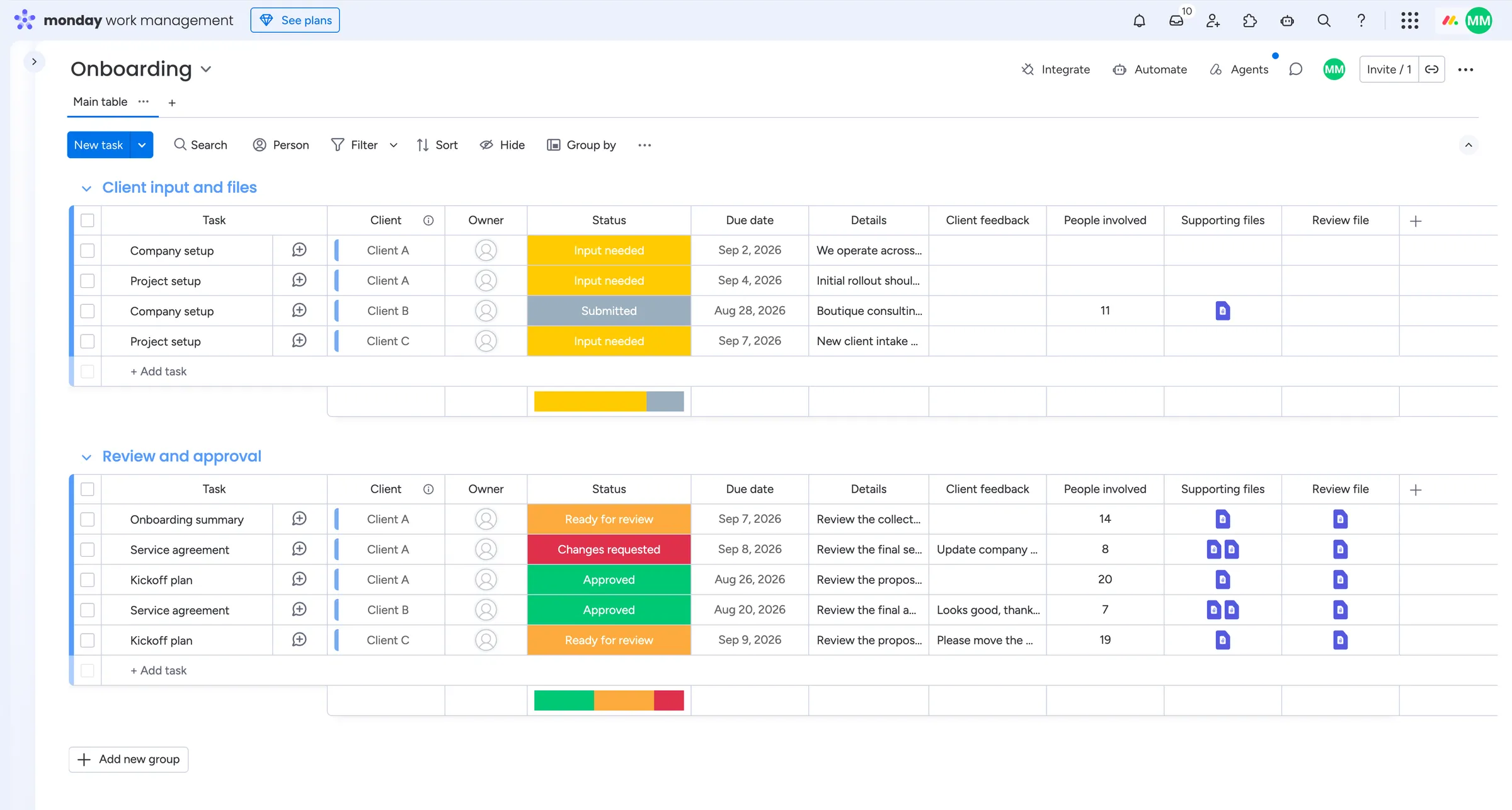
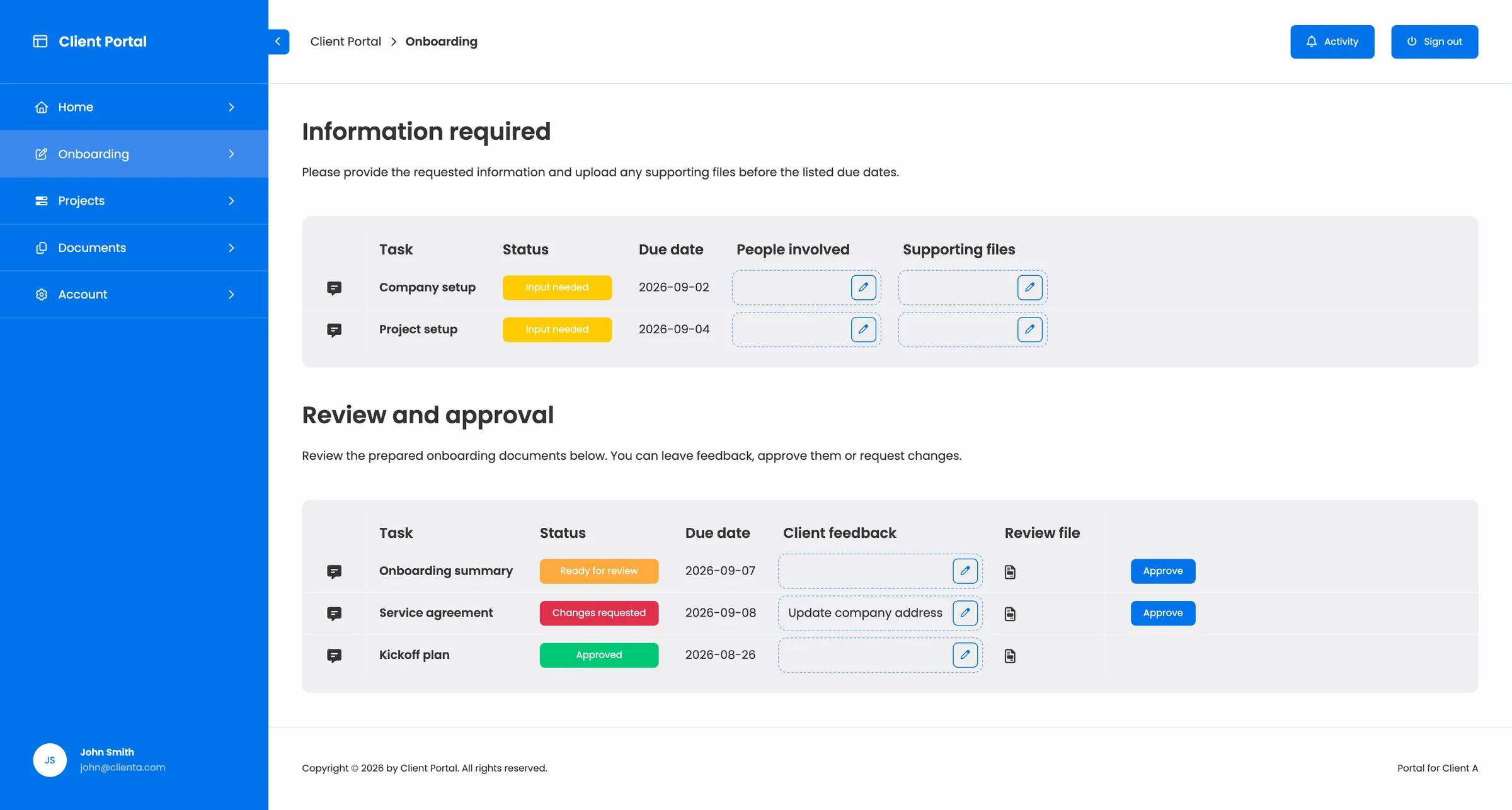
The client does not need to email their approval and wait for somebody to update monday.com manually. The decision itself becomes part of the workflow.
The same approach works when changes are required. The client can request revisions and provide contextual feedback while your team continues working with the same monday.com item. For the complete pattern, see how to manage client approvals in a monday.com client portal.
Communication
Keep communication available when self-service is not enough
A self-service client portal should reduce unnecessary communication, not eliminate useful communication. Clients will still have questions. The difference is that routine information is already available, while conversations can happen in the right context when they are actually needed. For example, checking the current project status may not require contacting your team at all. Discussing a change to the project scope probably does.
Client Portal Builder supports different types of communication depending on the context. Item comments can keep project-specific feedback attached to the relevant monday.com item. The Client Inbox can handle more general messages that belong to the overall client relationship rather than one project or deliverable. Email notifications can then tell clients when something new requires their attention and bring them back to the portal. This creates a useful balance:
- Routine information → self-service
- Contextual feedback → item comments
- General client question → Client Inbox
For a deeper look at structuring these conversations, see how to manage client communication in a monday.com client portal.
Automation
Automate what happens after clients take action
Self-service becomes more useful when a client action does not simply create another manual task for your team. Imagine a client submits a new request and the item is created in monday.com. An automation assigns the owner and the Status changes. The client can later return to the portal and follow the progress of that same request.
Or consider onboarding: Client reaches onboarding stage → portal access is created → invitation is sent → client signs in → monday.com records the portal activity → onboarding content becomes available. The client completes parts of the process independently while monday.com automations handle the surrounding internal steps.
Client Portal Builder provides triggers and actions that can be combined with monday.com's Workflow Builder and board automations for tasks such as client access, portal login events, comments, dedicated board assignments and client information. The broader pattern is: Client takes action → monday.com workflow reacts → next step happens
This helps prevent self-service from ending with somebody on your team having to manually move every process forward. See how to automate client portal workflows in monday.com for a complete client lifecycle example.
Service portals
Client self-service and the monday service Customer Portal
monday.com also offers a native Customer Portal as part of monday service. It is particularly focused on service and support self-service. Customers can access resources, submit requests and follow tickets through a dedicated portal. That is a natural fit when the client relationship primarily looks like: Find help → submit service request → track ticket → continue the support conversation
A broader self-service monday.com client portal solves a somewhat different problem when the ongoing relationship includes projects, documents, deliverables, account information and other monday.com workflows. That experience might look more like: Check project progress → access documents → submit another request → provide missing information → approve a deliverable → communicate with the team
The important question is therefore not simply whether you need a portal, but what kind of external relationship you want that portal to support. For a broader look at monday.com's native and Marketplace portal options, see Does monday.com have a Client Portal.
Example
Manage an ongoing client relationship through one portal
Imagine a consulting company that manages its clients and delivery workflows in monday.com. Client A signs into their portal.
Find
On the Dashboard, Client A can see:
- Active project: Operations review
- Status: In progress
- Next milestone: October 12
Client A does not need to contact the account manager for another project update.
Access
On the Documents page, Client A sees:
- Signed agreement: Available
- September report: Available
- Workshop brief: Required
The latest client documents are available in one place.
Provide
Client A uploads the missing workshop brief to the relevant item. The file is added to the corresponding monday.com item.
Request
Client A needs another consulting workshop. Instead of emailing the account manager, they open the Requests page and submit a new request. A new item is created on the team's Requests Board.
Track
A few days later, Client A returns to the portal. The new request now shows Scheduled and the client can see that the process has moved forward without asking the team for an update.
Act
A new report becomes ready for review. Client A opens it and selects Approve. The monday.com workflow continues from the approval.
Communicate
Client A then has a general question about the next contract period. That question does not belong to the project or report, so the client sends a message through the Client Inbox.
Throughout the relationship, Client A has one place to find information and complete routine interactions. The consulting team continues managing the underlying projects, requests, documents, statuses and client relationship in monday.com.
Summary
Give clients self-service without creating another system
A useful self-service client portal does not need to replace the workflows your team already manages. It should make the client facing parts of those workflows easier to access, so clients can:
- Find: Projects, statuses, files and account information.
- Provide: Requests, documents and updates.
- Act: Approve work and complete workflow steps.
- Communicate: When a conversation is actually needed.
The underlying work can remain in monday.com. That creates one connected relationship: Your team manages the workflow in monday.com → clients access the parts relevant to them → clients handle routine interactions themselves → their actions continue the existing monday.com workflow
Instead of creating another client system beside monday.com, the portal becomes the self-service layer around the work you already manage there.
Build a self-service client portal
Client Portal Builder for monday.com lets you bring projects, requests, files, approvals, communication and other client facing interactions together in one secure portal while your team continues working in monday.com.
Interested in a product demo?
Let's learn about your requirements, answer questions, and
review ways how we can help you and your organization with
our monday.com apps and solutions.
