



Build custom, structured Excel reports from monday.com board data and send them automatically to the right people on schedule.





Embedding WorkForms
Embed monday.com WorkForms in your client portal
Use Client Portal Builder to embed one WorkForm for all clients, different WorkForms for each client or other websites that support embedding.
Shared WorkForm
Embed one WorkForm for all clients
- Open your WorkForm board view in monday.com and copy the form link.
- Open Client Portal Builder and go to the portal page where you want the form to appear.
- Create an Embed section on that page.
- Paste the WorkForm link into the URL field and adjust the height if needed.
- Publish your portal. All clients will see the same embedded WorkForm.

Client WorkForms
Embed different WorkForms per client
- Add a Text column to your Clients Board and name it
Formfor example. - For each client item, paste that client’s WorkForm link into the
Formcolumn. - In Client Portal Builder, open the portal page where you want the form to appear.
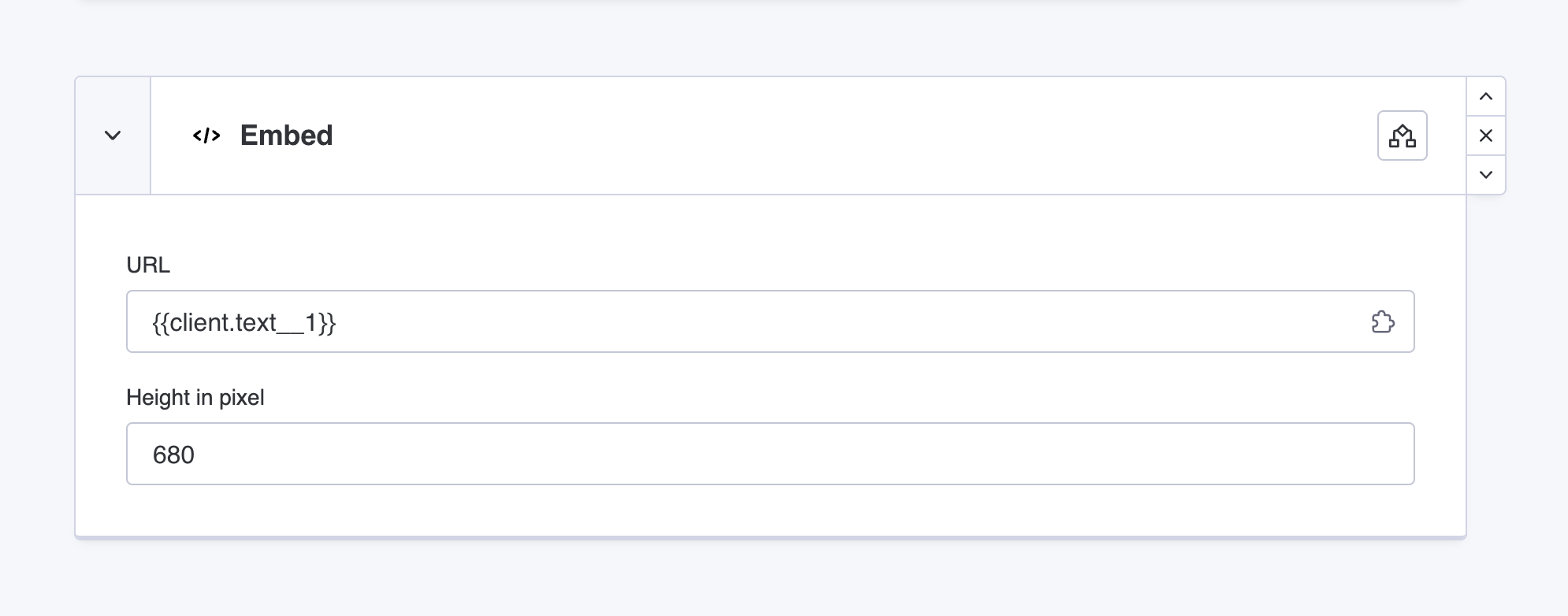
- Create an Embed section.
- Click the Placeholders button, find the
Formcolumn placeholder and click+. - Publish your portal. Each client will see their own embedded WorkForm.
Other websites
Embed an external website
- Copy the URL of the page you want to embed.
- In Client Portal Builder, open the portal page where you want it to appear.
- Create an Embed section and paste the URL into the URL field.
- Publish your portal.
Did you know?
Some websites block embedding for security reasons. If a page does not load in the portal, it likely does not allow embedding. Embedding external websites per client does work like embedding a WorkForm per client with placeholders.