



Build custom, structured Excel reports from monday.com board data and send them automatically to the right people on schedule.





Theme
Customize your client portal theme
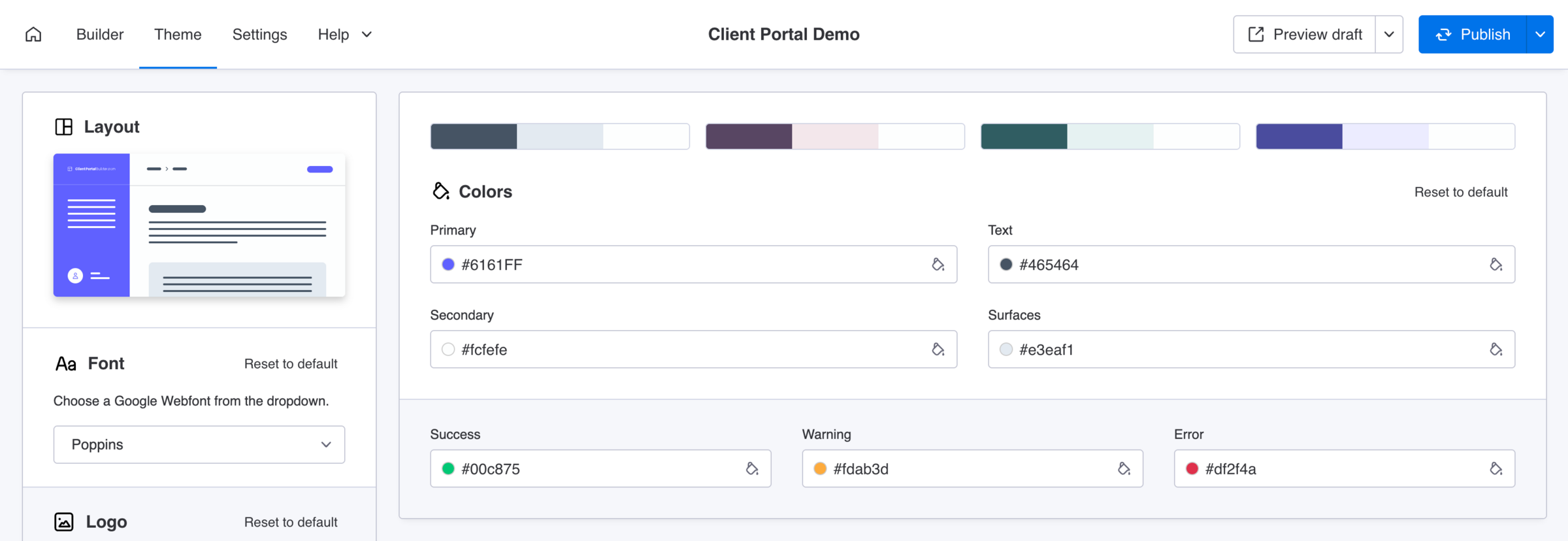
Use Theme settings to customize the colors, fonts and logo of your client portal for monday.com so the experience matches your company brand.
Layout
Preview your selected colors
Get an idea on how your client portal will look like, but more importantly how your selected colors match to each other. You can always click Preview draft in the app header to check your current working draft in a live preview window.
Font
Choose a Google Webfont
The app supports a few Google Webfonts to choose from. When opening the dropdown, you will get a quick preview of all available fonts. Currently supported fonts include:
Did you know?
Feel free to contact us, if you want to see a specific Google Webfont supported with the Client Portal Builder app. Third party or custom webfonts are not supported at the moment.
Logo
Upload your company logo
You can upload your own logo which will be stored in your monday.com account storage. The uploaded file must be below 100 KB and we do recommend to use a transparent PNG or SVG. You may ask your design team or agency to provide a matching file format.
- Image
100 KB maximumOptional - JPG, JPEG, PNG, APNG, GIF, SVG, WebP, AVIF
Did you know?
You will achieve the best results with a light and single colored, vector based SVG.
Colors
Make it match your brand
The theme comes with a few color presets which perfectly match and help you getting started. You can adjust them anytime to your requirements, but keep in mind that all colors share certain dependencies by design. The adjustable colors include:
Theme colors
These colors define the overall look of your client portal.
- Primary
Hex codeMandatory - Secondary
Hex codeMandatory - Text
Hex codeMandatory - Surfaces
Hex codeMandatory
Semantic colors
These colors communicate system states and feedback.
- Success
Hex codeMandatory - Warning
Hex codeMandatory - Error
Hex codeMandatory
Did you know?
Customize the colors to fit your needs, but ensure sufficient contrast and readability. Adjust semantic colors only by using shades of their base color so their meaning remains consistent.
Collapse Sidebar
Hide the navigation panel by default
Enable this option to hide the sidebar navigation panel by default when a client enters the client portal. This can be useful, when you don't have many portal pages, or you need the extra space when displaying large datasets.
- Enable
Optional
Did you know?
If all portal pages have an assigned page icon, the collapsed sidebar will display all page icons without their page names. This ensures all pages are still accessible in collapsed mode.