



Build custom, structured Excel reports from monday.com board data and send them automatically to the right people on schedule.





Item details
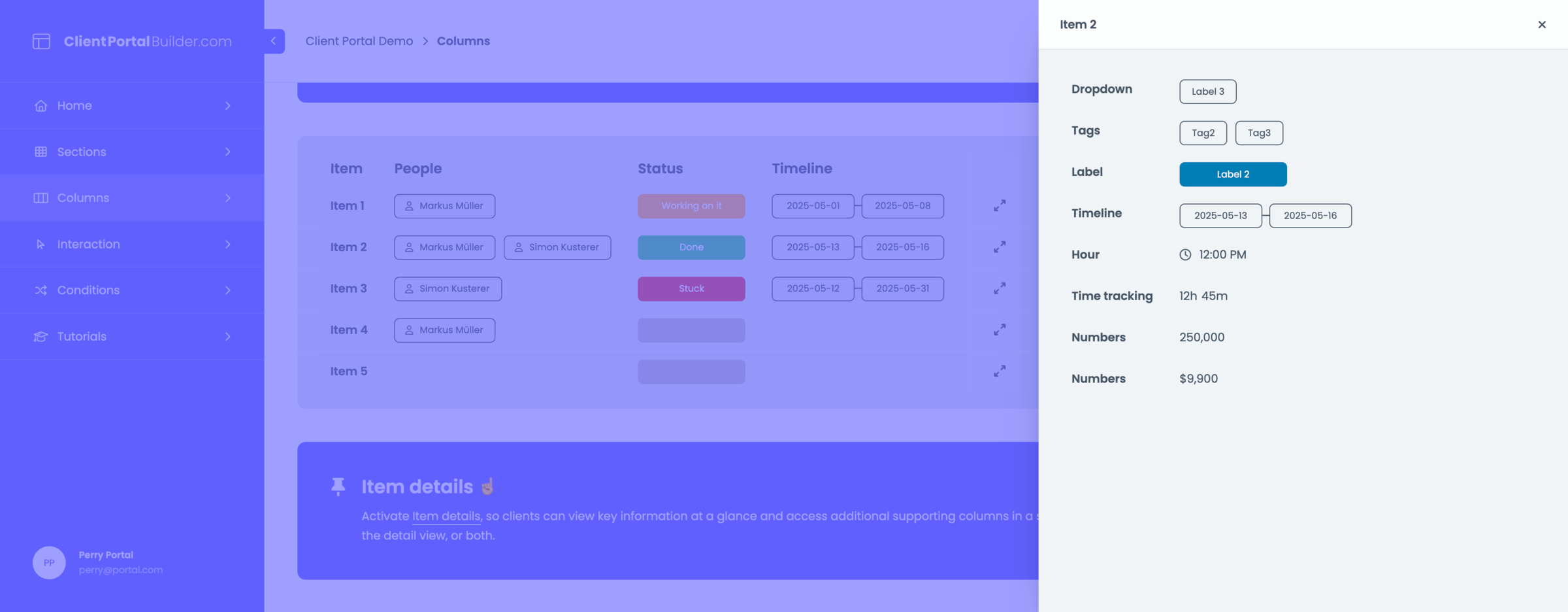
Show additional board item details to clients
Enable item details in your monday.com client portal so clients can scan key information and open additional read only columns only when needed.
Overview
What item details do
Item details allow you to keep your board table and grid sections clean without exposing all columns at once. Clients can quickly scan key information and open item details to view additional columns when needed. This makes item details especially useful for:
- Table and Grid sections with many columns
- Keeping board sections clean and easy to scan
- Avoiding excessive scrolling to find information
- Organizing columns by primary and secondary relevance
Did you know?
With item details enabled, you can control where each column is visible. Show it in the main section, the item details panel, or both. Columns displayed in the detail panel are read-only.
Setup
Enable item details
To allow clients to access item details:
- Open the Builder tab in your Client Portal Builder board view.
- Navigate to the board section where you want to enable item details.
- Below your column settings, toggle Item details on.
- Each visible and supported column will now show an additional visibility button.
- Choose where each column should appear: in the section, the detail panel, or both.
- Publish your portal to make the feature accessible to clients.
Did you know?
You can use item details to structure workflows more effectively. For example, show key or editable columns in the main section, and move additional context or supporting read-only information to the detail panel.