



Build custom, structured Excel reports from monday.com board data and send them automatically to the right people on schedule.





Column settings
Customize monday.com columns in your client portal
Column settings control how monday.com values are labeled, formatted and displayed in your Client Portal without changing the underlying board data.
Did you know?
With column settings, you can adapt your internal board structure to a clean, client-friendly presentation without changing your data inside monday.com.
Setup
How to access column settings
- Open the Client Portal Builder board view.
- Open the portal page with a Board Table, Grid section or Client Item.
- Find the column to customize and open its
⚙column settings. - Change the settings to your needs.
- Save them and publish your portal.
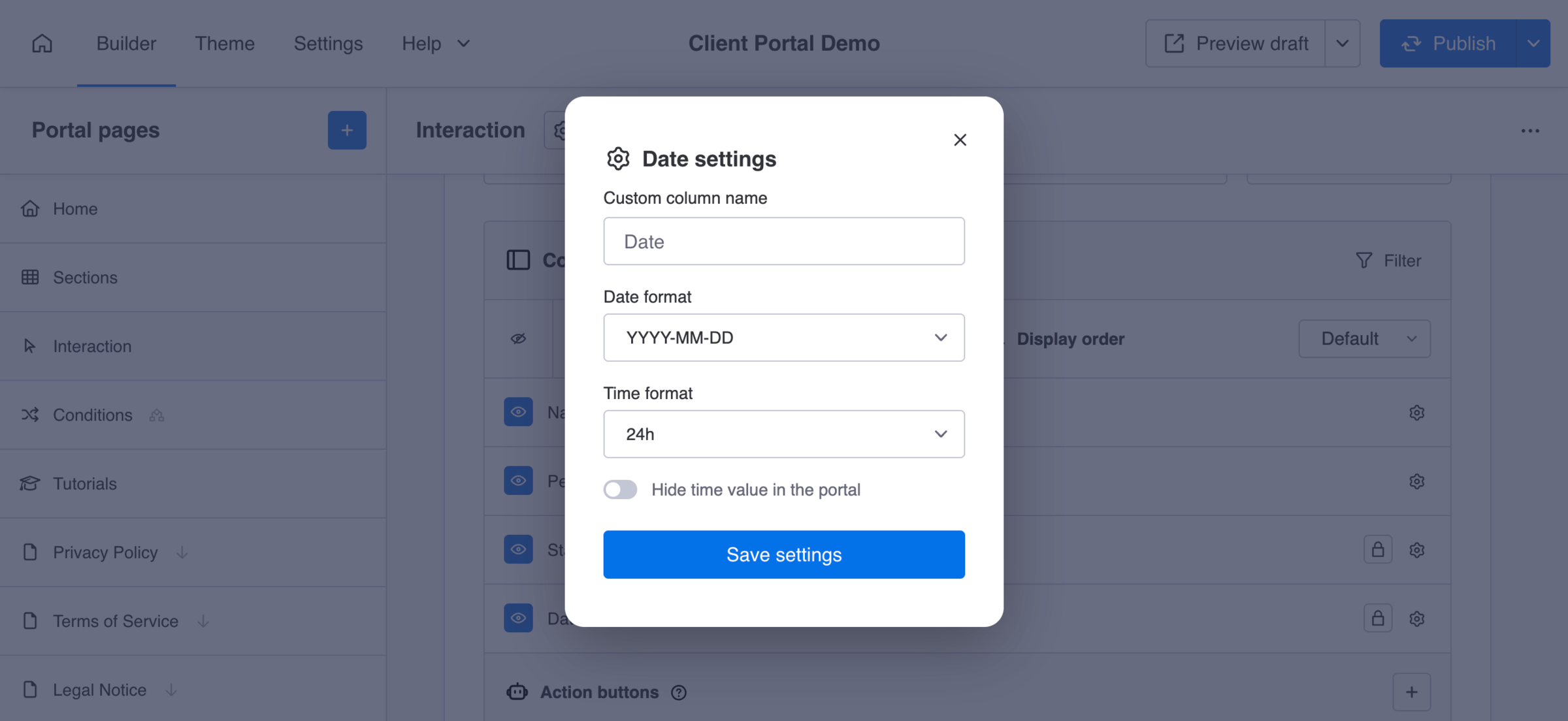
Examples
What you can control with column settings
Depending on the column type and section, you can configure how data is shown to your clients, for example:
- Display a custom column name that is easier for clients to understand
- Show or hide column names in Board Grid sections
- Format dates and times or numbers based on your regional preference
- Display a column summary value for number columns in Board Tables
- Enable file preview instead of forcing downloads
- Adjust how Mirror column values are displayed
These and more settings help you present your data in a way that matches your workflow and your clients’ expectations.
Did you know?
Each board section and column type may support slightly different display options depending on how the data is rendered. Learn more about all available column settings in supported sections.