



Build custom, structured Excel reports from monday.com board data and send them automatically to the right people on schedule.





Use cases
Advanced Client Portal Builder use cases
Explore less obvious patterns and creative ways to use Client Portal Builder features for more advanced portal layouts, workflows and client experiences.
Got a clever setup?
We are always looking for creative ways people use the Client Portal Builder. Share your use case, workaround, or pattern. We may include it here so others can learn from it. Let us know here.
Grid layouts
Create flexible grid layouts with teaser sections
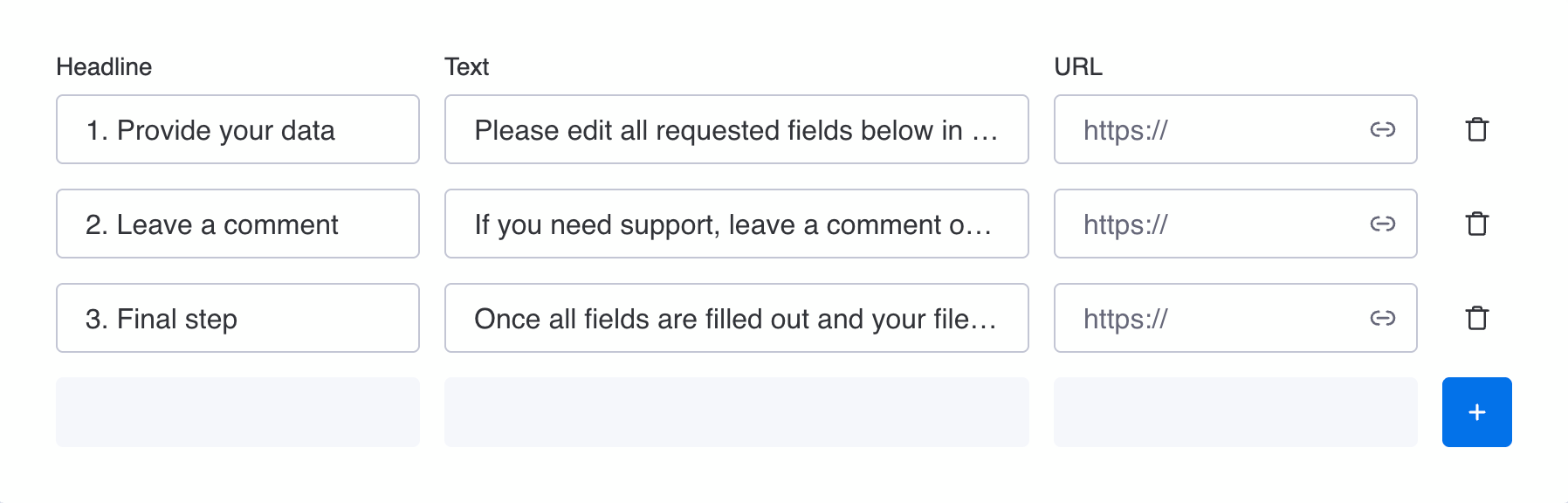
The Teaser section is typically used to guide clients from one portal page to another, or to open an external website. However, with a few adjustments, it can be used as a flexible grid system to create visual overviews to highlight generic key facts or to show instructional steps for example.

How to use
- Add a Teaser section to a page
- Define a Headline and Text per card
- Keep the URL empty to keep it unlinked
This effectively turns the section into a modular card layout.
Approval workflows
Create document approval workflows
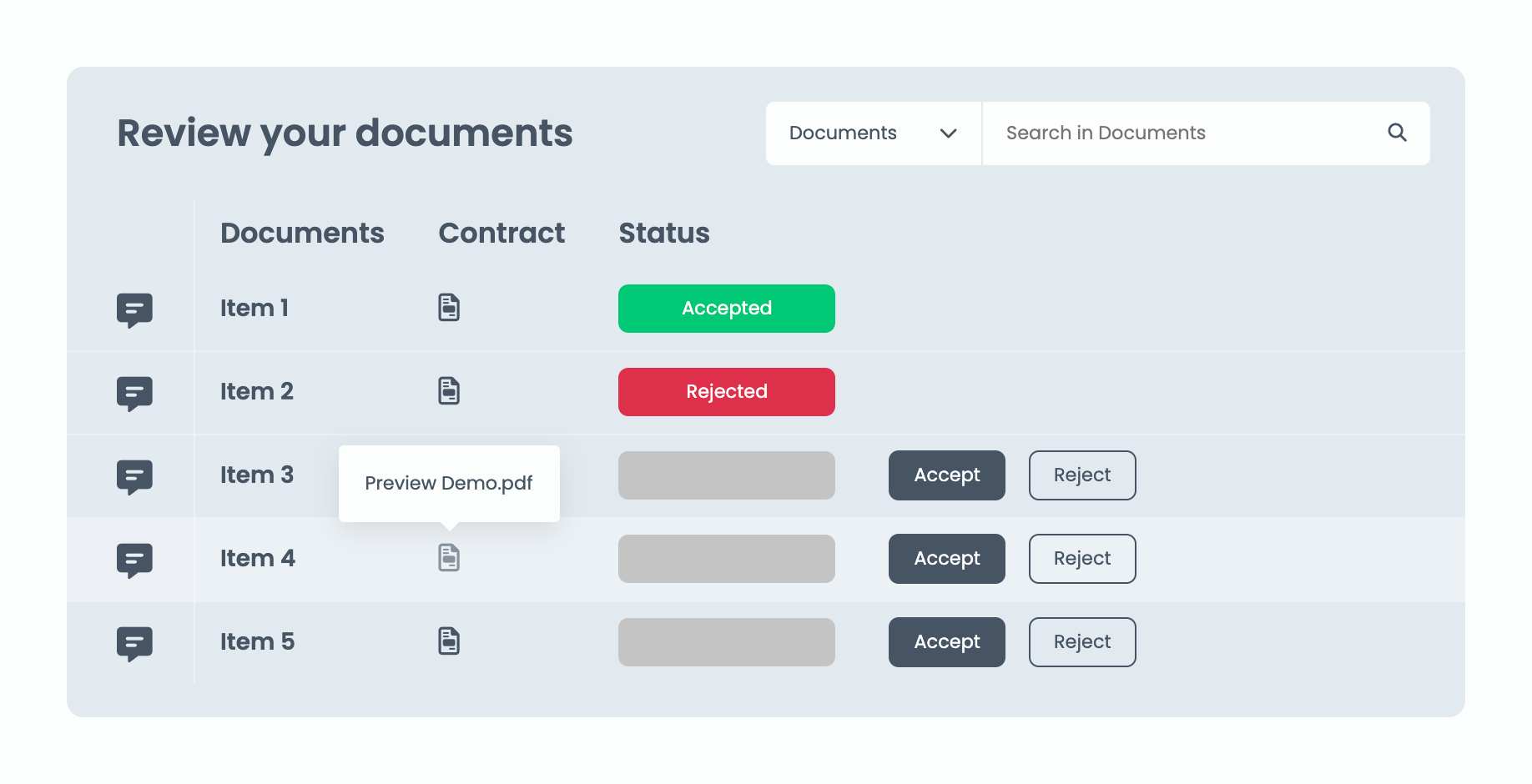
If your use case includes a workflow where clients have to review and approve certain documents or assets, you can apply that to your portal with a combination of certain features. While board-based sections, such as Board Tables and Board Grids, allow file viewing inside the portal, Action Buttons take care of the approval status within your monday.com workspace.
Looking for the complete workflow rather than the technical setup? See how to manage client approvals in a monday.com client portal.
How to use
- Add a Board Table or Board Grid section to a page
- Open the File column settings and enable File preview
- Add Action Buttons to the section and set up the automations
This effectively turns the section into an approval workflow.
Did you know?
You can show Action Buttons conditionally to the client, based on the current item status. Further you can define not to show certain items at all with Item filters, based on its item status. That way your clients are only faced with actionable data.
Content per client status
Display different pages and sections per client type or status
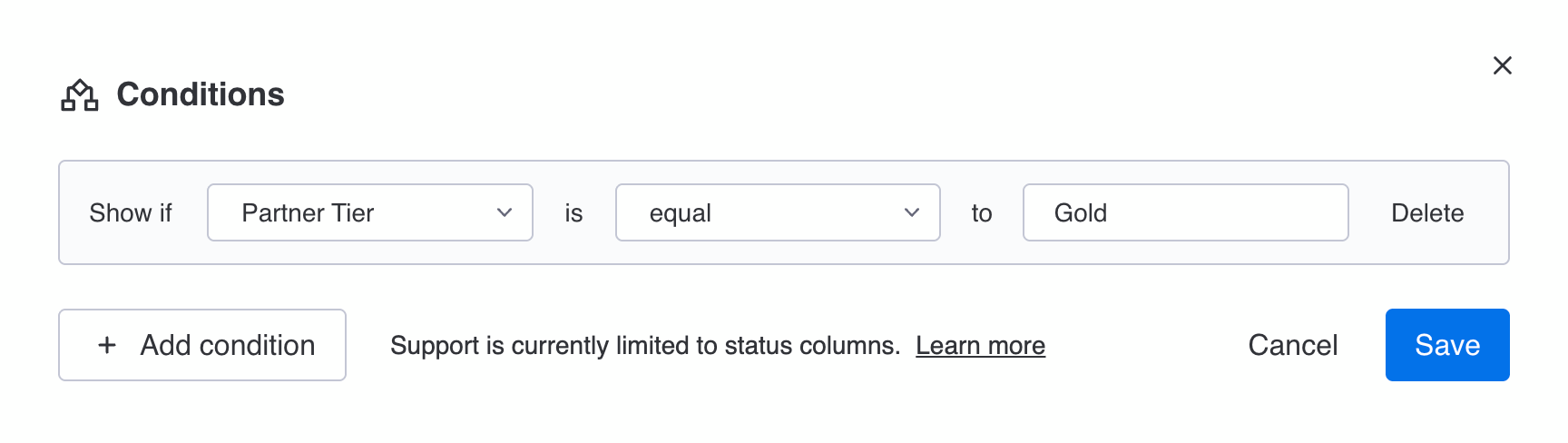
If your use case includes different types of clients or clients with a specific status, and you want to display certain content to one type, and certain content to others in the portal you can achieve that with using Page and Section conditions. Based on a status on each client item on the Clients Board, you can show portal pages and content sections conditionally. We have a user guide on how to Show content conditionally in your client portal.
Did you know?
Displaying content conditionally per client can be useful, when clients are in a certain project phase or onboarding stage. For example, you can build a whole client status-based workflow that displays only the content that is important within their current stage.
Personalized content
Create a personalized client experience
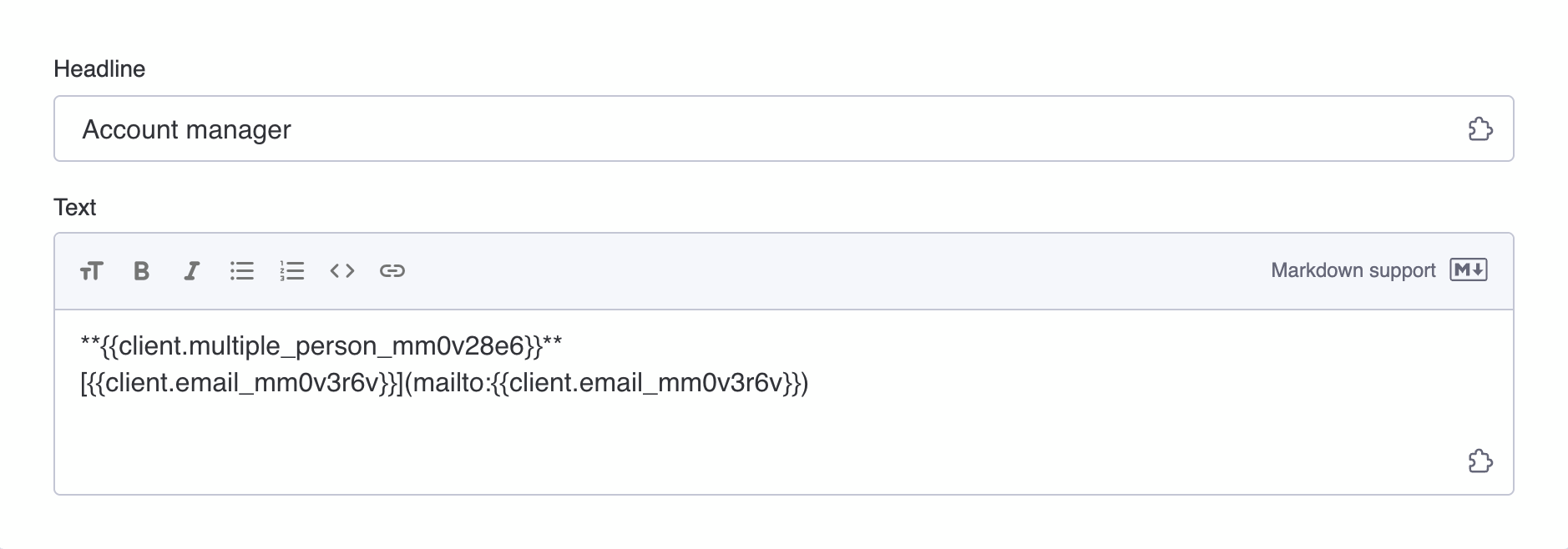
The Placeholders feature is powerful but often overseen. Besides welcoming signed in Login methods with their name, you can display individual WorkForms, websites and tools per client within an Embed section.
One more common use case includes displaying individual contact persons and details from your team per client in a Callout section for example. Simply add a Person, Phone or Email column to your Clients Board and use placeholders to display each client their designated contact person.

Custom column names
Overwrite and rename columns
All board-based sections, including the Board Grid, Board Table and Client Item support custom column names. This is specifically useful on the Item name, but also on any client-facing column that should differ from its internal monday.com board column name.
How to use
- Navigate to your board section
- Click
⚙to open the column settings - Overwrite the column name and save
- Publish your client portal
Did you know?
This is a way to control what's displayed to clients without touching your board column configuration within your monday.com workspace. All column names on the board stay as is.
Automating client portals
Automate your portal with monday.com
Client Portal Builder comes with app-related triggers and actions for the monday.com Workflow Builder that let you automate certain things in between your portal and your monday.com workspace to mitigate manual processes.
Automation examples
- Let clients self-register via a monday.com WorkForm
- Let clients reset their passwords via a Workform
- Send and get emails on new item comments
- Send onboarding emails with credentials to new clients
- Duplicate and assign a dedicated client board automatically
Learn more about how to Create workflows to automate everything in your client portal.
Did you know?
You can combine and mix Client Portal Builder related and platform native Triggers and Actions to your needs and use case.